

Creating your CloudPe account
Overview
CloudPe uses a progressive signup: you create your account with just an email address and a name, land in the dashboard straight away, and complete identity verification afterwards. Registration creates your user, your organization, its wallet, an owner membership, and a default project record in one step — but the organization stays pending until onboarding and verification are complete, so the dashboard is read-only at first.
Signup is generally available. This article covers account creation at Create your account, signing in at Welcome back, and confirming your billing country at Confirm your billing country.
Before you start
- An email address you can receive mail at. Registration is passwordless by default — CloudPe emails you a magic link, and setting a password is optional.
- A phone number. You verify it with a one-time code after your email is confirmed.
- Your account type. You choose individual or business during registration; the choice drives which verification path you follow afterwards.
- A released country. Signup is only offered for countries CloudPe has enabled. If your country is not enabled, registration is refused before any account record is created.
- An invitation link, if you are joining an existing organization. Start from the invitation rather than the plain signup form: an invited user joins the inviting organization instead of getting a personal organization and wallet, and is not pushed through owner verification if that organization is already active.
- Verification gates resource creation. Until onboarding and compliance are complete, creating instances, volumes, networks and other resources is blocked. Plan to finish verification before you need to provision anything.
Steps
1. Create the account
Open /signup. On the Create your account page, enter your name and email address, pick your account type, and select your country, then choose Create Account. If you already have an account, use Sign In instead.
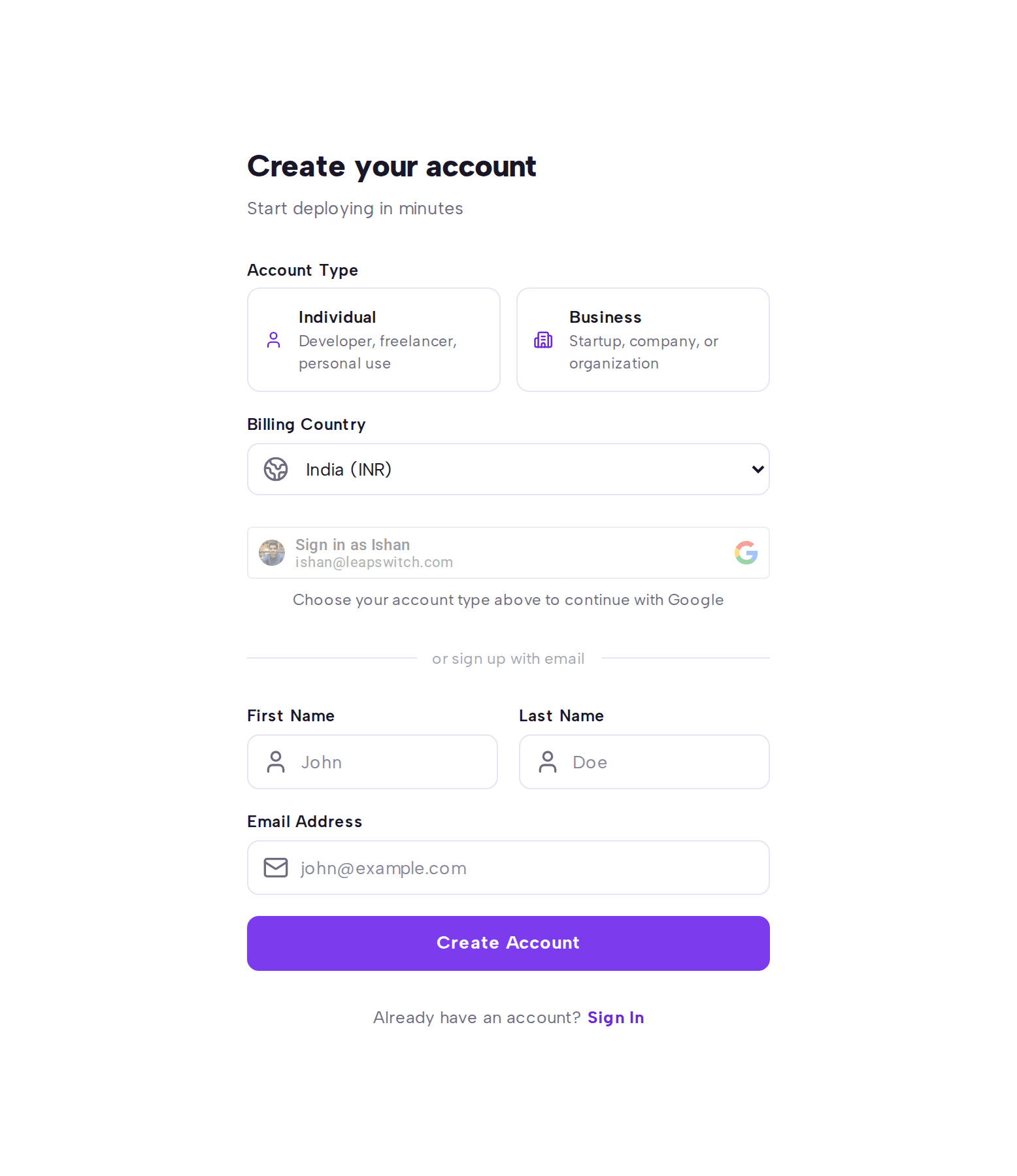
You can also start with Google. Social signup creates the same records as email signup; other providers are available for signing in to an already-linked account only.
2. Open the magic link in your email
CloudPe emails you a one-time sign-in link. Open it from the same browser you registered in. The link is single-use and expires after 1440 minutes; if it lapses, return to the signup or login page and request a new one.
3. Sign in when you return
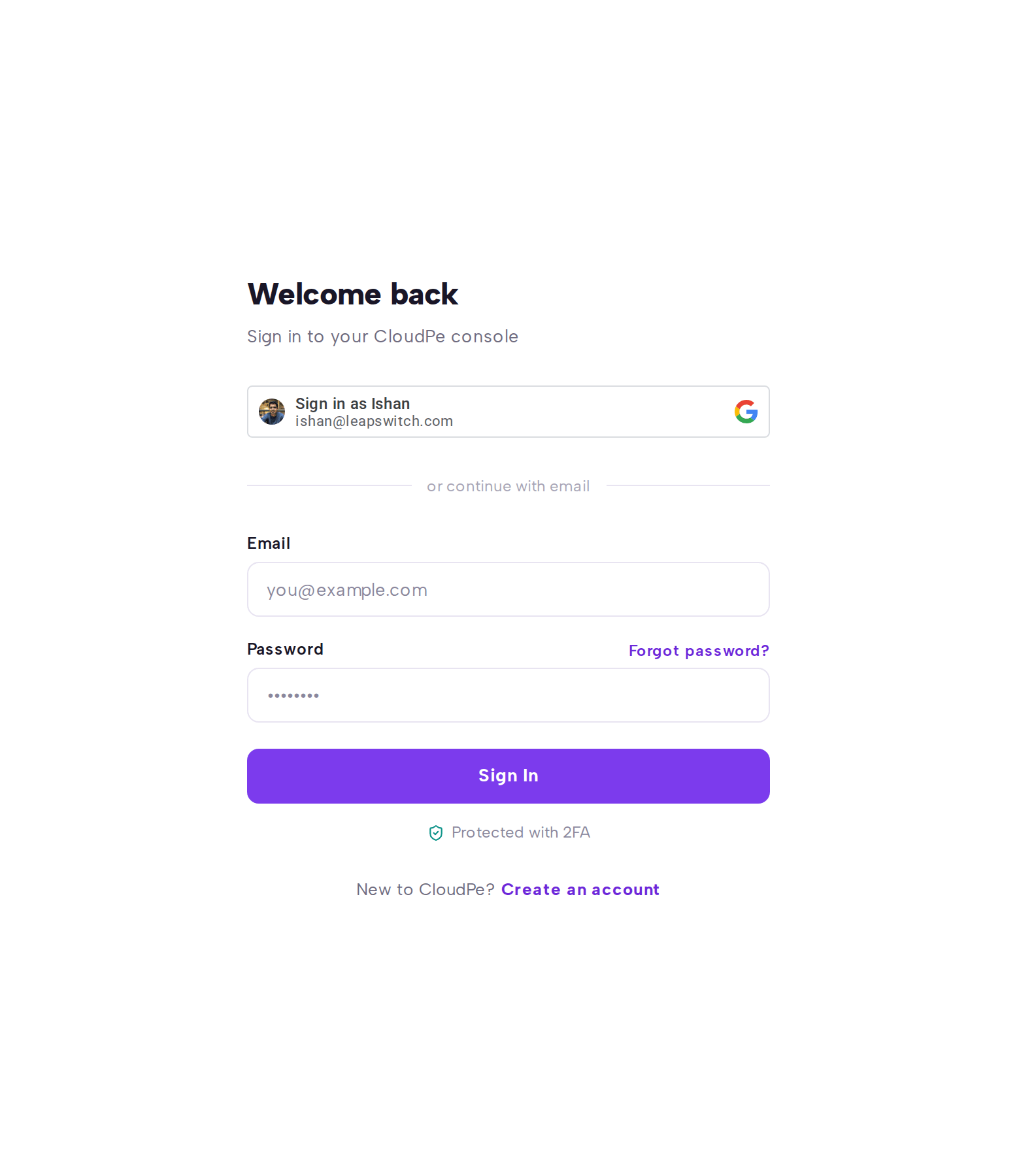
For later visits, go to /login. On Welcome back, enter your email and choose Sign In. If you set an optional password and forgot it, use Forgot password?. New users can reach registration from Create an account.
4. Verify your phone number
After your email is verified, CloudPe sends a one-time code by SMS to the number you provide. Enter it to record phone verification. The code is valid for 10 minutes.
5. Confirm your billing country
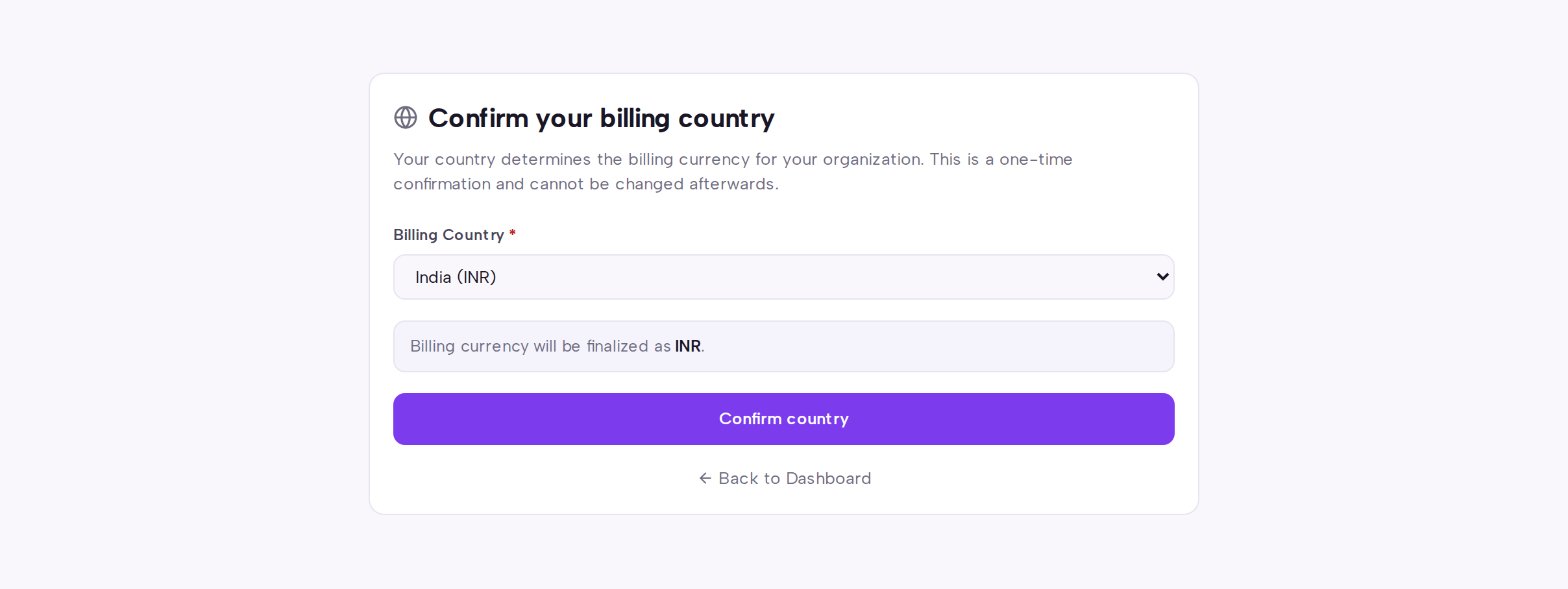
Go to /dashboard/onboarding/country. The Confirm your billing country page shows the country you selected at registration and the wallet currency configured for it. Review it and choose Confirm country. This step confirms the country — it cannot switch your wallet currency after registration. Use Back to Dashboard if you want to return without confirming.
6. Finish verification from the dashboard
You now land on Home in read-only mode with a verification banner. Complete identity verification from the dashboard to move your organization out of its pending state; once compliance and a billing entitlement are in place, resource creation is unlocked and your default project is provisioned.
Limits & billing
- Creating an account is free. Registration provisions an organization wallet in the currency configured for your country; you fund it later from Billing.
- One-time codes expire after 10 minutes, allow 3 attempts, and can be requested up to 3 times per hour.
- Verification and sign-in emails are rate limited to 3 per 3600 seconds for a given event, and 6 per 3600 seconds overall.
- A signed-in session lasts 1440 minutes before you need to authenticate again, and CloudPe keeps 1 active session per user — signing in elsewhere ends the earlier one.
- Nothing is billed until you provision a resource; a pending organization cannot provision at all.
Troubleshooting
| Message | Cause | What to do |
|---|---|---|
This Google account is already registered. Please login instead. |
The Google identity is already linked to a CloudPe account. | Go to /login and choose Sign In with Google instead of registering. |
Email already registered. Please login and link your Google account. |
An account already exists for that email address from an earlier signup. | Sign in with the existing account, then link Google from your account settings. |
No linked account exists. Use the explicit signup flow. |
You tried to sign in with a social provider that has never been linked. | Register first at /signup with Create Account, then link the provider. |
New customer signup with this provider is temporarily unavailable. |
New-customer creation is disabled for that social provider. | Register with your email address instead; the provider can be linked to the account afterwards. |
Invalid or expired temporary token. Please login again. |
The magic link or onboarding token was already used or has expired. | Request a fresh link from /login and open it promptly. |
Complete organization onboarding before creating resources. |
The organization is still pending verification. | Finish the country confirmation and identity verification steps, then retry. |
Country with code {…} not found |
The selected country is not enabled for signup. | Choose an enabled country, or contact CloudPe if your country should be available. |
FAQ
Do I need a password? No. Registration is passwordless — you sign in with an emailed magic link. Setting a password is optional and can be done later from your account settings.
I signed up but everything is read-only. Is something broken? No. A newly registered organization is pending verification, so the dashboard is deliberately read-only until identity verification and onboarding complete.
Can I change my billing country or wallet currency later? The country confirmation step only confirms the country chosen at registration; it cannot switch the wallet currency afterwards. Contact CloudPe support if the country recorded on your organization is wrong.
I was invited to a team — should I still register at /signup? Use the invitation link. Signing up through the invitation joins you to the inviting organization instead of creating a personal organization and wallet.
What happens if my invitation has expired? Registration still completes as a normal signup with your own organization, and the interface tells you the invitation could not be applied. Ask the organization owner to send a new invitation.