

Completing KYC verification
Overview
KYC (Know Your Customer) verification is the compliance step that unlocks your CloudPe organization after signup. Until verification is complete, the organization stays in a pending state and resource provisioning is blocked.
Verification is recorded per user but evaluated per organization. Completing your own verification re-evaluates only the organizations you own — it never activates an organization where you are just a member, and individual identity verification can never satisfy a business (KYB) organization.
There are two paths, chosen by the account type you declare with your billing details:
- Individual — an online identity check with Digio (Aadhaar, PAN or DigiLocker), completed in a provider popup.
- Business — a company KYC submission with supporting documents, reviewed manually by the CloudPe compliance team.
The released dashboard verification path is India/Digio only.
Before you start
- You must be signed in with a verified email and phone number.
- You must be the owner of the organization you want to verify. Invited members of an organization that is already active can use its resources without completing personal verification.
- Have your billing address ready. If your billing address is missing, the dashboard sends you to Billing Details on your next load.
- For a business account, have your company name and, for India, your GSTIN available. An Indian business can also supply a TAN, which enables TDS deduction on invoices.
- Reading or writing the organization's billing/legal identity through the API requires the
billing:manage_legal_identitypermission; company KYC submission requireskyb:submit. - For a business account, have your supporting documents scanned and ready to upload.
Steps
1. Enter your billing details
Go to /dashboard/kyc — it forwards you to the Billing Details page at /dashboard/kyc/billing.
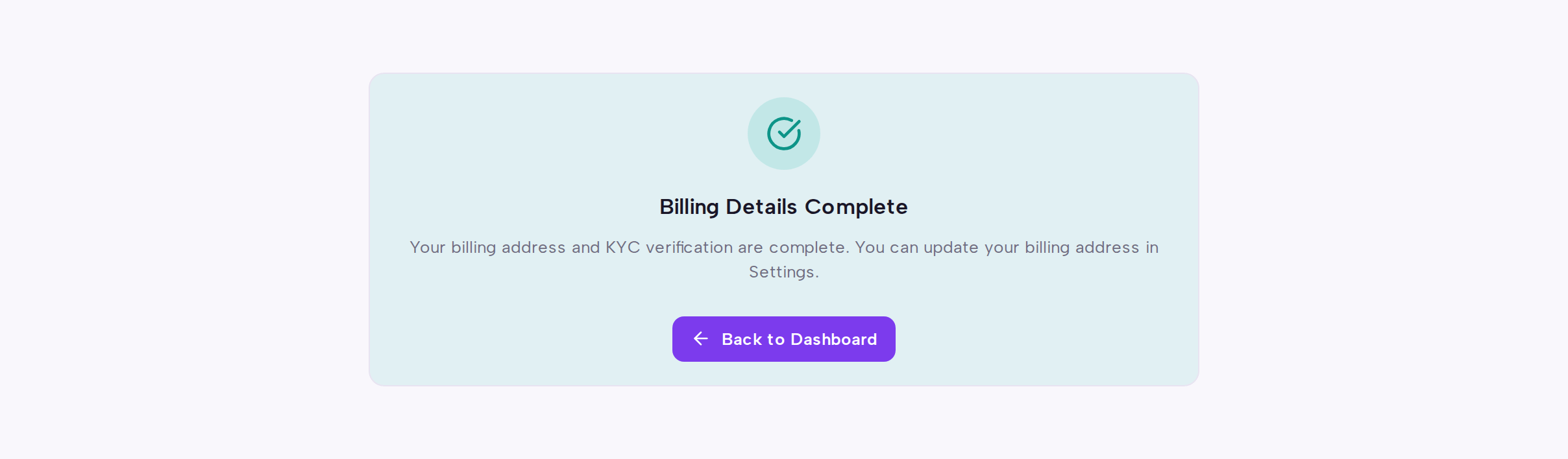
- Choose your account type: Individual or Business.
- For a business account, enter the company name and, for India, the GSTIN. An Indian business may also enter a TAN.
- Complete the Billing Address fields — address, city, state, PIN/postal code and country.
- Choose Continue.
Your country and currency are finalized from this step, so check them before continuing.
2a. Individual identity verification
If you selected an individual account, you land on Individual Identity Verification at /dashboard/kyc/individual.
- Read the Continue with Digio hand-off notice. It explains that identity and document data leaves CloudPe so the provider can verify it.
- Tick the acknowledgement, then choose Continue to identity verification. Nothing is sent to the provider before you do this.
- Complete the Aadhaar, PAN or DigiLocker check in the Digio popup window. Leave the popup open until it reports completion.
- CloudPe then polls for the outcome and reloads the dashboard once your identity is verified. If the status check fails repeatedly, polling stops and an explicit retry is shown.
Navigating away before you confirm is treated as cancelling the hand-off, not as a failure — you can return and resume later. A rejected verification is permanent and needs support intervention.
2b. Company KYC
If you selected a business account, you land on Company KYC at /dashboard/kyc/company.
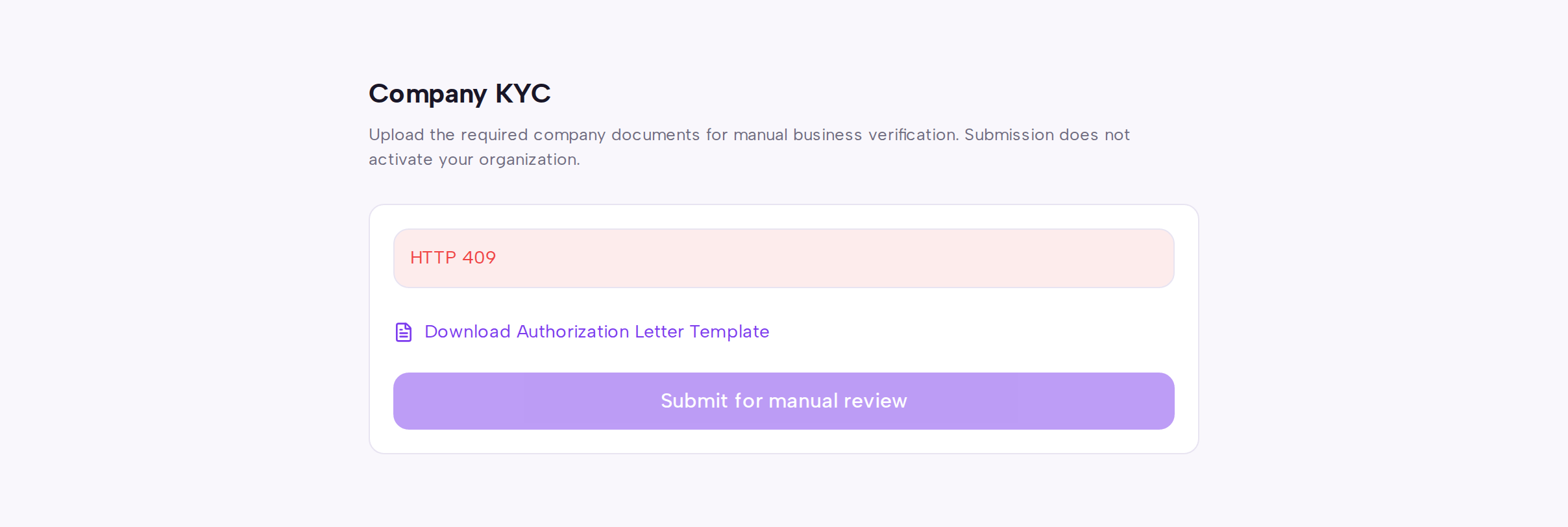
- Use Download Authorization Letter Template to get the letter template, complete and sign it.
- Upload your company documents. Files are scanned and stored privately; a failed scan or storage error rejects the upload rather than accepting it.
- Choose Submit for manual review.
Uploading does not approve or activate anything. A CloudPe reviewer assesses the case and the organization stays restricted until the review completes. Once a legal identity has been approved, it is locked and further changes need an audited change review.
API
The following user-facing endpoints exist for this flow:
| Method | Path |
|---|---|
| POST | /api/v1/kyc/individual/start |
| GET | /api/v1/kyc/individual/status/{request_id} |
| POST | /api/v1/kyc/individual/cancel/{request_id} |
| POST | /api/v1/kyc/opt-out |
| GET | /api/v1/kyc/status |
| GET | /api/v1/kyc/billing-details |
| POST | /api/v1/kyc/billing-details |
| POST | /api/v1/kyc/account-type |
| POST | /api/v1/kyc/company/initiate |
| POST | /api/v1/kyc/company/upload |
| GET | /api/v1/kyc/company/documents/{doc_type} |
Start an individual verification request:
curl -X POST https://app.cloudpe.com/api/v1/kyc/individual/start \
  -H "Authorization: Bearer <API_KEY>"
Poll the status of a request:
curl https://app.cloudpe.com/api/v1/kyc/individual/status/<request_id> \
  -H "Authorization: Bearer <API_KEY>"
Read the active organization's billing/legal identity (requires billing:manage_legal_identity):
curl https://app.cloudpe.com/api/v1/kyc/billing-details \
  -H "Authorization: Bearer <API_KEY>"
Limits & billing
- Verification itself is not charged. What it gates is activation: an unverified organization cannot provision resources.
- A Digio verification request expires after 7 days. An expired request can simply be retried, which creates a new one.
- Each company KYC document upload is limited to 26214400, with an aggregate ceiling of 104857600 per case.
- Download links for stored compliance documents are short-lived and expire after 300.
- After onboarding, address, city and PIN code stay editable in Settings. State, company name and GSTIN are read-only and need a support ticket to change.
Troubleshooting
| Error | Cause | Fix |
|---|---|---|
KYC already verified |
You started a new verification while your identity is already verified. | No action needed. Reload the dashboard; the page shows the verified state. |
Your KYC verification was not approved. Please contact support at sales@cloudpe.com |
The provider rejected the verification. Rejection is permanent and cannot be retried by you. | Contact support at the address in the message; an administrator must reopen the attempt. |
Identity verification service unavailable |
The identity provider could not be reached while starting or refreshing a request. | Retry later. You can continue using the dashboard; the organization stays pending. |
Failed to refresh identity verification status |
A status refresh call to the provider failed. | Use the retry control on the verification page. A successful status response resumes normal polling. |
KYC service is temporarily unavailable |
The verification service is down or not configured for this environment. | Retry later, or raise a support ticket if it persists. |
KYC request not found |
The request ID no longer exists, for example after expiry or cleanup. | Return to /dashboard/kyc/individual and start a new verification. |
Verified identity cannot be opted out |
An opt-out was attempted on an already verified identity. | None — verification cannot be undone from the dashboard. Contact support if the record is wrong. |
account_type must be INDIVIDUAL or BUSINESS |
The account type sent with the billing details is not one of the accepted values. | Re-select the account type on the Billing Details page and choose Continue again. |
Invalid TAN format. Must be 4 letters + 5 digits + 1 letter (e.g. DELC12345F) |
The TAN entered for an Indian business does not match the required pattern. | Re-enter the TAN in the documented format, or leave it blank — it is optional. |
Approved legal identity requires an audited change review. |
You tried to change legal/tax identity fields that are already approved and locked. | Raise a support ticket so the change can go through the audited review path. |
Company GSTIN is not configured or is malformed; set a valid GSTIN in Settings before adding an LUT. |
The organization's GSTIN is missing or invalid. | Correct the GSTIN before continuing; if it is already locked, raise a support ticket. |
FAQ
Do invited team members need to complete KYC? No. If you join an organization that is already active because its owner verified, you can use its resources immediately.
I completed individual verification but my business organization is still restricted. Why? Individual identity verification cannot satisfy a business compliance requirement. A business organization needs an approved company KYC submission from /dashboard/kyc/company.
Can I skip verification for now? Yes. You can opt out or simply navigate away. The organization stays in its pending state, the verification banner remains on the dashboard, and you can return to /dashboard/kyc whenever you are ready.
What happens if I close the Digio popup halfway? The request is left resumable. Reopen /dashboard/kyc/individual, give the acknowledgement again, and continue from where you stopped.
Which documents does the individual check accept? Aadhaar, PAN and DigiLocker.
Can I change my billing address after verification? Address, city and PIN code remain editable in Settings. State, company name and GSTIN are locked and require a support ticket.