

Organisations, projects and roles
Overview
CloudPe uses a two-level tenancy model. An organisation is the top-level container: it owns the wallet, billing identity, membership and roles. A project is the technical container that resources (instances, volumes, networks, clusters) live in, and each project is bound to a region and backed by a provider tenant.
Access is granted by organisation membership, not by who created a resource — every member of an organisation can see every project in that organisation, subject to the permissions their roles grant. Roles are assigned from the Team page, where you can also group members into teams and attach projects to those teams.
This article covers switching between organisations, creating projects, and understanding how roles and permissions resolve.
Before you start
- You must be signed in and be a member of at least one organisation. Signup creates your first organisation, its wallet and a default project — see Creating your CloudPe account.
- The organisation must have cleared verification before any project can be provisioned. An organisation that is still pending verification, suspended or restricted keeps its project records local and does not create provider tenants.
- The organisation must have a plan/group with at least one active region. Regions available to you come from your organisation's group; you cannot create a project in a region your group does not include.
- Project creation is capped by the project quota that applies to your organisation. Quotas resolve most-specific-first: a user override, then an organisation override, then the group quota, then the platform default.
- Inviting members and assigning roles requires an owner or administrator role in the organisation; you cannot grant a role that exceeds your own privilege level.
Steps
Switch the active organisation
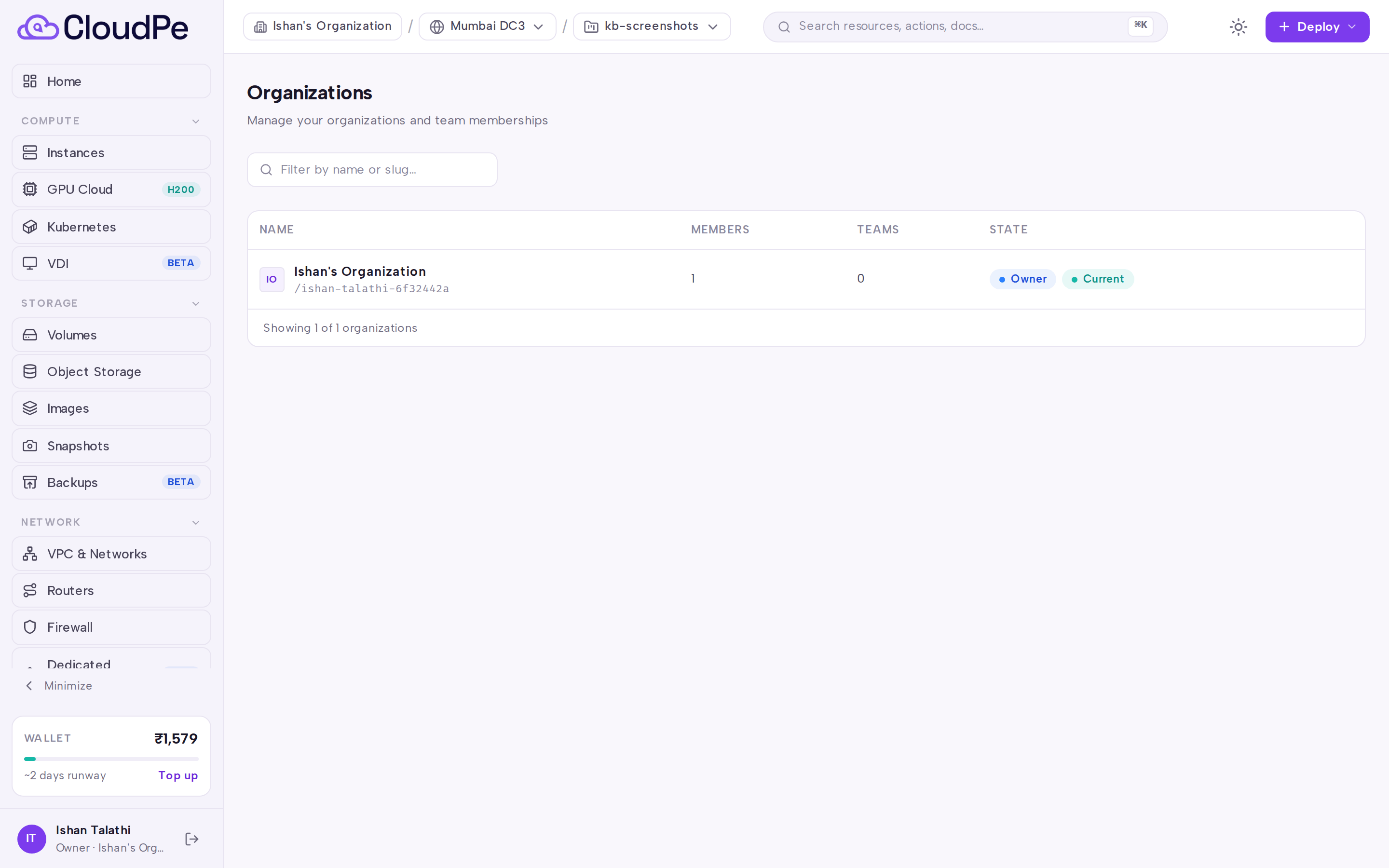
- Open Organizations in the sidebar.
- The organisation you are currently working in is marked as current; every other organisation you belong to shows a Switch to action.
- Select Switch to on the organisation you want. The dashboard reloads projects and resources scoped to that organisation, and the choice is remembered for your next visit.
Create a project
Open Projects in the sidebar to see every project in the active organisation, along with its region and provisioning state.
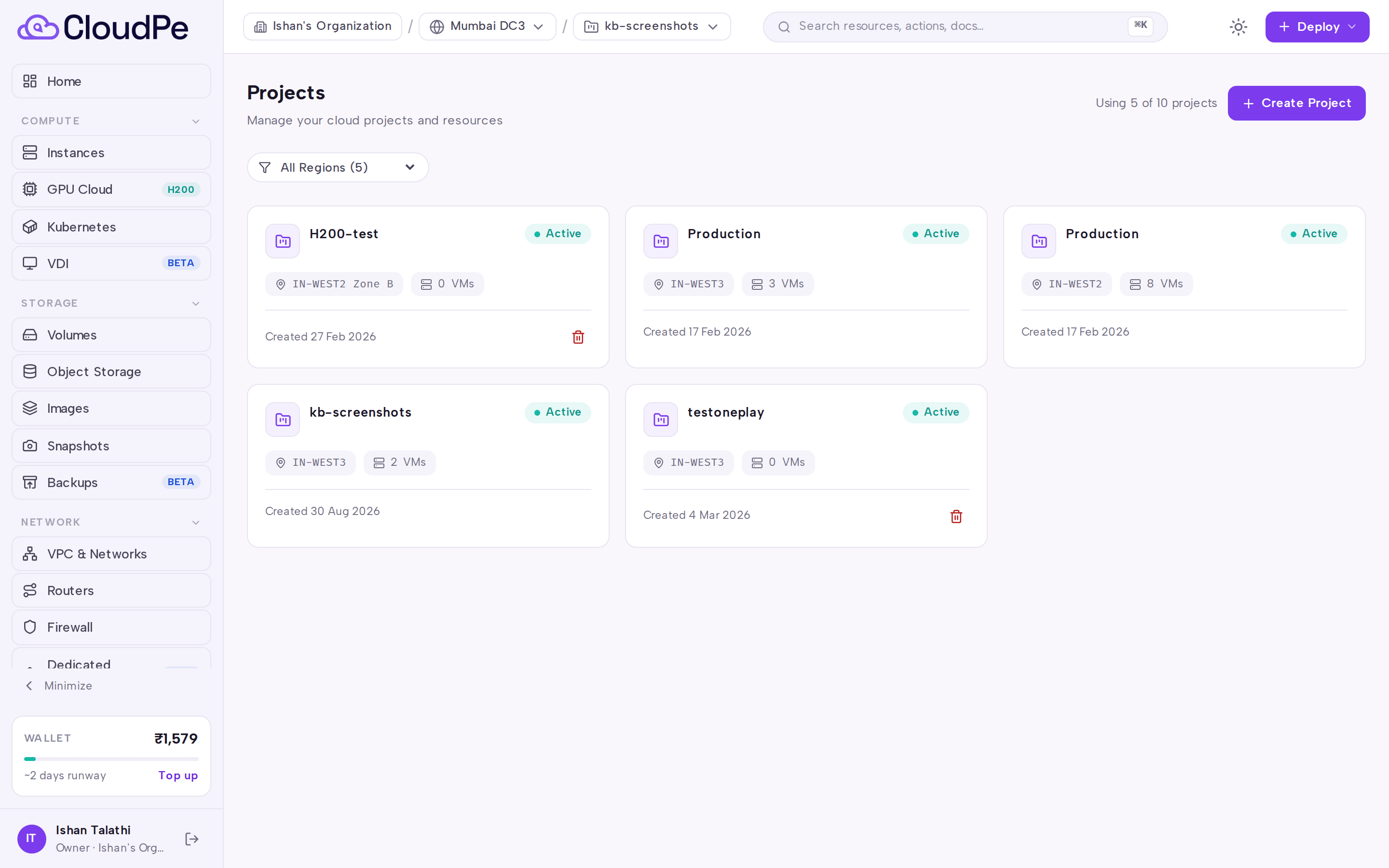
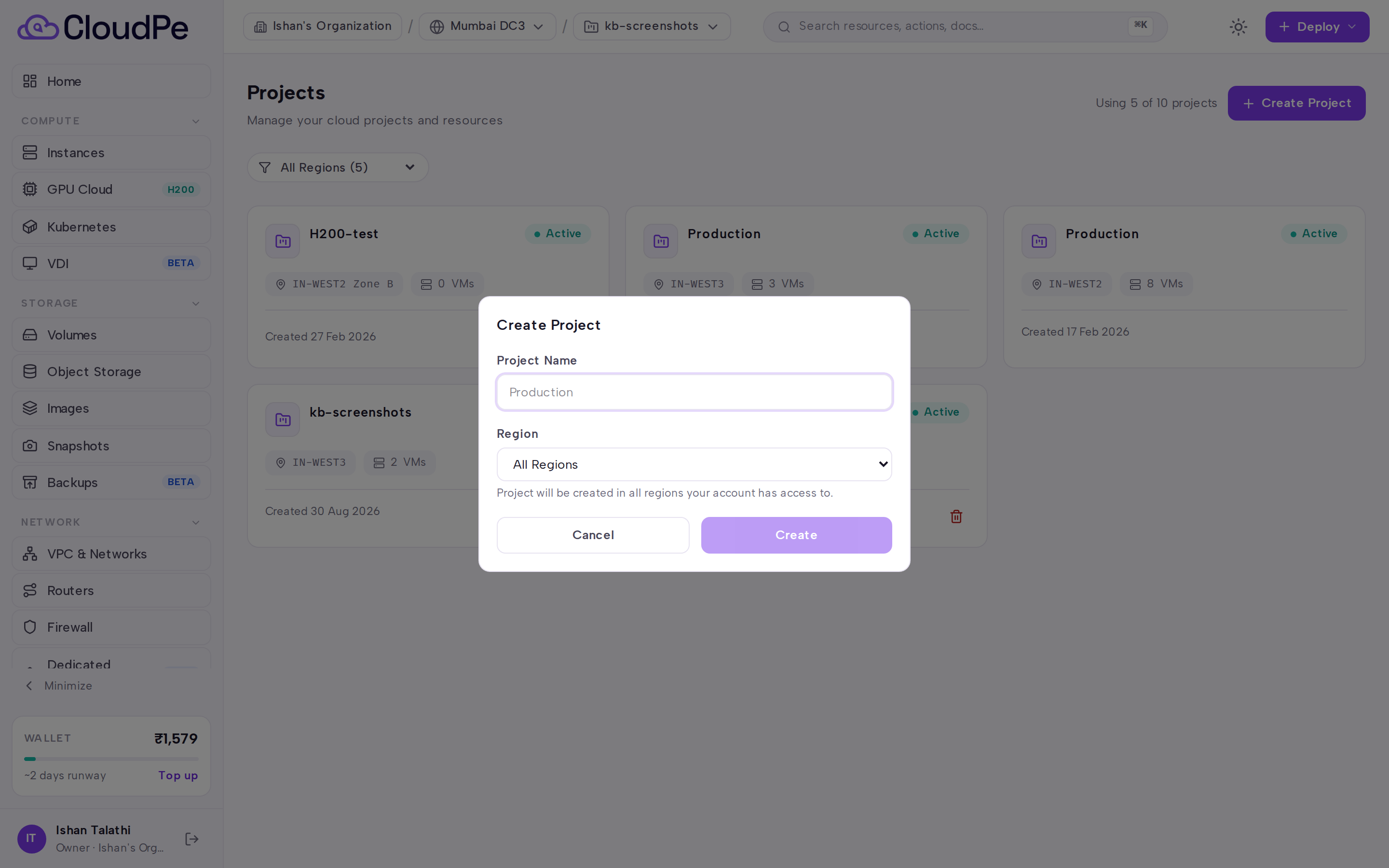
Select Create Project. The Create Project dialog opens.
Enter a project name. The platform creates one project record per region available to your organisation's group, so a single named project can span several regions.
Confirm to submit, or Cancel to close the dialog without creating anything.
Provisioning runs in the background. The project appears immediately and moves to a ready state once the provider tenant, quotas and default security group have been created.
Manage members, teams and roles
Open Team in the sidebar.
The Members tab lists everyone in the organisation and the roles they hold. Use Invite Member to send an invitation — see Inviting team members for the full invitation flow.
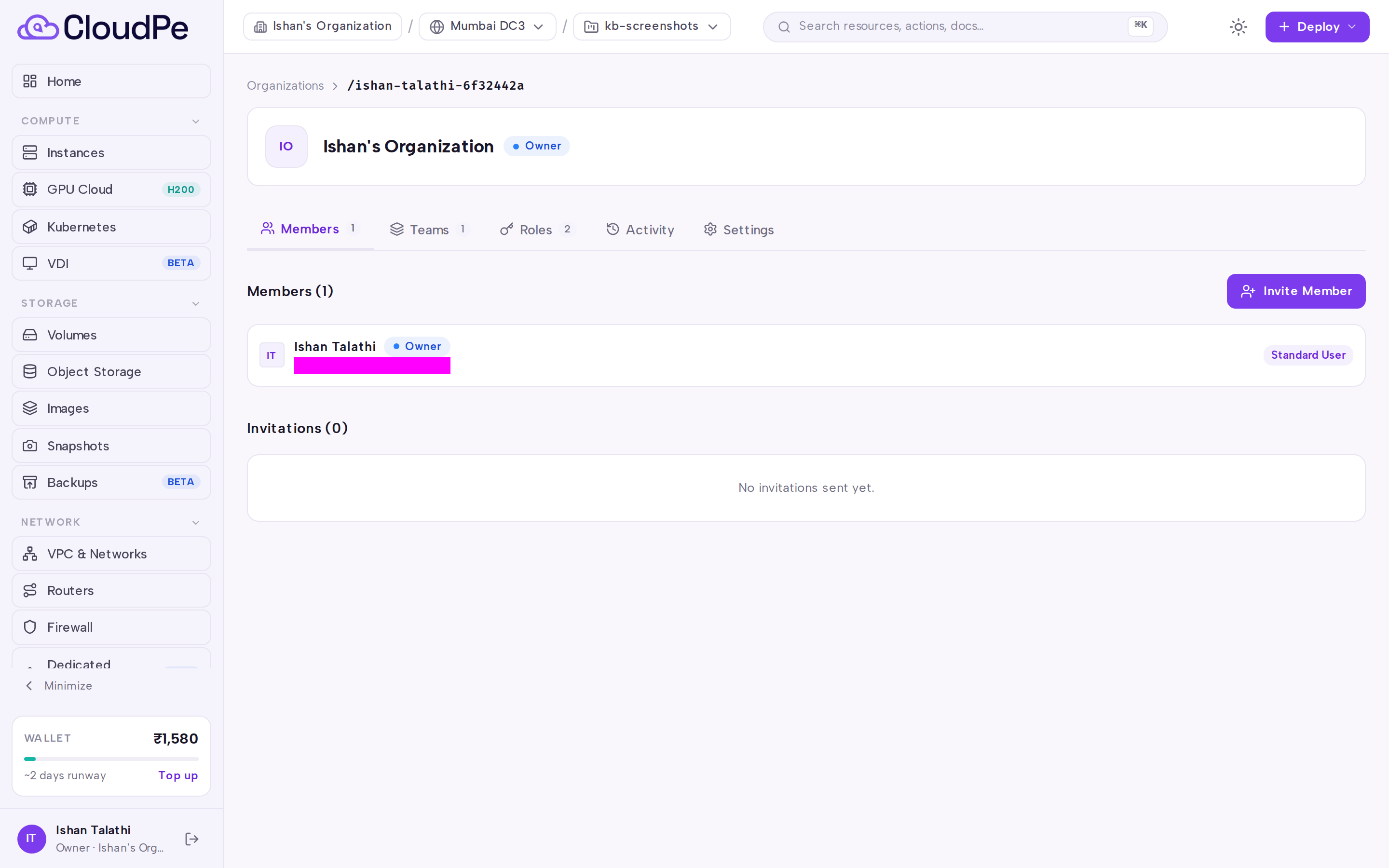
The Teams tab lets you group members and attach projects to a team, so a team's members inherit access to the projects assigned to it.
The Roles tab lists the system roles shared by all organisations plus any custom roles you have created for this organisation. System roles can be assigned but not edited or deleted; create a custom role instead when you need a different permission set.
The Activity tab shows the organisation audit log, and Settings holds organisation-level configuration.
New members added through an invitation receive the user role unless you pick a different role on the invitation.
API
All calls use the same host and bearer token. If you belong to more than one organisation, send the X-Organization-Id header so the request is scoped correctly.
Organisations and membership:
GET /api/v1/organizationsPOST /api/v1/organizationsGET /api/v1/organizations/{org_id}PATCH /api/v1/organizations/{org_id}GET /api/v1/organizations/{org_id}/membersPOST /api/v1/organizations/{org_id}/members/inviteDELETE /api/v1/organizations/{org_id}/members/{user_id}POST /api/v1/organizations/{org_id}/leaveGET /api/v1/organizations/{org_id}/onboarding-statusGET /api/v1/organizations/{org_id}/audit-log
Roles:
GET /api/v1/organizations/{org_id}/rolesGET /api/v1/organizations/{org_id}/members/{user_id}/rolesPUT /api/v1/organizations/{org_id}/members/{user_id}/rolesGET /api/v1/organizations/{organization_id}/custom-rolesGET /api/v1/organizations/{organization_id}/custom-roles/available-permissionsPOST /api/v1/organizations/{organization_id}/custom-rolesPATCH /api/v1/organizations/{organization_id}/custom-roles/{role_id}PUT /api/v1/organizations/{organization_id}/custom-roles/{role_id}/permissionsDELETE /api/v1/organizations/{organization_id}/custom-roles/{role_id}
Teams:
GET /api/v1/organizations/{org_id}/teamsPOST /api/v1/organizations/{org_id}/teamsGET /api/v1/organizations/{org_id}/teams/{team_id}PATCH /api/v1/organizations/{org_id}/teams/{team_id}DELETE /api/v1/organizations/{org_id}/teams/{team_id}POST /api/v1/organizations/{org_id}/teams/{team_id}/membersDELETE /api/v1/organizations/{org_id}/teams/{team_id}/members/{user_id}POST /api/v1/organizations/{org_id}/teams/{team_id}/projectsDELETE /api/v1/organizations/{org_id}/teams/{team_id}/projects/{project_id}
Projects:
GET /api/v1/projectsPOST /api/v1/projectsGET /api/v1/projects/{project_id}DELETE /api/v1/projects/{project_id}POST /api/v1/projects/{project_id}/retry
List your organisations:
curl https://app.cloudpe.com/api/v1/organizations \
  -H "Authorization: Bearer <API_KEY>"
Create an organisation:
curl -X POST https://app.cloudpe.com/api/v1/organizations \
  -H "Authorization: Bearer <API_KEY>" \
  -H "Content-Type: application/json" \
  -d '{"name": "Acme Corp", "billing_name": "Acme Billing"}'
Create a project:
curl -X POST https://app.cloudpe.com/api/v1/projects \
  -H "Authorization: Bearer <API_KEY>" \
  -H "Content-Type: application/json" \
  -d '{"name": "prod", "region_id": "<region-id>", "organization_id": "<org-id>"}'
Invite a member with a role:
curl -X POST https://app.cloudpe.com/api/v1/organizations/<org-id>/members/invite \
  -H "Authorization: Bearer <API_KEY>" \
  -H "Content-Type: application/json" \
  -d '{"email": "user@example.com", "role_ids": ["<role-id>"]}'
Retry a project whose provisioning failed:
curl -X POST https://app.cloudpe.com/api/v1/projects/<project-id>/retry \
  -H "Authorization: Bearer <API_KEY>"
API keys can be restricted to specific projects; a restricted key must send a permitted project_id. See Creating and managing API keys.
Limits & billing
- The wallet, invoices and billing identity belong to the organisation, not to individual users or projects. Usage from every project rolls up into that organisation's billing.
- Projects themselves are not billed — the resources inside them are. Deleting an empty project does not change your balance.
- Project count and resource quotas (instances, vCPU, RAM, volumes, snapshots, floating IPs, networks, routers) are enforced per project against the effective quota for your organisation. The effective value resolves user override, then organisation override, then group quota, then the platform default; the same limit is pushed to the provider so it is enforced on both sides.
- Your organisation's group also determines which regions and which pricing apply, so a project can only be created in a region that group allows.
Troubleshooting
| Error | Cause and fix |
|---|---|
Organization context required — set X-Organization-Id on the request because you belong to multiple organizations. |
You belong to more than one organisation, so the API cannot infer the scope. Send X-Organization-Id with the target organisation's UUID, or switch organisations in the dashboard. |
X-Organization-Id must be a UUID |
The header value is not a valid UUID. Copy the id from GET /api/v1/organizations. |
You are not a member of this organization |
You are acting on an organisation you do not belong to. Switch to one of your own organisations, or ask an owner to invite you. |
No regions configured for your group. Contact support. |
Your organisation's group has no active regions, so no project can be provisioned. Raise a support ticket. |
You do not have access to the requested region. Available regions: {…} |
The region you passed is not enabled for your group. Choose one of the regions listed in the message. |
Project quota exceeded. {…} |
You have reached the project limit for your organisation. Delete an unused project or request a quota increase. |
Cannot retry: project status is {…} |
Retry only applies to a project left in a failed provisioning state. Check the current state on Projects first. |
Cannot delete the default project |
The default project cannot be removed. Delete a non-default project instead. |
Cannot delete project: it contains {…} VMs. Delete all VMs first. |
Projects must be empty before deletion. Remove the listed resources (the message names the type and count) and retry. |
Cannot remove the organization owner. Transfer ownership first. |
Ownership must move to another member before the current owner can be removed. |
Organization owner cannot leave. Transfer ownership first. |
The same rule applies to leaving an organisation you own. |
You cannot remove yourself. Use 'leave organization' instead. |
Use the leave action rather than the member-removal action. |
Cannot modify organization owner's roles |
The owner has implicit full access and its role set cannot be edited. |
Cannot invite a user with a role exceeding your own privilege level |
You can only grant roles at or below your own level. Ask an owner to send the invitation. |
User is already a member of this organization |
The person already has membership; assign roles on the Members tab instead of re-inviting. |
An invitation is already pending for this email |
An unaccepted invitation exists. Revoke it from Invitations or wait for it to be accepted. |
Cannot delete system roles |
System roles are shared by all organisations. Create a custom role and delete that instead. |
This is a global platform role shared by all organizations; it can be assigned but not modified here. Create an organization role instead. |
Clone the intent into a custom role scoped to your organisation, then edit that. |
Role with name '{…}' already exists in this organization |
Role names must be unique inside an organisation. Pick a different name. |
Role does not belong to this organization |
The role id you passed belongs to another organisation. Re-read the roles list for the current organisation. |
Organization with this slug already exists |
Choose a different organisation name so a unique slug can be generated. |
User must be an organization member first |
Add the person to the organisation before adding them to a team. |
Project is already assigned to this team |
The project-to-team link already exists; no action needed. |
FAQ
Who can see a project? Every member of the organisation that owns it. There is no per-user project assignment — the creator is recorded for audit only and is not used for access control. Use teams and roles to narrow what members can actually do inside a project.
Why did one project appear several times? A project name is a logical grouping: the platform creates one record per region available to your organisation's group, so the same project name can show up once per region.
Do invited members need their own verification? No. Verification is enforced per organisation, not per user. Someone invited into an already-verified, active organisation can use its resources without going through personal verification.
What is the difference between a system role and a custom role? System roles are defined by the platform and shared across all organisations — they can be assigned but not edited or deleted. Custom roles are created inside your organisation from the available permission list and can be edited or removed at any time.
Can I change who owns an organisation? Ownership must be transferred before the current owner can be removed or can leave. Raise a support request if you need help with an ownership transfer.
How do I see who changed what? The Activity tab on the Team page exposes the organisation audit log, including role creation and role assignment events.