

Inviting team members and assigning roles
Overview
Team invitations let an organization owner or admin bring other people into a CloudPe organization and control what they can do once they are in. An invitation is sent to an email address, appears for the recipient under Invitations, and only becomes a membership once it is accepted — no one gains access to your projects before that.
Membership is organization-scoped: once a person joins, they can see and work with the projects in that organization, subject to the role assigned to them. Roles and role assignments are managed from the Team page.
Before you start
- You need to be an owner or admin of the organization you are inviting into. Members without member-management rights will not see the invite action.
- The organization must be in an operational state. Suspended or restricted organizations cannot add members or provision resources.
- Have the invitee's email address ready. The invitation is bound to that address — the recipient must accept it while signed in with the same email.
- The invitee does not need an existing CloudPe account. They can sign up from the invitation link, and the invitation is accepted automatically as part of registration; they still complete phone verification.
- The invitee does not need to pass KYC individually. KYC is enforced per organization, so anyone joining an already-active organization can use its resources.
- If no role is chosen on the invitation, the new member is added with the
userrole.
Steps
In the left navigation, under ACCOUNT, open Team.
Stay on the Members tab. It lists everyone who currently belongs to the organization, along with their assigned roles.
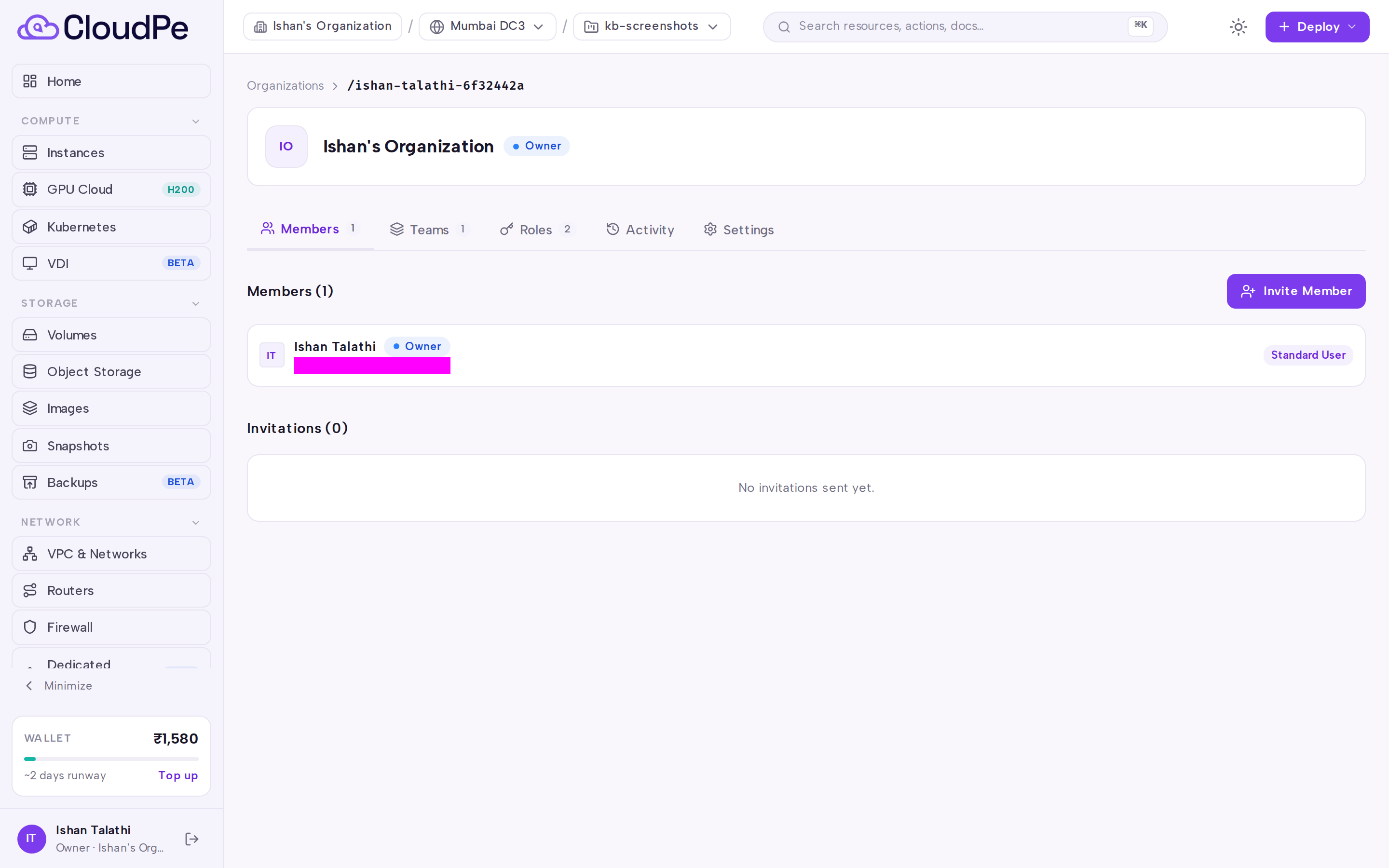
Select Invite Member, enter the recipient's email address, and choose the role they should hold in the organization. Submit the form to send the invitation email.
Ask the recipient to sign in and open Invitations in the ACCOUNT section of the navigation. Their Pending Invitations list shows every invitation addressed to their email.
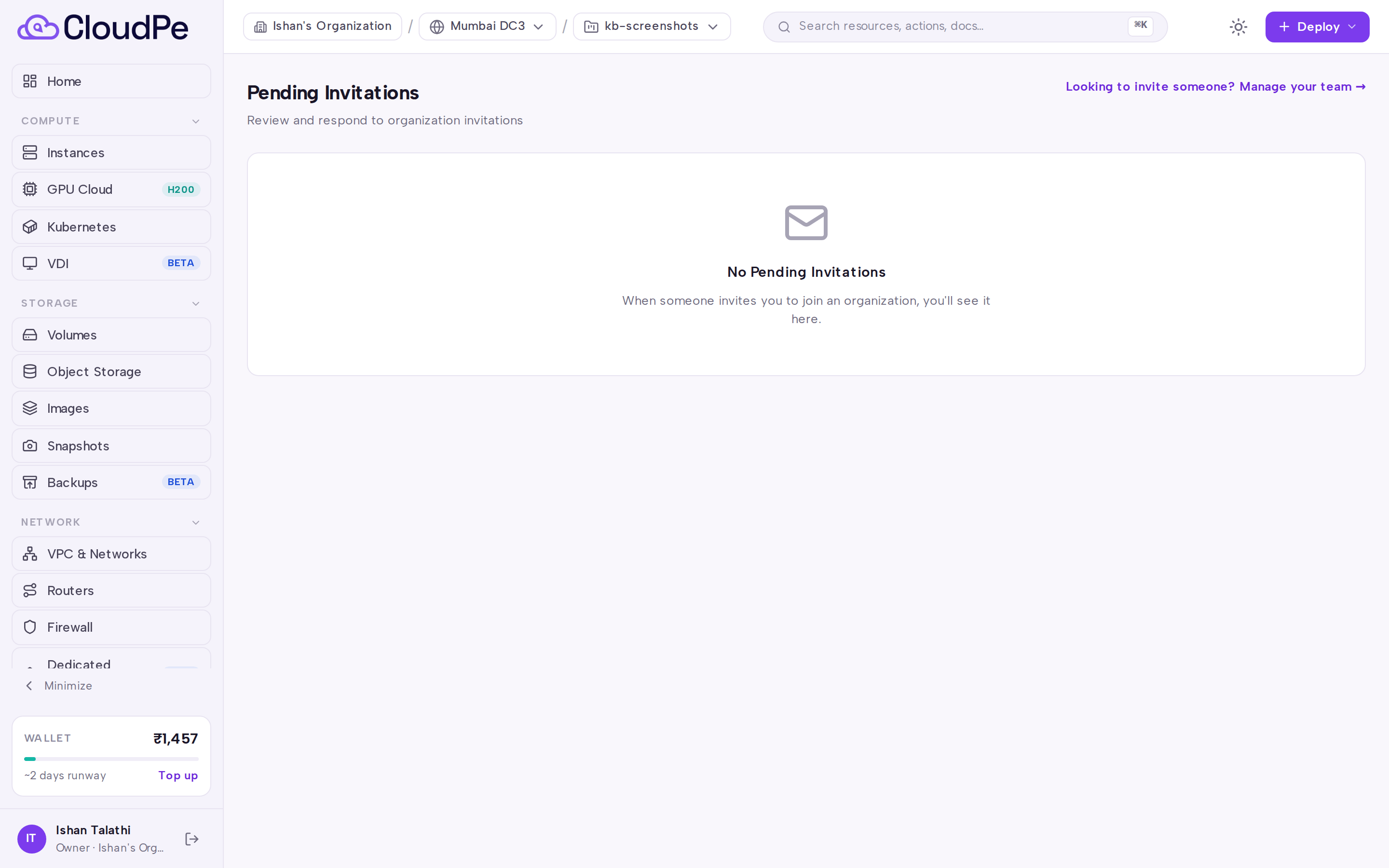
The recipient chooses Accept to join the organization, or Decline to reject it. On acceptance, the membership record is created and the role on the invitation is assigned.
Back on Team, use the Teams tab to group members and attach projects to a team, the Roles tab to review or change what a role grants, and the Activity tab to review membership and role changes. Organization-wide preferences live under the Settings tab.
API
The following operations are available for invitations and teams. Replace <id> style placeholders with real UUIDs and <API_KEY> with your key.
| Method | Path |
|---|---|
| GET | /api/v1/invitations |
| GET | /api/v1/invitations/by-token/{token} |
| POST | /api/v1/invitations/{token}/accept |
| POST | /api/v1/invitations/{invitation_id}/accept-by-id |
| DELETE | /api/v1/invitations/{invitation_id} |
| GET | /api/v1/organizations/{org_id}/invitations |
| GET | /api/v1/organizations/{org_id}/teams |
| POST | /api/v1/organizations/{org_id}/teams |
| GET | /api/v1/organizations/{org_id}/teams/{team_id} |
| PATCH | /api/v1/organizations/{org_id}/teams/{team_id} |
| DELETE | /api/v1/organizations/{org_id}/teams/{team_id} |
| GET | /api/v1/organizations/{org_id}/teams/{team_id}/members |
| POST | /api/v1/organizations/{org_id}/teams/{team_id}/members |
| DELETE | /api/v1/organizations/{org_id}/teams/{team_id}/members/{user_id} |
| GET | /api/v1/organizations/{org_id}/teams/{team_id}/projects |
| POST | /api/v1/organizations/{org_id}/teams/{team_id}/projects |
| DELETE | /api/v1/organizations/{org_id}/teams/{team_id}/projects/{project_id} |
List the invitations addressed to the authenticated user:
curl https://app.cloudpe.com/api/v1/invitations \
  -H 'Authorization: Bearer <API_KEY>'
List the invitations issued by an organization:
curl https://app.cloudpe.com/api/v1/organizations/<org_id>/invitations \
  -H 'Authorization: Bearer <API_KEY>'
Accept an invitation by its identifier (the call the Invitations page makes):
curl -X POST https://app.cloudpe.com/api/v1/invitations/<invitation_id>/accept-by-id \
  -H 'Authorization: Bearer <API_KEY>'
Revoke a pending invitation:
curl -X DELETE https://app.cloudpe.com/api/v1/invitations/<invitation_id> \
  -H 'Authorization: Bearer <API_KEY>'
Limits & billing
Inviting members and creating teams are not billed. All resource usage created by members is attributed to the organization that owns the project, and settles against that organization's wallet and billing model — so adding a member effectively grants spending ability inside your organization. Quotas are also organization-scoped, not per member: several members share the same project and region quota pool.
Troubleshooting
| Message | What it means | What to do |
|---|---|---|
Invitation not found |
The invitation ID or token does not exist, or it was revoked. | Ask an organization admin to send a fresh invitation. |
Invitation has expired |
The invitation was not accepted within its validity window. | Send a new invitation from the Members tab. |
Invitation has already been accepted |
The membership was already created from this invitation. | Open Team to confirm the member is listed; no further action is needed. |
This invitation is no longer valid |
The invitation is no longer in a pending state (revoked, declined or already used). | Issue a new invitation. |
This invitation was sent to a different email address |
The signed-in account's email does not match the invited address. | Sign in with the invited email address, or ask for the invitation to be resent to the address you actually use. |
You are already a member of this organization |
The account already holds a membership. | Discard the invitation; adjust the role from the Members tab instead. |
You can only decline invitations sent to you |
You tried to decline an invitation addressed to another account. | Only the recipient can use Decline. |
User must be an organization member first |
You tried to add someone to a team before they joined the organization. | Invite them to the organization and wait for acceptance, then add them to the team. |
User is already a member of this team |
The user is already on the team. | No action needed. |
Project is already assigned to this team |
The project is already attached to that team. | Pick a different project. |
A team with this name already exists |
Team names must be unique within the organization. | Choose another name. |
Cannot remove an organisation owner |
Owners cannot be removed from the member list. | Transfer ownership first, or remove a non-owner member. |
You cannot remove yourself |
Self-removal is blocked from the member management flow. | Ask another owner or admin to remove you, or leave the organization instead. |
FAQ
Does an invited member need to complete KYC? No. Verification is enforced at the organization level, so a member joining an already-active organization can use its resources without submitting personal KYC.
Which projects will a new member see? All projects in the organization. Project visibility follows organization membership, not who created the project.
What role does someone get if I do not pick one?
They are added with the user role, which you can change afterwards from the Members tab.
Can I invite someone who has no CloudPe account? Yes. They register from the invitation link and the invitation is accepted as part of signup, so they land directly in your organization rather than a personal one.
How do I cancel an invitation that has not been accepted?
Delete it with DELETE /api/v1/invitations/{invitation_id}. The recipient's Pending Invitations entry stops working immediately.
What are teams for, if members already see every project? Teams group members and can have projects attached to them, which is useful for organizing larger organizations under the Teams tab.