

Managing account settings and active sessions
Overview
The Settings page is where you manage your own account: your profile details, your password and two-factor authentication, and the external identities linked to your login. A companion page, Security & sessions, lists every device that currently holds a signed-in session for your account and lets you sign the others out.
CloudPE binds each interactive login to a server-side session record, so signing a session out takes effect on the next request that session makes — it does not wait for the access token to expire on its own.
Before you start
- You must be signed in to the dashboard. No additional role or permission is required — the account settings and session endpoints act on your own user only.
- Changing your password requires your current password.
- Enabling two-factor authentication requires an authenticator app; see the related article below for the full walkthrough.
- Because CloudPE enforces a limit on concurrent interactive sessions, signing in from a new device may sign an older device out automatically. See Limits & billing.
Steps
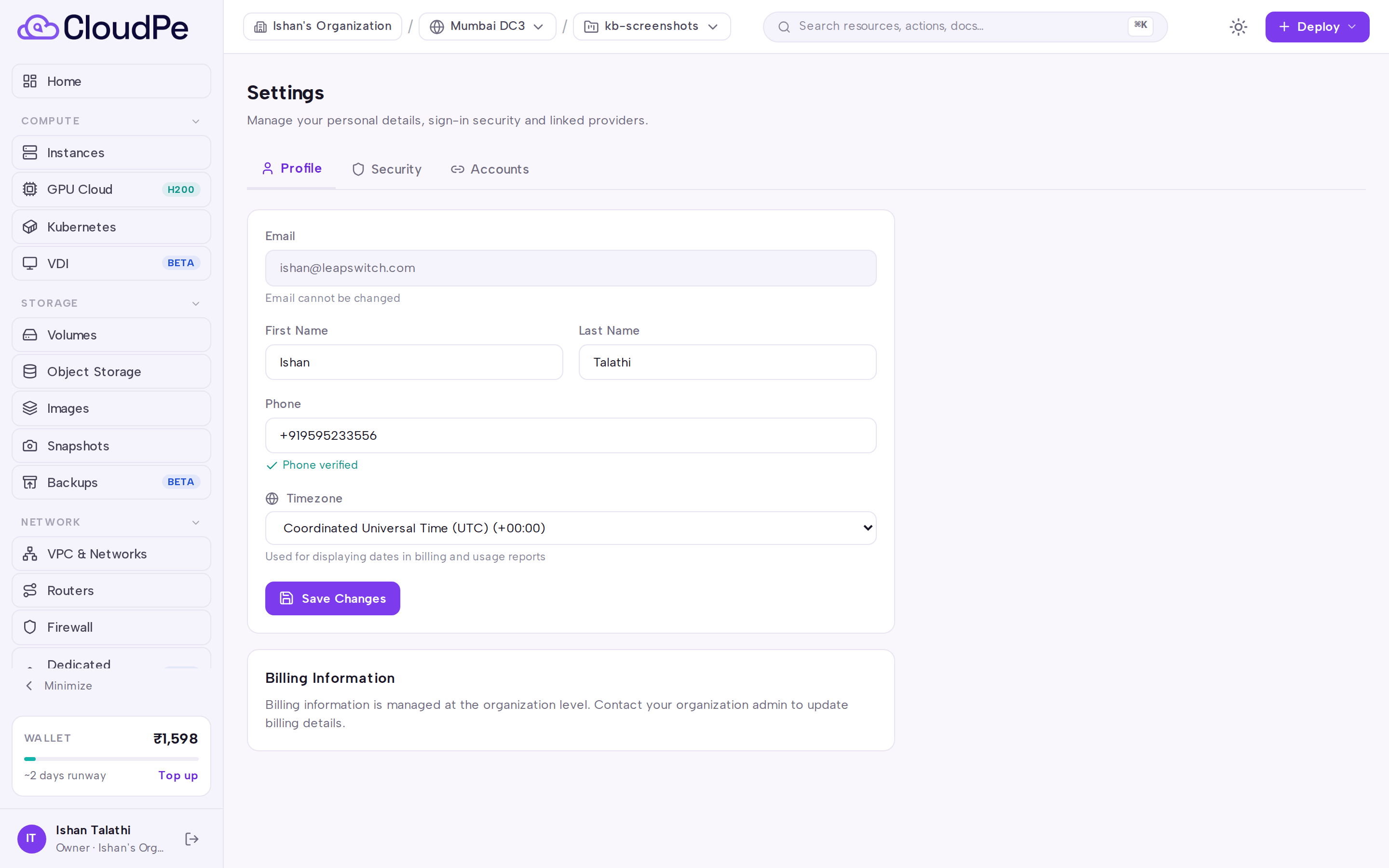
1. Update your profile
- In the sidebar, under ACCOUNT, open Settings.
- Stay on the Profile tab and edit your details.
- Click Save Changes.
2. Manage password and two-factor authentication
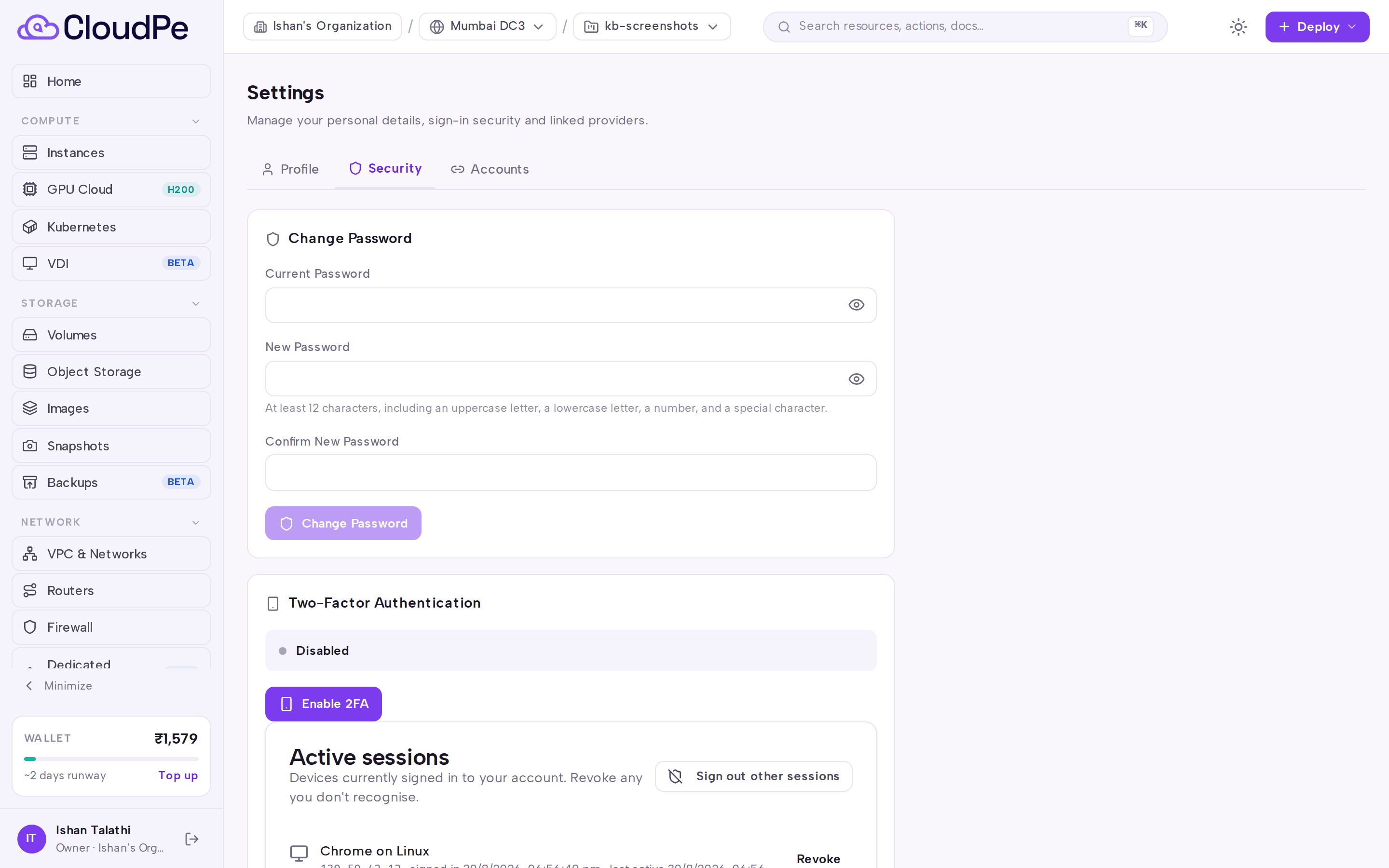
- Open the Security tab.
- Click Change Password to rotate your password. Changing your password signs out all of your other sessions.
- Under Two-Factor Authentication, click Enable 2FA to add a time-based one-time code to your logins.
3. Review linked accounts
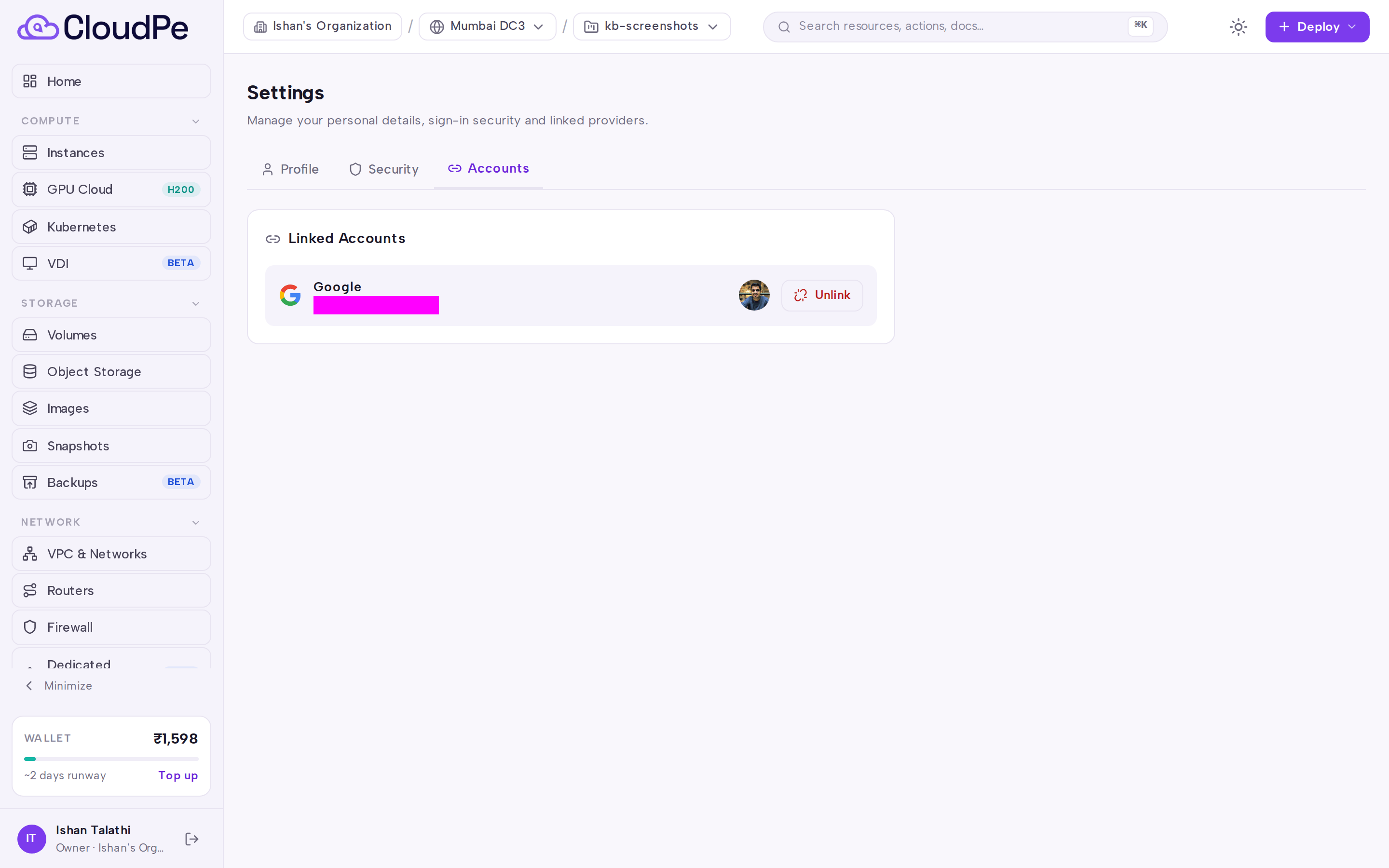
Open the Accounts tab to see the external identity providers linked to your CloudPE login and to manage those links. Social login is available for accounts that already exist; linking a provider does not change your CloudPE password.
4. Review and revoke active sessions
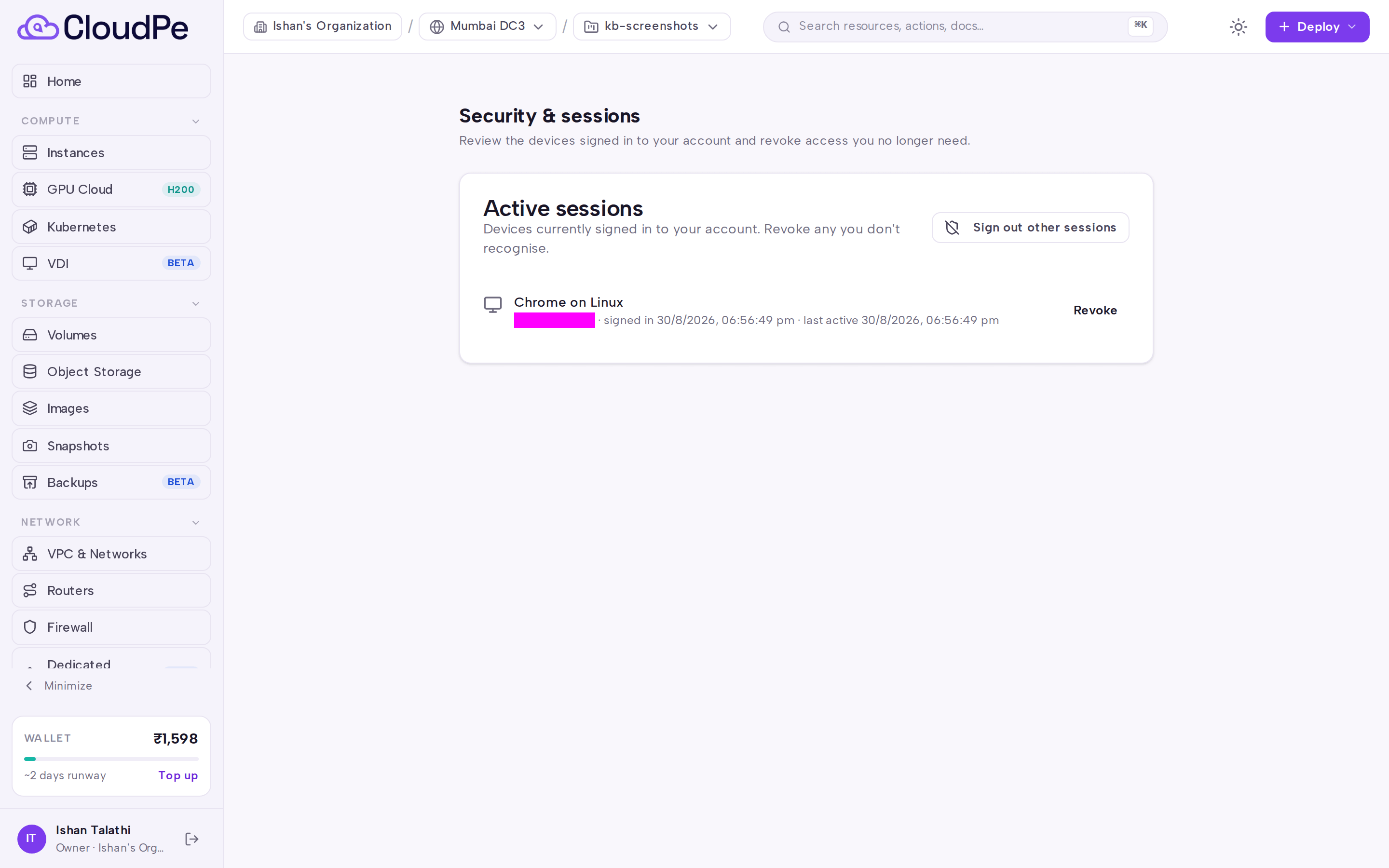
- Go to Security & sessions.
- Under Active sessions, check the listed sessions against the devices you actually use.
- If anything looks unfamiliar, click Sign out other sessions to revoke every session except the one you are using right now, then change your password from the Security tab.
API
The session endpoints below operate on the authenticated caller's own sessions.
List your active sessions:
curl -X GET https://app.cloudpe.com/api/v1/auth/sessions \
  -H "Authorization: Bearer <API_KEY>"
Revoke a single session you own:
curl -X DELETE https://app.cloudpe.com/api/v1/auth/sessions/<session_id> \
  -H "Authorization: Bearer <API_KEY>"
Revoke every session except the current one:
curl -X POST https://app.cloudpe.com/api/v1/auth/sessions/revoke-others \
  -H "Authorization: Bearer <API_KEY>"
API keys are a separate credential class from interactive sessions: they are not listed as sessions and are not affected by the concurrent-session limit.
Limits & billing
- Concurrent interactive sessions per user default to 1. When you exceed the cap by signing in again, the oldest session is revoked automatically — in practice, a new login signs the previous device out.
- An interactive access token is valid for at most 1440 minutes, after which you sign in again.
- The last-seen timestamp shown for a session is refreshed at most once every 300 seconds, so it can lag slightly behind real activity.
- Expired and revoked session records are retained for 30 days before background cleanup deletes them.
- Password reuse is blocked against your current password plus your 5 most recent previous passwords.
- Sessions are revoked automatically on a password reset (all sessions), a password change (all other sessions), and when an account is deactivated (all sessions).
- Managing account settings and sessions is not billed.
FAQ
Why was I signed out on my laptop after signing in on another machine? The concurrent-session cap means a new login revokes the oldest session beyond the limit. Sign in again on the device you want to keep using.
Does signing out other sessions change my password? No. Revoking sessions only invalidates the tokens for those devices. If you suspect the account is compromised, also use Change Password on the Security tab.
I changed my password — do I need to revoke sessions too? No. A password change already revokes all of your other sessions.
Can an administrator end my session? Yes. Administrative actions such as disabling an account or removing two-factor authentication from an account revoke that user's sessions.
Does the session list include API key access? No. API keys authenticate separately and do not create interactive sessions.