

Virtual desktop (VDI) sessions
Overview
VDI sessions give a user a full virtual desktop — a Windows or Linux instance provisioned from a VDI-enabled image and reached from the browser, without an SSH key or an RDP gateway of your own. Each session is a first-class resource: it has a region, a flavor, a root volume, a network, an optional expiry, and its own detail page with volumes, metrics and logs.
Sessions live under VDI in the COMPUTE section of the dashboard. They are organization-scoped and provision into the regional VDI service project, so you do not pick a CMP project for them. Sessions can optionally be grouped so that lifecycle actions (extend, shelve, delete) apply to a whole classroom or team at once.
VDI is in beta. Behaviour and available regions can change, and you should not place a production-critical desktop on it without a fallback.
Before you start
- Identity verification: your organization must have completed KYC. Without it, resource creation is refused with
Complete identity verification to create cloud resources. - Permissions: you need
vdi_sessions:readto see the list,vdi_sessions:createto provision,vdi_sessions:extendto push an expiry out,vdi_sessions:updatefor power actions, rename, resize, snapshots and schedules, andvdi_sessions:deleteto remove a session. - A VDI-enabled region: not every region serves VDI. If the region you pick is not enabled, or the platform has no VDI credentials configured for it, creation fails — see Troubleshooting.
- A VDI-shared image: only images published for VDI appear in the Image picker. Custom images have to be enabled for VDI sharing first.
- One active organization: if your user belongs to more than one organization, select the active one before creating; the API requires the
X-Organization-Idheader in that case. - Wallet and billing standing: session creation runs the same billable-create gate as other compute resources, so the account must be in good standing.
Steps
In the dashboard sidebar, open VDI. The Sessions tab lists every session in the organization; Groups lists session groups.
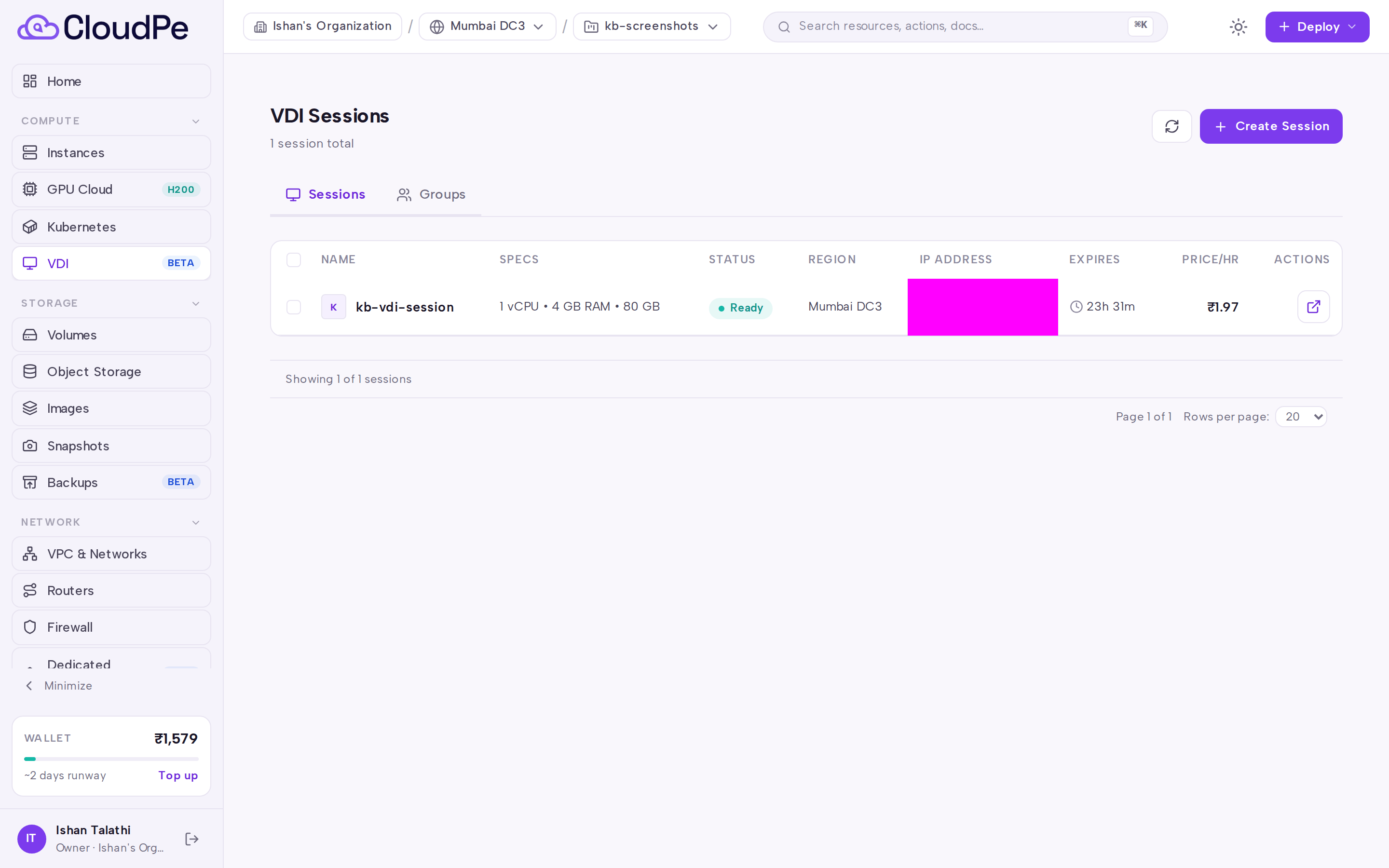
Click Create Session. To provision several desktops from one form instead, click Bulk Create Sessions.
On Create VDI Session, fill in the form:
- Session Name — the display name; it is also used to generate the session's access slug.
- Group — attach the session to an existing group, or name a new one. Leave empty for a standalone session.
- Region — a VDI-enabled region.
- VM Configuration — the flavor that sets vCPU and RAM.
- Image — the desktop image to boot.
- Storage (GB) — the root volume size.
- Network — a VDI network in the region; leave it unset to use the region default.
- Session Expiry — when the session is auto-deleted. If you set nothing, the session expires after 24. You can also mark the session as having no expiry.
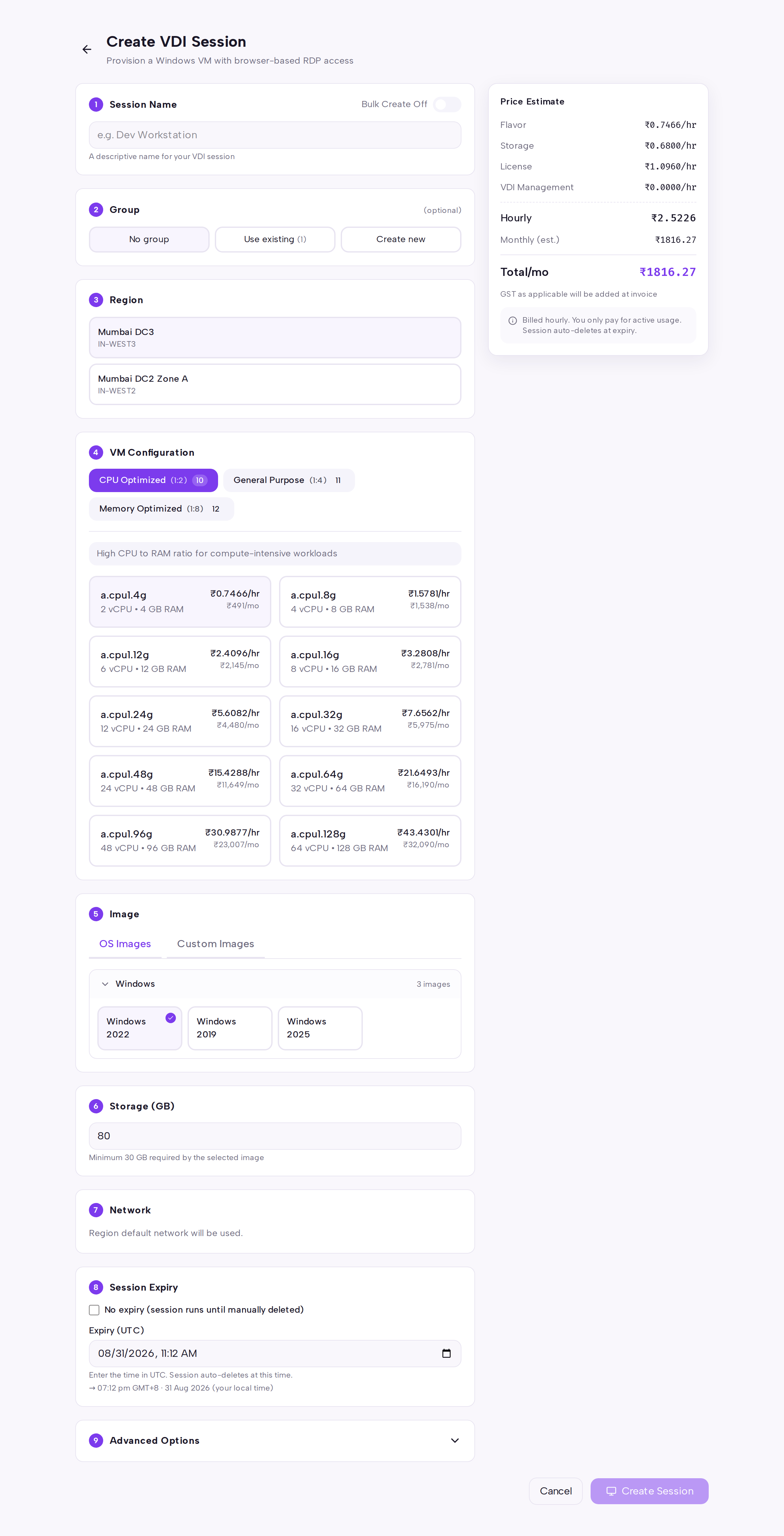
Click Create Session (or Cancel to discard). The session is queued for provisioning on the workspace server.
Use Refresh on the list, or Refresh status on the session page, until the session reports ready.
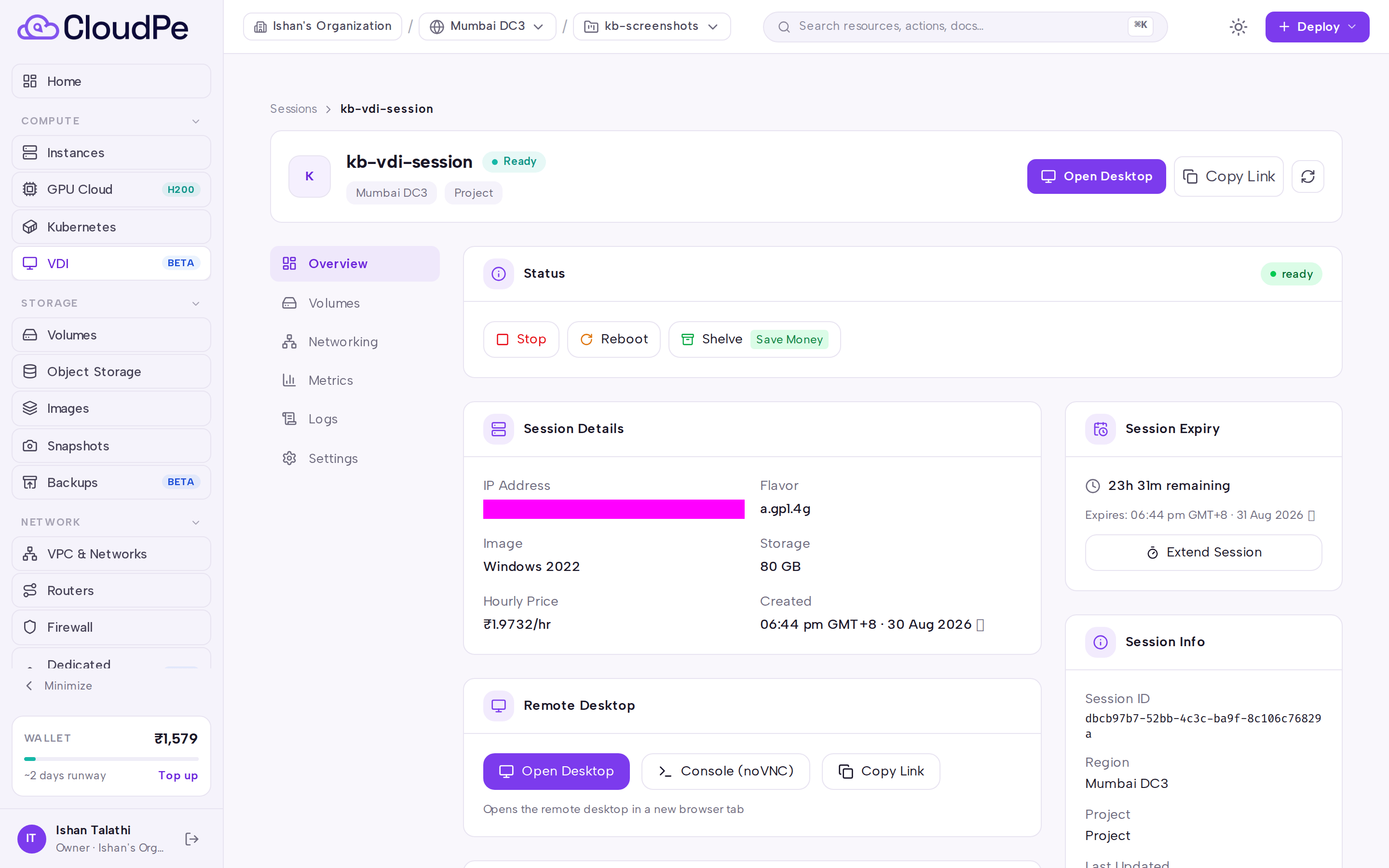
Open the session to reach its detail page. The Overview, Volumes, Networking, Metrics, Logs and Settings tabs cover the rest of its lifecycle. Use Open Desktop to connect, or Copy Link to hand the access URL to the person who will use it.
API
All calls use a Bearer API key. If you belong to more than one organization, send X-Organization-Id as well.
| Operation | Method + path |
|---|---|
| Price estimate | POST /api/v1/vdi/estimate |
| List VDI images | GET /api/v1/vdi/images |
| List VDI networks | GET /api/v1/vdi/networks |
| List sessions | GET /api/v1/vdi/sessions |
| Create session | POST /api/v1/vdi/sessions |
| Bulk create sessions | POST /api/v1/vdi/sessions/bulk |
| Get session | GET /api/v1/vdi/sessions/{session_id} |
| Launch session | POST /api/v1/vdi/sessions/{session_id}/launch |
| Extend session | POST /api/v1/vdi/sessions/{session_id}/extend |
| Power action (start, stop, reboot, hard_reboot, shelve, unshelve) | POST /api/v1/vdi/sessions/{session_id}/actions |
| Rename session | PATCH /api/v1/vdi/sessions/{session_id}/rename |
| Resize session | POST /api/v1/vdi/sessions/{session_id}/resize |
| Delete session | DELETE /api/v1/vdi/sessions/{session_id} |
Create a session:
curl -X POST https://app.cloudpe.com/api/v1/vdi/sessions \
  -H "Authorization: Bearer <API_KEY>" \
  -H "Content-Type: application/json" \
  -d '{
    "name": "design-desk-01",
    "region": "<region-slug>",
    "flavor": "<flavor-slug>",
    "image": "<image-slug>"
  }'
region, flavor and image each accept a slug or the provider openstack_id. Optional body fields include group_id or group_name, network_id, storage_gb, expires_at, expiry_hours, no_expiry and user_data (cloud-init cloud-config YAML applied on first boot).
Quote the cost before you commit:
curl -X POST https://app.cloudpe.com/api/v1/vdi/estimate \
  -H "Authorization: Bearer <API_KEY>" \
  -H "Content-Type: application/json" \
  -d '{
    "region": "<region-slug>",
    "flavor": "<flavor-slug>",
    "image": "<image-slug>"
  }'
Fetch a session's state:
curl https://app.cloudpe.com/api/v1/vdi/sessions/<session_id> \
  -H "Authorization: Bearer <API_KEY>"
Limits & billing
- A session that reaches its expiry is deleted, not stopped. Extend it before then, or create it with no expiry.
- Default expiry when you specify neither
expires_atnorexpiry_hours: 24. Maximum session lifetime: 720. An extension that would push the total past that maximum is rejected. - Concurrent sessions per user are capped at 30.
- Session creation is rate limited to 60 per hour; a bulk request counts every session it asks for.
- A running session bills like the equivalent compute instance plus its root volume. Shelving a session (through the session's power action or a shelve schedule) is the way to stop compute charges while keeping the desktop's disk.
- Use
POST /api/v1/vdi/estimatefor a price before creating.
Troubleshooting
| Error | What it means | What to do |
|---|---|---|
VDI is not enabled for this region |
The selected region does not serve VDI. | Choose a VDI-enabled region in Region. |
VDI credentials not configured for region {…}. Contact administrator. |
The region is marked VDI-enabled but has no workspace credential. | Raise a support ticket; this needs a platform administrator. |
Region not visible to your organization |
The region is not in your organization's allowed set. | Pick another region, or ask support to enable it. |
Image '{…}' not found |
The image slug or ID is wrong, or that image is not shared to VDI. | List candidates with GET /api/v1/vdi/images and retry with one of those. |
You belong to multiple organizations. Specify the active organization (X-Organization-Id) before creating a VDI session. |
The request is ambiguous across your memberships. | Select the active organization in the dashboard, or send the X-Organization-Id header. |
Concurrent VDI session limit reached ({…}/{…}); requested {…}. |
The per-user session cap is full. | Delete or let expire sessions you no longer need, then retry. |
VDI create rate limit reached ({…}/{…} in the last hour); requested {…}. |
Too many creates in the trailing hour, usually from a bulk request. | Wait and submit a smaller batch. |
Session lifetime exceeds the configured maximum of {…}h (requested {…}h). |
The requested expiry is beyond the maximum lifetime. | Request a shorter lifetime and extend later. |
Extension would exceed max session lifetime ({…}h). Current total would be {…}h. |
The extension pushes past the maximum lifetime. | Extend by less, or create a fresh session. |
Session has no expiry; there is nothing to extend. |
The session was created with no expiry. | No action needed — it will not auto-delete. |
Session cannot be launched in '{…}' status. Must be 'ready' or 'active'. |
The session is still building, shelved or errored. | Use Refresh status, or unshelve/start it, then launch again. |
Session is not yet provisioned on the workspace server. |
Provisioning has not finished. | Wait and refresh. |
Session is not ready for connection (status: {…}) |
The desktop is not in a connectable state. | Check the Overview tab for the current status before clicking Open Desktop. |
Session IP not yet assigned |
Networking has not completed. | Retry shortly; check the Networking tab. |
Session has expired. |
The expiry passed and the session is gone. | Create a new session; extend earlier next time. |
VDI provisioning queue is unavailable. Please retry shortly. |
The provisioning worker could not accept the request. | Retry in a few minutes. |
Workspace server is temporarily unavailable. Please try again. |
The regional workspace service did not respond. | Retry; if it persists, contact support. |
Cannot delete session in '{…}' state |
The session is mid-transition. | Wait for the current operation to finish, then delete. |
Complete identity verification to create cloud resources. |
KYC is not complete for the organization. | Finish identity verification, then retry. |
FAQ
What happens when a session expires?
It is auto-deleted. Extend it before the expiry with Extend or POST /api/v1/vdi/sessions/{session_id}/extend, or create it with no expiry.
Can I create many desktops at once?
Yes — use Bulk Create Sessions in the dashboard or POST /api/v1/vdi/sessions/bulk. All sessions in a bulk request share the region, flavor, image, storage and expiry settings, and can be attached to one group.
Do I choose a project for a VDI session? No. VDI sessions are organization-scoped and provision into the regional VDI service project.
Can I use my own custom image?
Only if it has been enabled for VDI sharing (POST /api/v1/images/{image_id}/enable-vdi); that call itself requires completed identity verification. Use POST /api/v1/images/{image_id}/disable-vdi to withdraw it.
How do I stop paying for a desktop I still need later?
Shelve it — either the shelve power action, or a shelve schedule on the session or its group. Unshelve when it is needed again.
Can I change the flavor after creation?
Yes: POST /api/v1/vdi/sessions/{session_id}/resize, then confirm with /resize/confirm or roll back with /resize/revert.
Can I pass startup configuration?
Yes — the user_data field takes cloud-init cloud-config YAML, applied on first boot.