

VDI desktop groups
Overview
A VDI desktop group is a container for virtual desktop sessions that lets you operate many desktops as one unit. Instead of shelving, extending or deleting each desktop individually, you select the group and apply the action to every session it holds.
Groups are managed from the Groups tab of the VDI page, and each group has its own detail page with bulk actions and an optional shelve schedule. VDI is a beta feature and is shown with a beta marker in the sidebar.
Before you start
- Your role needs
vdi_sessions:readto view groups,vdi_sessions:createto create them,vdi_sessions:updatefor shelve/unshelve, move and schedule changes,vdi_sessions:extendfor bulk extension, andvdi_sessions:deleteto delete a group or all of its sessions. - The sessions you want to group must live in a region where VDI is enabled; otherwise session actions fail with "VDI is not enabled for this region".
- Identity verification must be complete before images can be enabled for VDI in your organization.
- If your account belongs to more than one organization, select the active organization first — the API otherwise rejects VDI calls until
X-Organization-Idis supplied.
Steps
In the sidebar, open VDI and switch to the Groups tab. The tab lists every desktop group in the active organization along with its sessions.
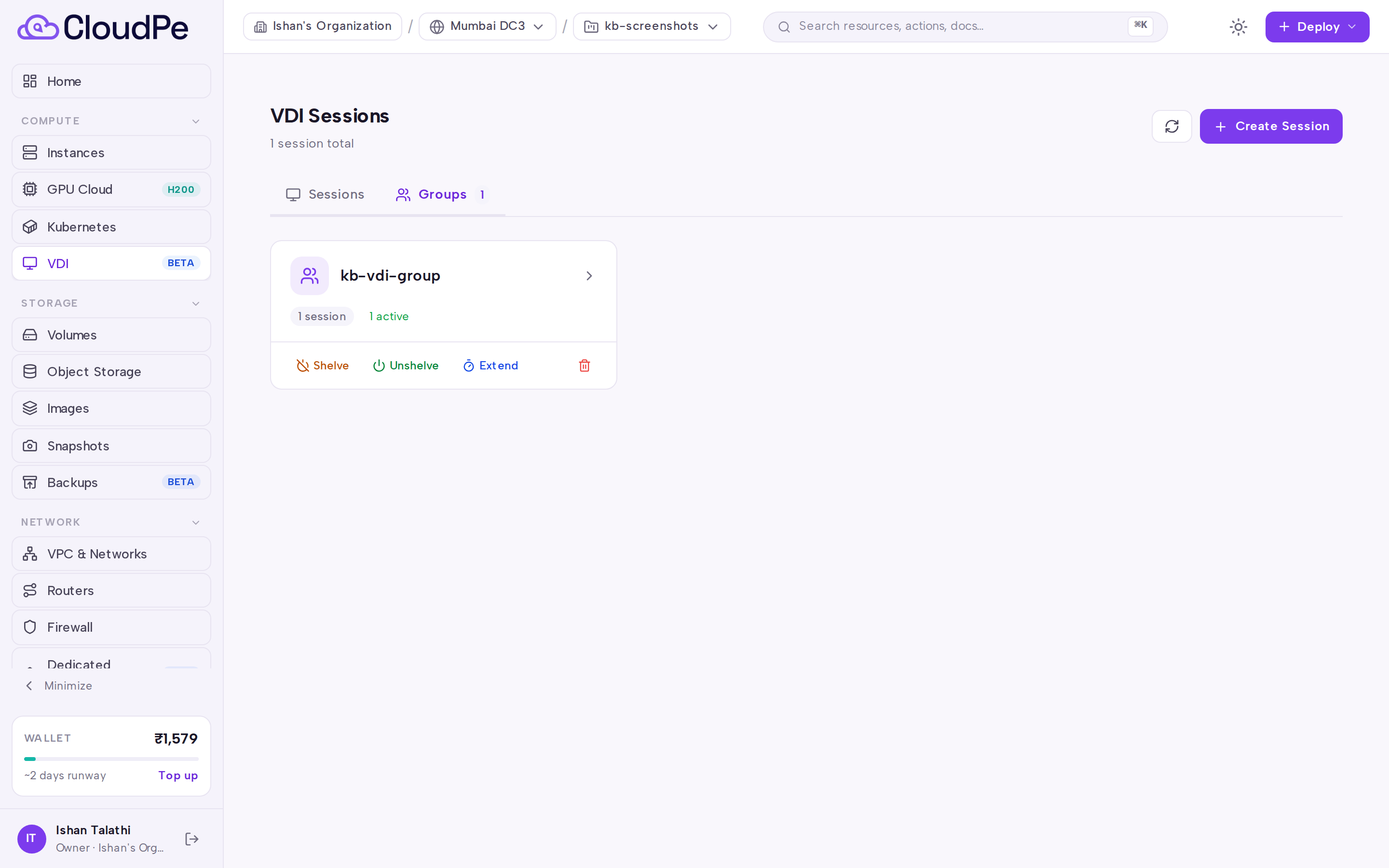
Create the desktops you want to group from the Sessions tab using Create Session or Bulk Create Sessions, then assign them to the group. Use Refresh if a newly created desktop has not appeared yet.
Select a group to open its detail page. The page shows the member sessions and the group-level controls.
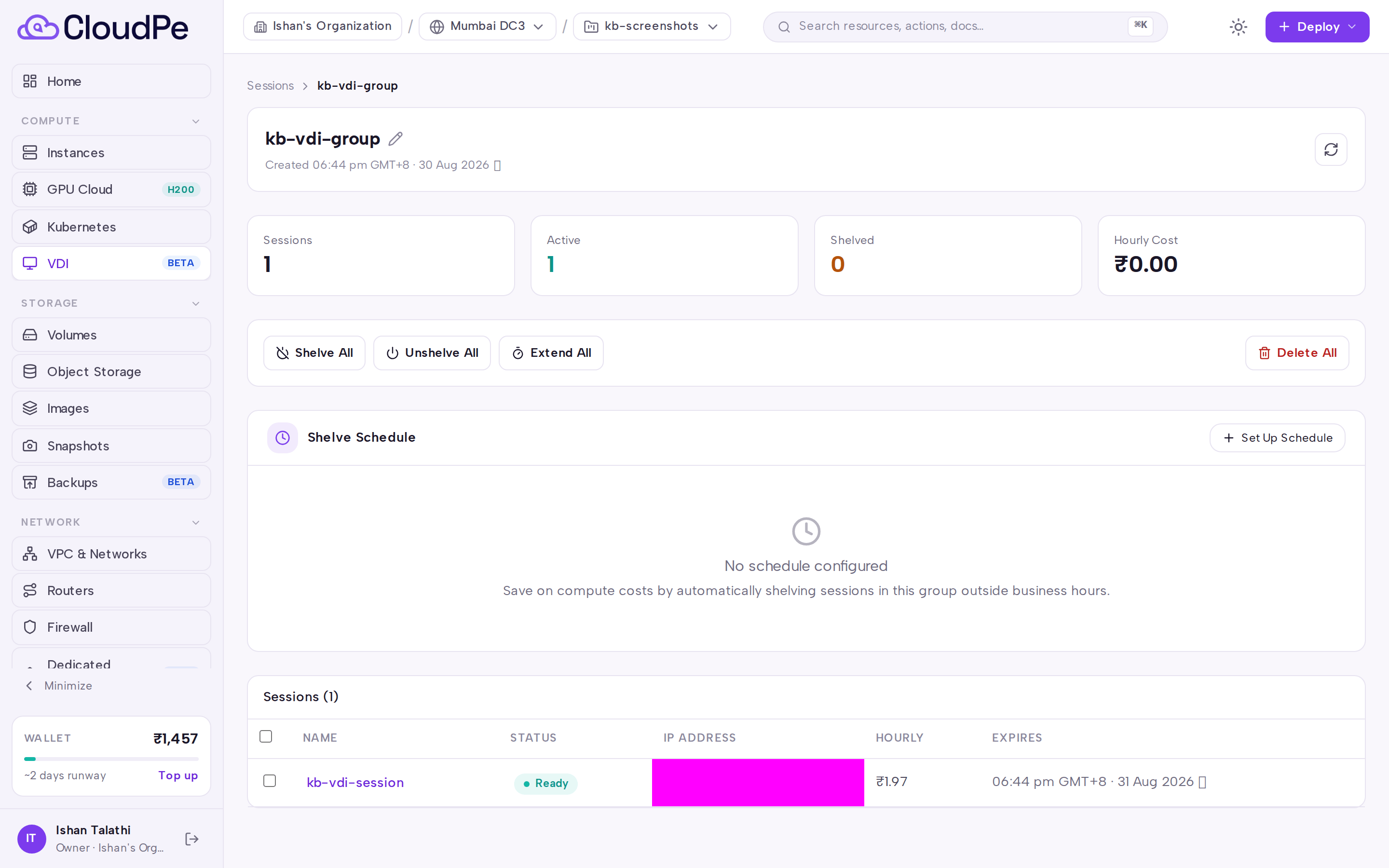
Use the bulk actions on the group detail page:
- Shelve All — shelves every session in the group.
- Unshelve All — brings shelved sessions back.
- Extend All — pushes out the expiry of every session in the group.
- Delete All — removes every session in the group.
To automate shelving, set a shelve schedule on the group. The schedule can be replaced or switched off later without deleting the group.
To reorganise, move sessions into another group or remove them from the current group; removed sessions remain as standalone desktops.
API
All calls use the same bearer token header. Add X-Organization-Id when your account belongs to more than one organization.
Available operations:
GET /api/v1/vdi/groups/— list groupsPOST /api/v1/vdi/groups/— create a groupGET /api/v1/vdi/groups/{group_id}— group detailPUT /api/v1/vdi/groups/{group_id}— update a groupDELETE /api/v1/vdi/groups/{group_id}— delete a groupPOST /api/v1/vdi/groups/{group_id}/actions/shelvePOST /api/v1/vdi/groups/{group_id}/actions/unshelvePOST /api/v1/vdi/groups/{group_id}/actions/extendDELETE /api/v1/vdi/groups/{group_id}/actions/delete-allPOST /api/v1/vdi/groups/{group_id}/move-sessionsPOST /api/v1/vdi/groups/{group_id}/remove-sessionsGET /api/v1/vdi/groups/{group_id}/shelve-schedulePOST /api/v1/vdi/groups/{group_id}/shelve-schedulePUT /api/v1/vdi/groups/{group_id}/shelve-schedulePATCH /api/v1/vdi/groups/{group_id}/shelve-schedule/toggleDELETE /api/v1/vdi/groups/{group_id}/shelve-schedule
List the groups in your organization:
curl -X GET "https://app.cloudpe.com/api/v1/vdi/groups/" \
  -H "Authorization: Bearer <API_KEY>"
Read one group:
curl -X GET "https://app.cloudpe.com/api/v1/vdi/groups/<group_id>" \
  -H "Authorization: Bearer <API_KEY>"
Shelve every session in a group:
curl -X POST "https://app.cloudpe.com/api/v1/vdi/groups/<group_id>/actions/shelve" \
  -H "Authorization: Bearer <API_KEY>"
Delete every session in a group:
curl -X DELETE "https://app.cloudpe.com/api/v1/vdi/groups/<group_id>/actions/delete-all" \
  -H "Authorization: Bearer <API_KEY>"
Limits & billing
- Grouping does not change per-user desktop limits. A user may hold up to 30 concurrent VDI sessions, and desktop creation is capped at 60 per hour — bulk creation into a group counts against both.
- New desktops expire after 24 hours by default. Extend All cannot push a session past the maximum lifetime of 720 hours; sessions already at the ceiling are rejected while the rest proceed.
- Shelving a group is the way to stop desktops in bulk when they are not in use; unshelve them again before the next working session.
Troubleshooting
| Error | What it means | What to do |
|---|---|---|
Group not found |
The group ID does not exist in the active organization, or it was already deleted. | Reload the Groups tab and re-select the group. |
No shelve schedule for this group |
You tried to read, toggle or delete a schedule that was never created. | Create the shelve schedule on the group first, then toggle it. |
Concurrent VDI session limit reached ({…}/{…}); requested {…}. |
The bulk create would exceed your concurrent desktop allowance. | Delete or shelve desktops you no longer need, or request fewer sessions. |
VDI create rate limit reached ({…}/{…} in the last hour); requested {…}. |
Too many desktops were created in the last hour. | Wait for the hourly window to roll over and retry the remaining sessions. |
Extension would exceed max session lifetime ({…}h). Current total would be {…}h. |
Extend All would push a member past the maximum lifetime. | Extend by a shorter period, or rebuild the affected desktops. |
Cannot extend session in '{…}' state |
A member session is in a state that does not accept extension. | Unshelve or wait for the session to reach a stable state, then extend again. |
You belong to multiple organizations. Specify the active organization (X-Organization-Id) before creating a VDI session. |
The request did not identify which organization to use. | Select the active organization in the dashboard, or send the X-Organization-Id header. |
Session is already deleted |
A bulk delete included a session that was removed earlier. | Use Refresh to reload the group and ignore the stale entry. |
VDI workspace is temporarily unavailable |
The workspace backend did not respond. | Retry the group action shortly; if it persists, raise a support ticket. |
FAQ
Does deleting a group delete its desktops? Deleting the group and deleting all of its sessions are separate operations. Use Delete All when you want the desktops removed; delete the group itself when you only want to drop the container.
Can a desktop move between groups? Yes. Move sessions to another group, or remove them from the current group to leave them standalone.
Do group actions apply to every member? Yes — Shelve All, Unshelve All, Extend All and Delete All target every session currently in the group, so review the membership list before running them.
Does a shelve schedule on a group override per-session schedules? Sessions can carry their own shelve schedules as well; set the schedule at the level you want to manage, and toggle the group schedule off if you prefer per-desktop control.