

Connecting to a virtual desktop
Overview
VDI gives you a Windows desktop that runs on CloudPe and opens in your browser — there is no RDP client to install. This article covers connecting to a desktop that already exists: finding it in the dashboard, launching the viewer, signing in with the session's RDP credentials, and sharing the public link with someone who does not have a CloudPe account.
VDI is in beta. The VDI area is marked as beta in the dashboard navigation, and behaviour may change between releases.
Before you start
- Permissions — you need
vdi_sessions:readto list a session, view its detail page and launch the desktop viewer. Sharing the public link requiresvdi_sessions:share; extending an expiring session requiresvdi_sessions:extend. - A provisioned session — the desktop must already exist and have finished provisioning. A session can only be launched from the
readyoractivestate. See Creating a VDI session if you do not have one yet. - Region — the session's region must be VDI-enabled by the platform. If it is not, the launch call fails rather than the connect step.
- Organization membership — VDI sessions belong to an organization, not a project. Any member of the owning organization who holds the relevant
vdi_sessions:*permission can connect to the session, not just the person who created it. - Browser access — the desktop is streamed through a WebSocket-based RDP viewer, so the browser must be able to reach the workspace domain.
Steps
In the dashboard sidebar, open VDI under COMPUTE. The VDI Sessions page opens on the Sessions tab and lists the sessions your organization owns.
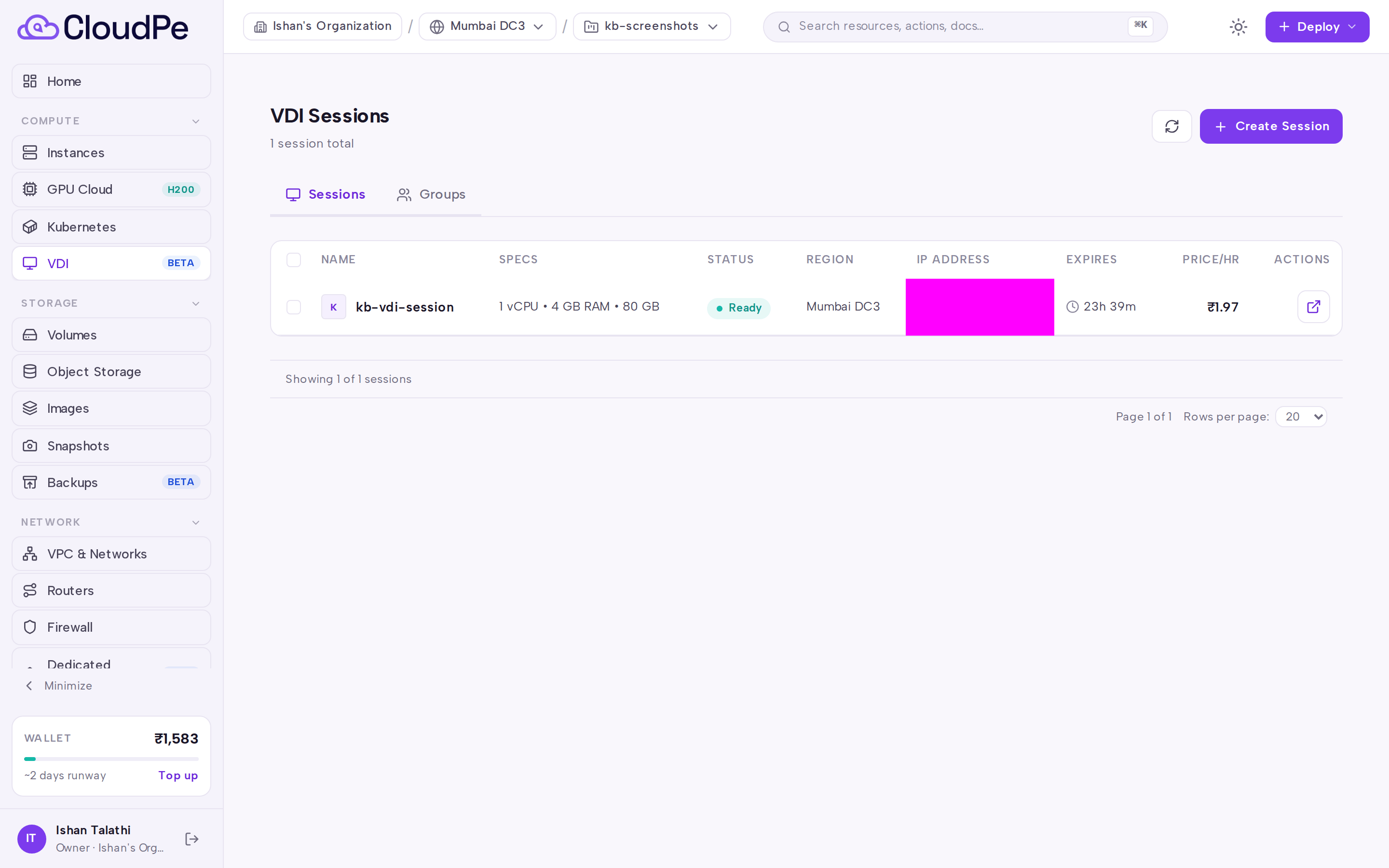
Check the session's status badge. A session that is still provisioning or booting cannot be connected to yet — use Refresh to re-read the list while it settles.
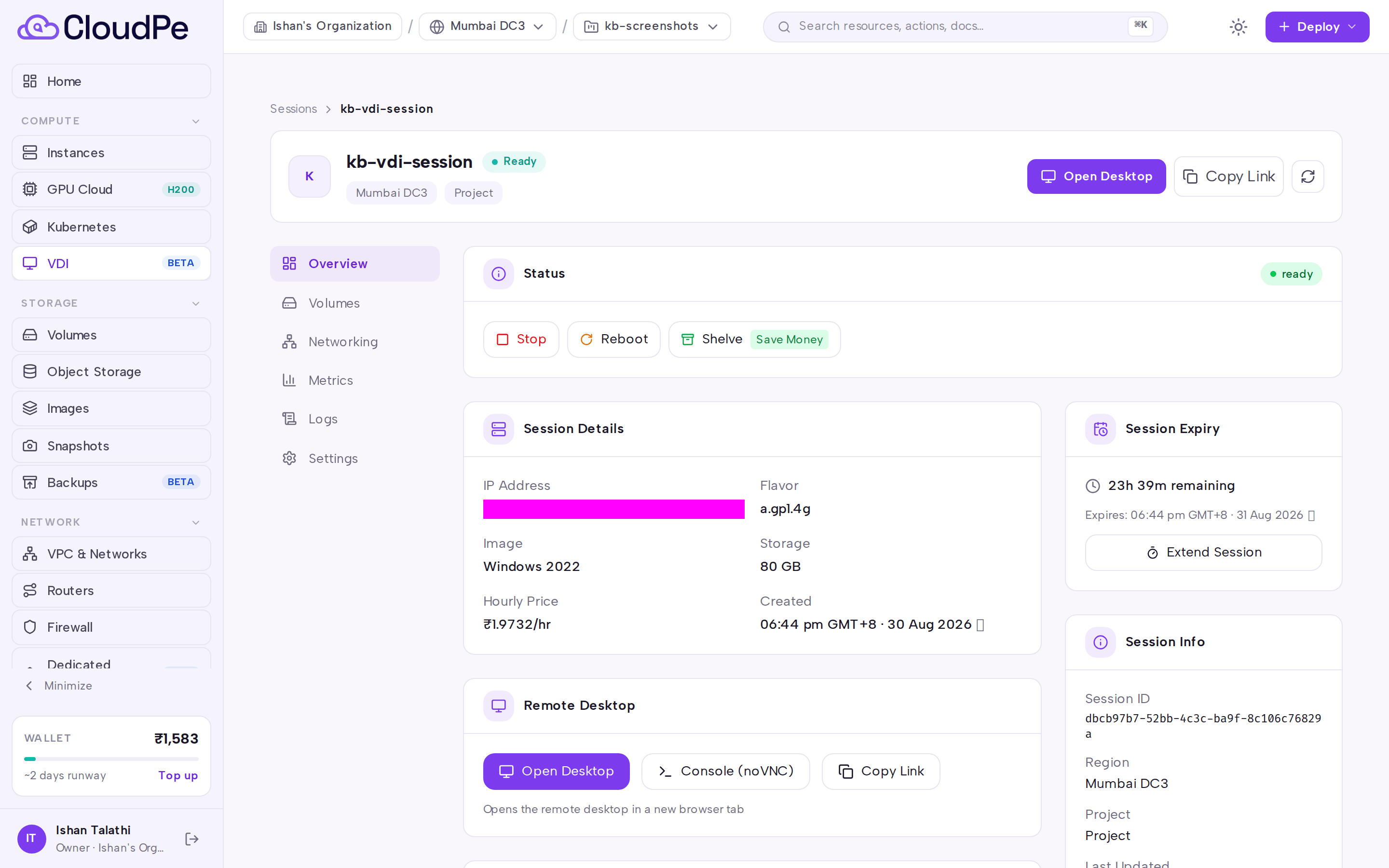
Select the session to open its detail page. The Overview tab shows the session's status, its expiry, and the RDP username and password used to sign in to Windows.
Click Open Desktop. The browser RDP viewer loads and connects to the desktop.
Sign in at the Windows lock screen with the RDP username and password from the Overview tab. The password is shown once when the session is created; afterwards retrieve it from the session's credentials on the detail page.
If the viewer does not connect, use Refresh status on the detail page to re-read the session state from the workspace server, then try Open Desktop again.
To let someone else connect without signing in to CloudPe, use Copy Link. This copies the session's public share URL, which is keyed on a unique per-session slug. Anyone holding the link can reach the desktop and its credentials, so treat it as a secret.
API
The following operations are available on the public API. Authenticate with an API key.
List the sessions your organization owns:
curl https://app.cloudpe.com/api/v1/vdi/sessions \
  -H "Authorization: Bearer <API_KEY>"
Read one session, including its status and connection details:
curl https://app.cloudpe.com/api/v1/vdi/sessions/<session_id> \
  -H "Authorization: Bearer <API_KEY>"
Launch the desktop on the workspace server (the session must be ready or active):
curl -X POST https://app.cloudpe.com/api/v1/vdi/sessions/<session_id>/launch \
  -H "Authorization: Bearer <API_KEY>"
The share link resolves against two endpoints that require no authentication — this is why the link must be distributed carefully:
GET /api/v1/vdi/public/{slug}GET /api/v1/vdi/public/{slug}/credentials
Limits & billing
- A session has an expiry. The default lifetime is 24 hours and the maximum configured lifetime is 720 hours; an extension that would push the total past that maximum is rejected. Once a session has expired it stops accepting connections and is queued for deletion.
- Concurrent sessions per user are capped at 30, and session creation is rate limited to 60 per hour.
- VDI is billed hourly for as long as the session exists, whether or not anyone is connected. The hourly rate is a component total: compute (flavor), storage (volume), operating-system licence, floating IP where one is attached, and the VDI management fee. Delete a desktop you no longer need rather than leaving it idle.
Troubleshooting
| Error | What it means | What to do |
|---|---|---|
Session is not ready for connection |
The session is not in a state that accepts a connection. | Wait for the status to reach ready or active, then retry. Use Refresh status on the detail page. |
Session is not yet provisioned on the workspace server. |
The desktop has not been handed off to the workspace server yet. | Wait for provisioning to complete and retry. If it never leaves provisioning, contact support. |
Session cannot be launched in '{…}' status. Must be 'ready' or 'active'. |
You tried to launch from a state such as shelved, stopped or failed. | Unshelve or start the session first, then launch. |
Session has expired. |
The session passed its expiry time. | Extend the session before it expires (requires vdi_sessions:extend), or create a new one. |
Session IP not yet assigned |
The desktop has no address yet, so the viewer cannot reach it. | Wait for the status sync to complete and retry. |
VDI workspace returned an error launching the session. |
The workspace server rejected the launch. | Retry; if it persists, raise a support ticket with the session ID. |
Workspace server is temporarily unavailable. Please try again. |
The workspace server is not reachable. | Retry shortly. |
VDI is not enabled for this region |
The session's region does not offer VDI. | Create the desktop in a VDI-enabled region. |
VDI credentials not configured for region {…}. Contact administrator. |
The region is missing its VDI workspace credential. | Contact your administrator or CloudPe support. |
VDI session not found |
The session ID does not exist, or it is outside your organization. | Confirm the session ID and that you are working in the owning organization. |
FAQ
Do I need to install an RDP client? No. The desktop streams into the browser through the built-in viewer.
Where do I find the desktop password? It is returned once when the session is created and afterwards available from the session's credentials on the detail page.
Can a colleague connect to a desktop I created?
Yes. Any member of the owning organization with vdi_sessions:read can open and connect to the session.
Does the public share link require a login? No. The slug-based URL and its credentials endpoint work without authentication, which is what makes anonymous sharing possible — only distribute the link to people who should have full access to the desktop.
Is the desktop still billed if I close the browser tab? Yes. Billing runs while the session exists, not while the viewer is open. Delete or shelve the desktop to stop consuming resources.