

Paying by bank transfer (Smart Collect)
Overview
Smart Collect lets your organization pay CloudPe invoices by bank transfer (NEFT, RTGS, IMPS or UPI) instead of a card or gateway checkout. Each organization can be issued its own Razorpay Virtual Bank Account — a dedicated account number and IFSC, plus a UPI VPA where available — that only your organization pays into.
When money reaches that account, CloudPe records the transfer, matches it against your open invoices (including amounts where you have deducted TDS before paying), and marks the matched invoice as paid. Transfers that cannot be matched automatically are flagged for review, and can be applied to a specific invoice or credited to your organization wallet.
Smart Collect is an India-only, INR-only payment path.
Before you start
- Your organization must be billed in INR. Invoices raised in another currency cannot be settled through this flow.
- You need the
billing:managepermission to create the Virtual Bank Account, andbilling:readto view the account details and the list of received transfers. - Your organization must already exist and be selected in the dashboard — the Virtual Bank Account is issued per organization, not per project.
- Only one active Virtual Bank Account exists per organization. Once created, it is permanent for your organization; customers cannot close their own account — contact support if it needs to be closed.
- If you intend to deduct TDS before transferring, your organization must have a TAN number recorded in its billing details.
Steps
- In the sidebar, open Billing.
- Select the Bank Transfers tab.
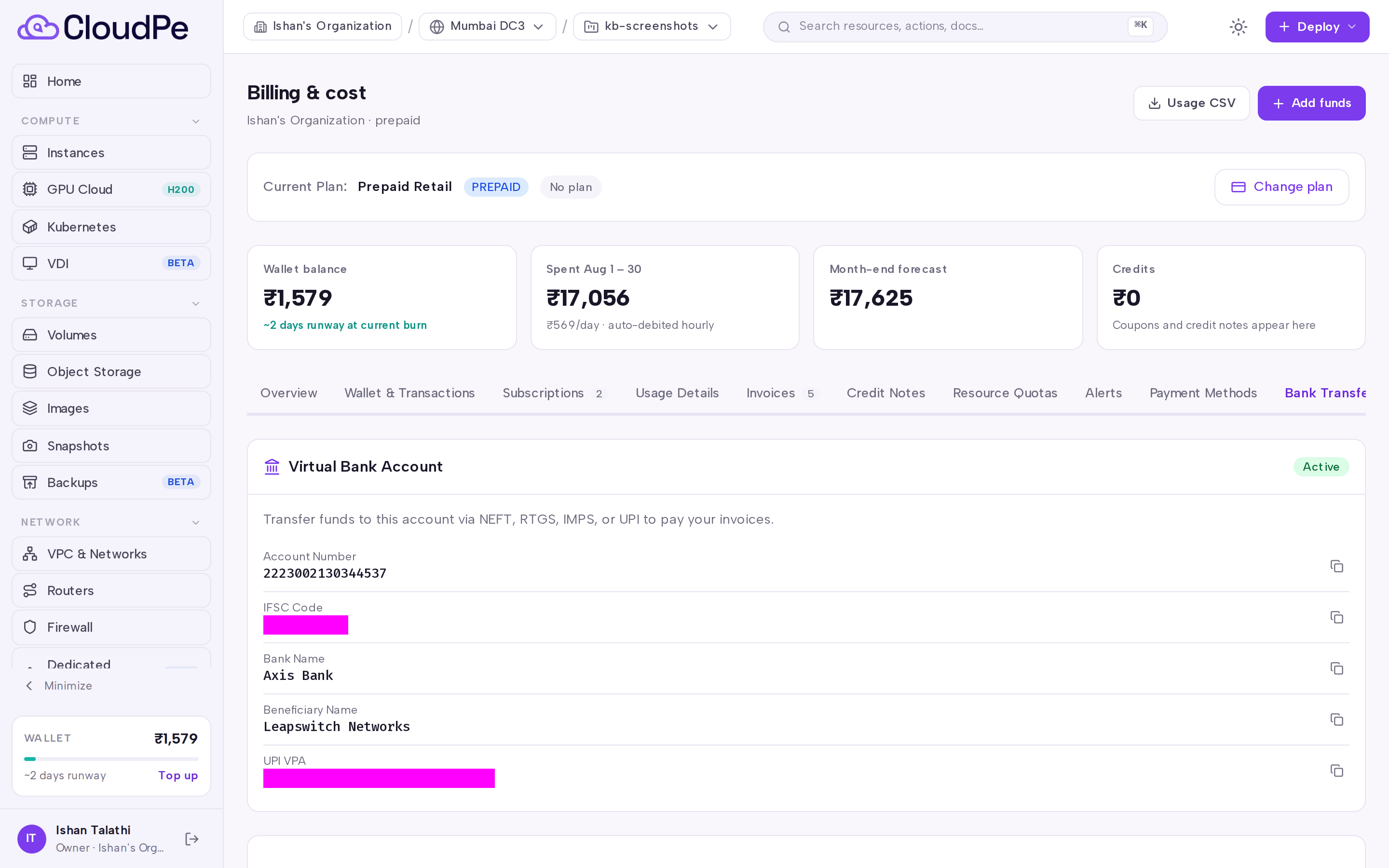
- Under Virtual Bank Account, click Create Virtual Bank Account. CloudPe registers your organization with the payment provider and provisions the account.
- Copy the displayed account number, IFSC, bank name and beneficiary name (and the UPI VPA, if one was issued). Use these as the payee in your bank's NEFT/RTGS/IMPS transfer, or as the UPI payee.
- Send the transfer for the exact amount due on the invoice you are settling. If you are deducting TDS, send the invoice amount due minus the TDS you are withholding.
- Return to the Bank Transfers tab to see the transfer once it is received. Each row shows the amount, the transfer mode, the UTR and the match status; matched rows link to the invoice that was settled.
Matching runs automatically after the payment is received, so the invoice status may take a short while to update after your bank confirms the transfer. UTR and payer details are filled in as soon as the provider reports them.
API
The following operations are available for Smart Collect.
Create the Virtual Bank Account for the current organization (requires billing:manage):
curl -X POST https://app.cloudpe.com/api/v1/billing/virtual-account \
  -H "Authorization: Bearer <API_KEY>"
Retrieve the current Virtual Bank Account details (requires billing:read):
curl https://app.cloudpe.com/api/v1/billing/virtual-account \
  -H "Authorization: Bearer <API_KEY>"
List bank transfers received into the account (requires billing:read):
curl https://app.cloudpe.com/api/v1/billing/bank-transfers \
  -H "Authorization: Bearer <API_KEY>"
Fetch a single transfer, including its match status and UTR:
curl https://app.cloudpe.com/api/v1/billing/bank-transfers/<transfer_id> \
  -H "Authorization: Bearer <API_KEY>"
Limits & billing
- Virtual Bank Accounts are issued in INR only and accept NEFT, RTGS, IMPS and UPI payments.
- One active Virtual Bank Account is issued per organization; all projects in that organization share it.
- A transfer is matched to a single invoice. Where the amount equals the invoice amount due, or the amount due less the TDS recorded (or computable) for that invoice, the invoice is marked paid and the TDS is recorded against it.
- If more than one open invoice could match the amount, or none does, the transfer is held for review rather than applied automatically.
- If the transfer exceeds the invoice total, the excess is credited to your organization wallet.
- Transfers that do not correspond to any invoice can be credited to the organization wallet instead, which raises a top-up invoice.
- Paying by bank transfer does not change how usage is rated; it only changes how the resulting invoice is settled.
Troubleshooting
| Error | Cause | Fix |
|---|---|---|
Failed to create Virtual Account. Please try again. |
The account could not be provisioned with the payment provider. | Retry from Create Virtual Bank Account. If it keeps failing, raise a support ticket — Smart Collect may not be enabled for your organization yet. |
Permission denied: billing:manage required |
Your role can view billing but not change it. | Ask an organization owner or a member with billing:manage to create the Virtual Bank Account. |
Permission denied: billing:read required |
Your role has no billing visibility. | Ask an organization owner to grant billing:read before opening the Bank Transfers tab. |
Bank transfer not found |
The transfer ID does not exist for your organization, or the webhook for it has not arrived yet. | Re-list transfers from the Bank Transfers tab and use the ID shown there. Recently sent payments appear only after the provider reports them. |
Organization not found |
The request was made against an organization you are not a member of, or the ID is wrong. | Switch to the correct organization in the dashboard and retry. |
This invoice is billed in {…}; online INR payment is not available for it — please contact support. |
The invoice is not an INR invoice, so the INR bank-transfer path does not apply. | Contact support to arrange settlement for that invoice. |
Organization must have a TAN number to deduct TDS |
TDS was applied without a TAN recorded on the organization. | Add the TAN to your organization billing details, then record the TDS deduction on the invoice. |
TDS can only be deducted on an unpaid or partially paid invoice |
The invoice was already settled — for example by an earlier transfer. | Check the invoice status; if it was matched in error, contact support to review the transfer. |
FAQ
Do I need to reference the invoice number in the transfer? No. Matching is driven by the amount against your organization's open invoices, oldest first. Sending the exact amount due for one invoice gives the cleanest result.
How do I pay after deducting TDS? Record the TDS deduction on the invoice, then transfer the reduced amount. The transfer is matched against the invoice amount due less the TDS, and the withheld tax is recorded on the invoice.
Can I pay several invoices with one transfer? A transfer is matched to a single invoice. Send one transfer per invoice; otherwise the payment is held for review and may end up credited to your wallet instead.
My transfer shows as unmatched. What now? Raise a support ticket with the UTR and the invoice you intended to pay. The transfer can be applied manually to that invoice, or credited to your organization wallet.
The UPI VPA is not shown on my account. Some accounts were issued without a VPA. Contact support — the existing account has to be closed by an administrator before you can create a new one that includes a VPA.
Can I close the Virtual Bank Account myself? No. Closing is an administrator action; open a support ticket if the account should stop receiving transfers.