

Invoices, TDS and credit notes
Overview
The Billing page is where your organization's tax invoices, credit notes and TDS deductions live. Each billing period produces a tax invoice covering the resources your organization used; the invoice detail page lets you download the tax document, download a usage breakdown, deduct TDS if your organization is eligible, and pay the balance from your wallet or through the payment gateway.
Three related documents are involved:
- The tax invoice — the legal GST document for the period, generated in the accounting system and downloaded as a PDF via Tax Invoice (PDF).
- The usage statement — a per-line breakdown of what was billed (resource name, size or shape, period and amount), available as Usage Statement (PDF) and Usage Data (CSV). It is a working document, not a tax invoice.
- The credit note — issued by CloudPe against an invoice (or, for a compensation credit, standalone). Credit notes are listed on the Credit Notes tab.
Before you start
- You need the
billing:readpermission to open Billing and view invoices, statements and credit notes. - Mutating actions — paying an invoice, deducting TDS, creating a payment order — require
billing:manageor organization ownership. - To deduct TDS, your organization must have a TAN recorded on its billing profile, and the TDS rate must be configured on the organization. Without a TAN the action is rejected.
- TDS can only be taken on an invoice that is unpaid or partially paid, and only once per invoice. Only CloudPe support/admin can reverse a deduction.
- To pay from the wallet, your organization must have a wallet with sufficient balance — see Wallet top-up and auto-debit.
- Tax invoice PDFs are produced by the accounting integration; if that integration is unavailable, the download will fail until it is restored.
Steps
1. Open the invoice list
Go to Billing in the sidebar, then open the Invoices tab. Each row shows the invoice number, period, status and amount due.

2. Open an invoice
Select an invoice to open its detail page, headed TAX INVOICE. From here you can:
- Tax Invoice (PDF) — the GST tax document for the period.
- Usage Statement (PDF) — the per-line usage breakdown, including the component breakdown of any bundled subscription line.
- Usage Data (CSV) — the same breakdown in machine-readable form, with full resource IDs for reconciliation.
- Back to Billing — return to the billing dashboard.

3. Deduct TDS (optional)
If your organization has a TAN on file and the invoice is still unpaid or partially paid, a TDS action appears on the invoice detail page. Confirming it:
- computes the TDS on the invoice's taxable value, less the pre-tax share of any credit notes already applied to it;
- reduces the invoice's amount due by the TDS amount;
- records the rate, amount, timestamp and the user who deducted it on the invoice.
The figures shown in the confirmation dialog are an estimate — the amount that lands is the one the server computes and returns. Cash part-payments do not reduce the TDS base; only credit notes do. A credit note applied after TDS was deducted does not retroactively adjust the TDS amount.
4. Pay the balance
Pay the remaining amount due from the organization wallet (in full or partially, with the remainder taken through the gateway), or create a gateway payment order and complete checkout. Gateway payments are confirmed by the payment verification step, not by the invoice pay endpoint.
Invoices can also be settled by bank transfer to a virtual account — see Smart Collect bank transfers.
5. Review credit notes
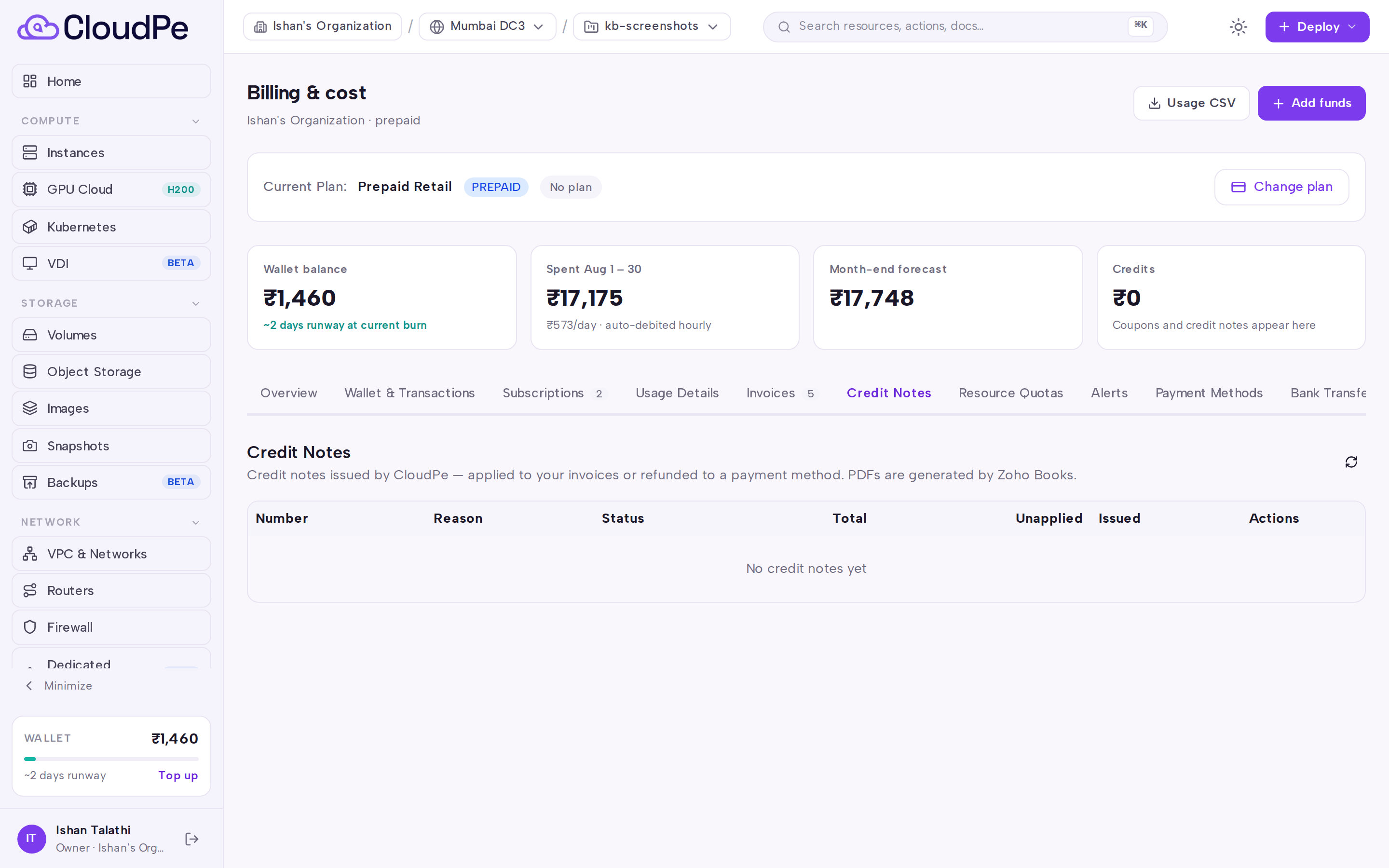
Open the Credit Notes tab under Billing to see credit notes issued to your organization. A credit note may be a refund against a source invoice, an adjustment, a wallet refund, or a standalone compensation credit. Credit notes reduce the amount payable on the invoice they are applied to, but they do not by themselves change an invoice's status.
API
All calls use the literal host and a bearer API key.
| Method | Path |
|---|---|
| GET | /api/v1/billing/invoices |
| GET | /api/v1/billing/invoices/{invoice_id} |
| GET | /api/v1/billing/invoices/{invoice_id}/pdf |
| GET | /api/v1/billing/invoices/{invoice_id}/usage.csv |
| GET | /api/v1/billing/invoices/summary/unbilled |
| POST | /api/v1/billing/invoices/{invoice_id}/deduct-tds |
| POST | /api/v1/billing/invoices/{invoice_id}/pay |
| POST | /api/v1/billing/invoices/{invoice_id}/create-order |
| POST | /api/v1/billing/invoices/{invoice_id}/sync |
List invoices:
curl https://app.cloudpe.com/api/v1/billing/invoices \
  -H "Authorization: Bearer <API_KEY>"
Download the tax invoice PDF:
curl https://app.cloudpe.com/api/v1/billing/invoices/<invoice_id>/pdf \
  -H "Authorization: Bearer <API_KEY>" \
  -o invoice.pdf
Download the usage breakdown as CSV:
curl https://app.cloudpe.com/api/v1/billing/invoices/<invoice_id>/usage.csv \
  -H "Authorization: Bearer <API_KEY>" \
  -o usage.csv
Deduct TDS (rate is taken from the organization's configuration):
curl -X POST https://app.cloudpe.com/api/v1/billing/invoices/<invoice_id>/deduct-tds \
  -H "Authorization: Bearer <API_KEY>"
Pay from the organization wallet:
curl -X POST https://app.cloudpe.com/api/v1/billing/invoices/<invoice_id>/pay \
  -H "Authorization: Bearer <API_KEY>" \
  -H "Content-Type: application/json" \
  -d '{"payment_method": "wallet"}'
Use "wallet_partial" to apply the available wallet balance and leave the remainder open for a gateway payment.
Limits & billing
- One non-cancelled invoice exists per organization per billing period. Invoices are generated from usage records at the end of the period; wallet top-up payments also produce their own tax receipt.
- GST is applied according to your organization's billing state and GST treatment: CGST + SGST for intra-state supply, IGST for inter-state supply, and zero-rated for overseas billing addresses.
- TDS reduces the invoice's amount due; it does not change the invoice total or its tax. It can be applied once, and reversal is an admin-only action.
- Credit notes are GST-inclusive; only their pre-tax share reduces the TDS base.
- An invoice billed in a currency other than INR cannot be paid through the online INR flow — contact support to settle it.
- Unbilled usage (charges accrued but not yet invoiced) is available from the unbilled summary endpoint and on the Usage Details tab.
Troubleshooting
| Error | Cause | Fix |
|---|---|---|
Organization must have a TAN number to deduct TDS |
No TAN recorded on the organization's billing profile. | Add the TAN to the organization billing details, then retry. |
TDS has already been deducted on this invoice |
TDS can be applied once per invoice. | Ask support to reverse the existing deduction if the amount is wrong. |
TDS can only be deducted on an unpaid or partially paid invoice |
The invoice is paid or cancelled. | Deduct TDS before settling the invoice. |
TDS amount cannot exceed amount due |
The computed TDS is larger than the open balance. | Check for credit notes or payments already applied, then retry. |
TDS rate must be 2 (Section 194C) or 10 (Section 194J) |
The organization's configured rate is not one of the supported sections. | Ask support to correct the TDS rate on the organization. |
No amount due on this invoice |
The invoice is already fully settled or credited. | No action needed. |
Invoice is {…}, cannot pay |
The invoice is in a status that cannot accept payment (for example cancelled). | Open the invoice detail to check its status. |
Unsupported payment method '{…}'. Use 'wallet' or 'wallet_partial'; gateway payments are confirmed via /payments/verify. |
An unrecognised payment_method was sent to the pay endpoint. |
Send wallet or wallet_partial; complete gateway payments through checkout. |
This invoice is billed in {…}; online INR payment is not available for it — please contact support. |
The invoice currency is not INR. | Contact support to arrange settlement. |
No organization wallet found |
The organization has no wallet to debit. | Add funds to create and fund the wallet, then retry. |
Permission denied: billing:manage required |
Your role can read billing but not act on it. | Ask an organization owner to grant billing:manage. |
PDF generation is not available. Please contact support. |
The accounting integration that produces tax invoice PDFs is not available. | Retry later or contact support; the usage statement is unaffected. |
Failed to download PDF: {…} |
The accounting system rejected or could not return the document. | Retry; if it persists, contact support with the invoice number. |
Invoice not found |
Wrong invoice ID, or the invoice belongs to another organization. | Confirm the ID from the Invoices tab. |
FAQ
What is the difference between the tax invoice and the usage statement? The Tax Invoice (PDF) is the GST document of record. The Usage Statement (PDF) and Usage Data (CSV) are reconciliation aids that itemise each billed line — resource name, its size or shape, the period charged and the amount — including the per-resource breakdown behind a bundled subscription line. The statement is watermarked as not a tax invoice.
Can I undo a TDS deduction myself? No. Deduction is self-service, reversal is not — raise a support request and an administrator will reverse it, which restores the invoice's amount due.
Does applying a credit note mark my invoice as paid? No. A credit note reduces what is payable and can move an invoice to partially paid, but it does not settle it on its own.
Why does the TDS confirmation dialog say "estimated"? The browser cannot see which credit notes have been applied to the invoice, so it shows an approximation. The authoritative amount is computed server-side and shown in the confirmation after the deduction succeeds.
My invoice amounts don't match my wallet debits. For prepaid organizations the wallet is debited as usage accrues and the invoice is the formal record of those charges. For postpaid organizations the invoice is the collection document. Compare the Usage Details tab and the invoice's Usage Data (CSV), which carries full resource IDs.