

Restricting organisation access by IP address
Overview
IP access lets an organization owner restrict which client networks may reach an organization. Two independent lists are stored per organization:
- Browser sessions — every request that is not made with an API key: console sign-ins, shared console links, public VDI links, the RDP proxy, the AI gateway playground, and signup through an invitation to the organization.
- API keys — requests made with CloudPE API keys, on the platform API and on the AI gateway.
An empty list means no IP restriction for that kind of traffic. A non-empty list means only client IPs inside one of its CIDR ranges can reach the organization. Sign-in itself still works, and the same user keeps full access to every other organization they belong to.
IP access sits next to Country access on the same tab and uses the same enforcement points. Country is evaluated first: if an organization refuses a request for both reasons, the country block is reported.
This feature is not yet rolled out to all accounts. If the IP access card does not appear on your organization, it is not enabled for you yet.
Before you start
- You must be the owner of the organization. The card is hidden for other members, and the API is owner-only.
- The organization must already exist and you must be signed in to it; see Organisations, projects and roles.
- Know the public IP ranges you want to allow (office egress, VPN concentrator, CI runners), for example
203.0.113.0/24for an office,198.51.100.0/24for CI runners or2001:db8::/32for an IPv6 network. Write ranges with host bits clear:203.0.113.5/24is refused, write203.0.113.0/24. A bare IPv4 or IPv6 address is stored as a single-host range (/32or/128). - Credentials issued before you restrict access keep working until they expire or are rotated: object storage keys and presigned URLs, kubeconfigs and noVNC console URLs. Plan to rotate object storage keys and kubeconfigs after you save a list.
- If you call the API, the key needs the
organizations:readscope to read the lists andorganizations:updateto replace them.
Steps
Open Organizations in the sidebar.
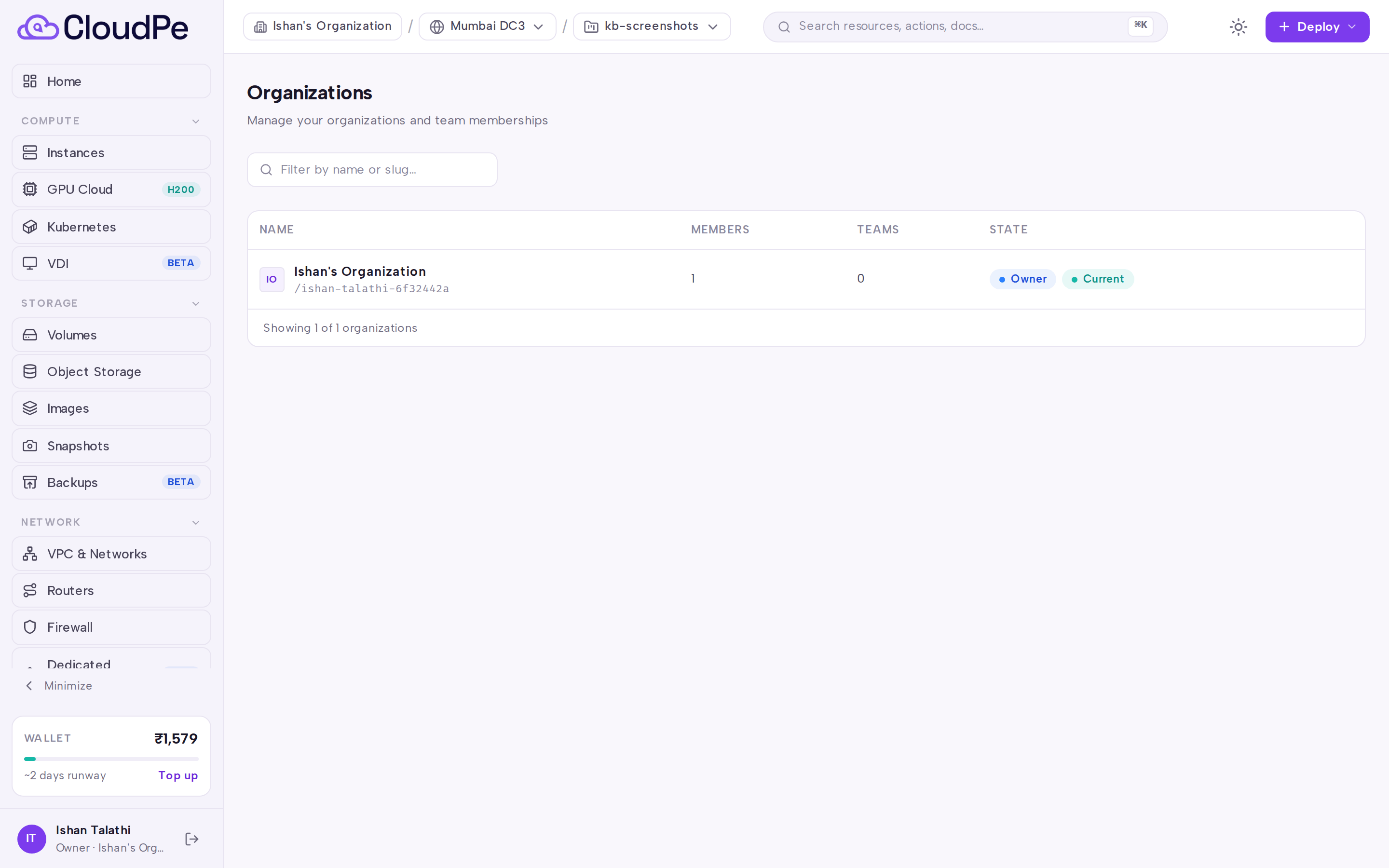
Select the organization you want to restrict, then open its Settings tab.
Find the IP access card. It shows the IP you are currently connecting from.

Under Browser sessions, choose Add my IP to insert your current address, or type a CIDR range with an optional label and choose Add. Repeat for every network that should be able to sign in.
Under API keys, add the CIDR ranges your automation calls from. Leave this list empty if you do not want to restrict API-key traffic.
Use Remove on any row you no longer need.
Choose Save. Entries are de-duplicated and sorted when stored, and the change is written to the organization audit log in the same transaction. You can review it later on the Activity tab.
Changes apply to the platform API, share links, public VDI links and the RDP proxy on the next request or connect. The AI gateway picks up the new lists within about a minute. Open RDP connections are not cut; the next connect is checked.
API
Two public endpoints manage the lists. Both are bound to the organization in the path.
Read the current lists:
curl -X GET https://app.cloudpe.com/api/v1/organizations/<org_id>/ip-allowlist \
  -H "Authorization: Bearer <API_KEY>"
The response returns sessions, api_keys and current_ip (null when the caller's IP cannot be determined).
Replace both lists:
curl -X PUT https://app.cloudpe.com/api/v1/organizations/<org_id>/ip-allowlist \
  -H "Authorization: Bearer <API_KEY>" \
  -H "Content-Type: application/json" \
  -d '{
        "sessions": [{"cidr": "203.0.113.0/24", "label": "Office"}],
        "api_keys": [{"cidr": "198.51.100.10/32", "label": "CI"}]
      }'
Both sessions and api_keys are required and the call replaces both lists in full. Send an empty array to clear a list.
To find the organization id, list your organizations:
curl -X GET https://app.cloudpe.com/api/v1/organizations \
  -H "Authorization: Bearer <API_KEY>"
The generic PATCH /api/v1/organizations/{org_id} endpoint cannot change IP access; it rejects the attempt and keeps the stored value.
Limits & billing
- IP access is a configuration control on the organization record. There is no charge for using it and it consumes no quota.
- Entries are IPv4 or IPv6 addresses or CIDR ranges; an IPv4-mapped IPv6 address is matched as IPv4. A range with host bits set is refused. Each list holds up to 100 entries and each label up to 64 characters; a save that exceeds either is refused as a validation error.
- Enforcement fails closed: when the applicable list is not empty and the client IP cannot be determined, the request is refused. Country blocking behaves the opposite way, so an unresolved country is allowed.
- Platform administrators and admin impersonation sessions bypass the lists so that support can always reach the organization. Reseller impersonation does not bypass; the reseller is treated as the customer. Background jobs and webhooks are not evaluated.
- For organizations you are not a member of, the organization's own lists apply to your traffic: its Browser sessions list for a session, its API keys list for an API key.
- In-cluster callers that reach the AI gateway directly, bypassing the public edge, have no resolvable client IP and are refused while a list is in place.
Troubleshooting
| Error | What it means | What to do |
|---|---|---|
This change would block your own current connection. |
The save you attempted would exclude the IP you are connecting from. A session caller is checked against the new Browser sessions list, an API-key caller against the new API keys list. | Add your current IP (use Add my IP) before saving, or widen the range. The same error appears if your IP cannot be determined and the relevant list is not empty. |
Could not record the audit entry; no change was saved. |
The audit record for the change could not be written, so the whole save was rolled back. | Retry the save. If it keeps failing, raise a support ticket. |
This organization does not allow access from your network. |
Your client IP is outside the applicable list. The organization still appears in your organization list, marked as unavailable, with no data. | Connect from an allowed network, or ask the owner to add your IP. If every organization refuses you, the dashboard shows a full-page unavailable screen whose only action is to sign out. |
This organization does not allow access from your location. |
The organization also blocks your country, and country is checked first. | See Restricting organisation access by country. |
Use PUT /organizations/{org_id}/ip-allowlist to change IP access |
You tried to change the IP access settings through the generic organization update endpoint. | Call the dedicated endpoint shown above. |
Organization not found |
The organization id in the path does not exist or is not visible to you. | Re-check the id returned by the organization list endpoint. |
FAQ
Does restricting IPs lock me out of my other organizations? No. The lists apply only to the organization that holds them. Sign-in still works and your other organizations remain fully usable.
What happens if my own IP changes later — new ISP, travel? The self-lockout guard only protects the save itself. If your address changes afterwards you cannot reach the organization, including the IP access card. Contact support: an admin impersonation session bypasses the lists and can clear the list or add your new address.
Do existing API keys and downloaded credentials stop working immediately? Requests made with CloudPE API keys are checked on the next call against the API keys list. Credentials that do not pass through the platform — object storage keys and presigned URLs, kubeconfigs, noVNC URLs — keep working until they expire or are rotated. Rotate them after restricting access.
Can I restrict only automation and leave browser access open? Yes. Fill in the API keys list and leave Browser sessions empty, or the other way round. The lists are independent.
Where can I see who changed the lists? Every save is recorded in the organization audit log with the lists before and after the change; open the Activity tab.