

SSL Certificates
Overview
CloudPe TLS/SSL certificate management allows you to issue, upload, validate, and deploy SSL/TLS certificates across your cloud infrastructure. You can request free automated certificates via Let's Encrypt with automatic DNS-01 challenge validation and automated renewal rotation, or upload existing custom certificates and private keys.
Certificates are organization-scoped and can be deployed directly to OpenStack Octavia load balancer HTTPS listeners and Kubernetes PaaS application ingresses with automated synchronization when certificates renew.
Before you start
- Viewing certificates and their statuses requires the
certificates:readpermission. - Requesting automated certificates or uploading custom certificates requires the
certificates:createpermission. - Triggering validation verification on pending challenges requires the
certificates:updatepermission. - Deploying certificates to infrastructure resources requires the
certificates:deploypermission, as well asload_balancers:updateon the project hosting the load balancer. - Deleting or revoking certificates requires the
certificates:deletepermission. - For zero-touch automated domain validation, host your domain in CloudPe DNS under the same organization. See DNS zones and records.
- Deploying a certificate to a load balancer requires an existing listener configured with the
TERMINATED_HTTPSprotocol. See Load balancers.
Steps
Request an automated Let's Encrypt certificate
- In the sidebar, open SSL Certificates under NETWORK.
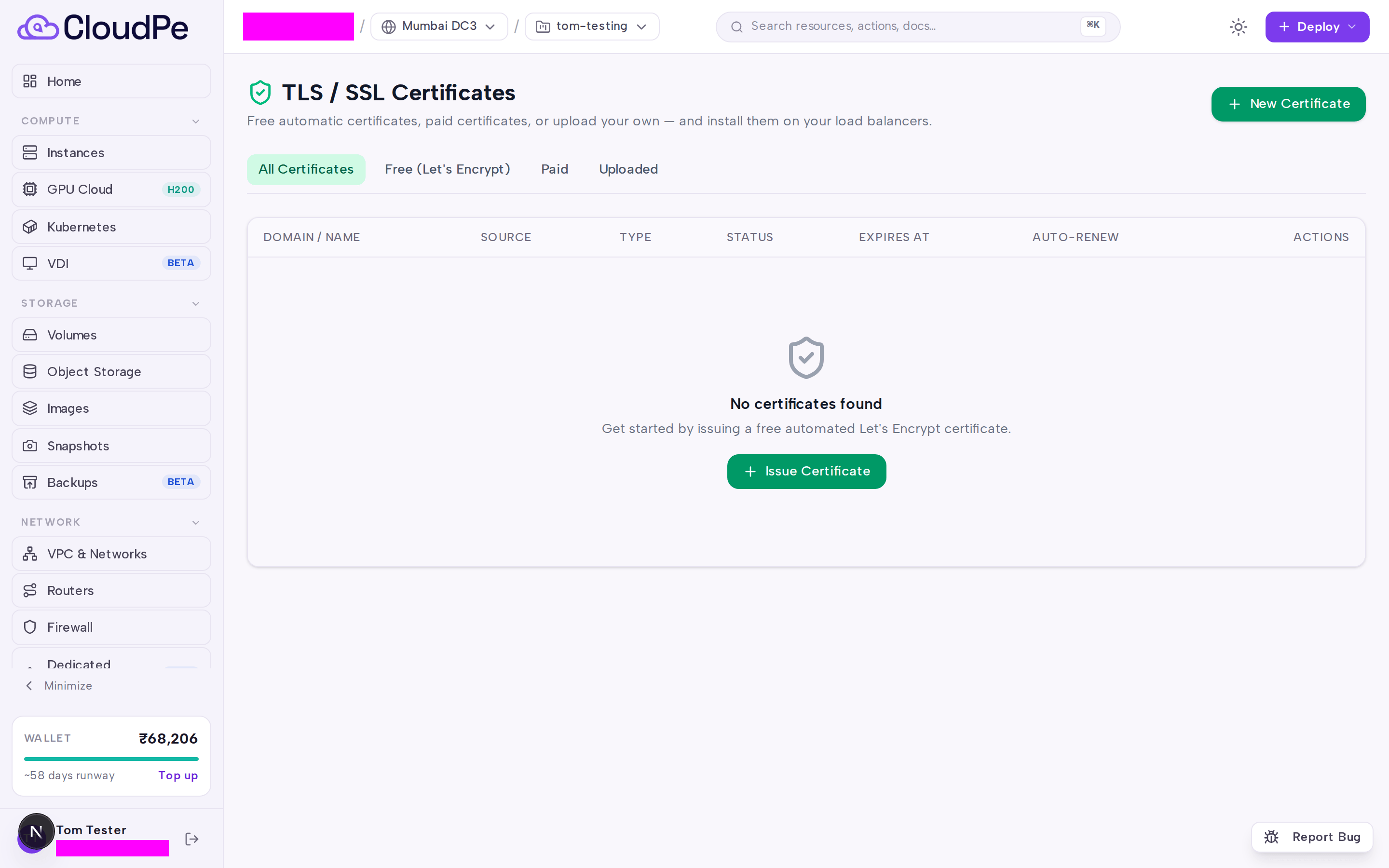
- Select New Certificate (or Issue Certificate if no certificates exist).
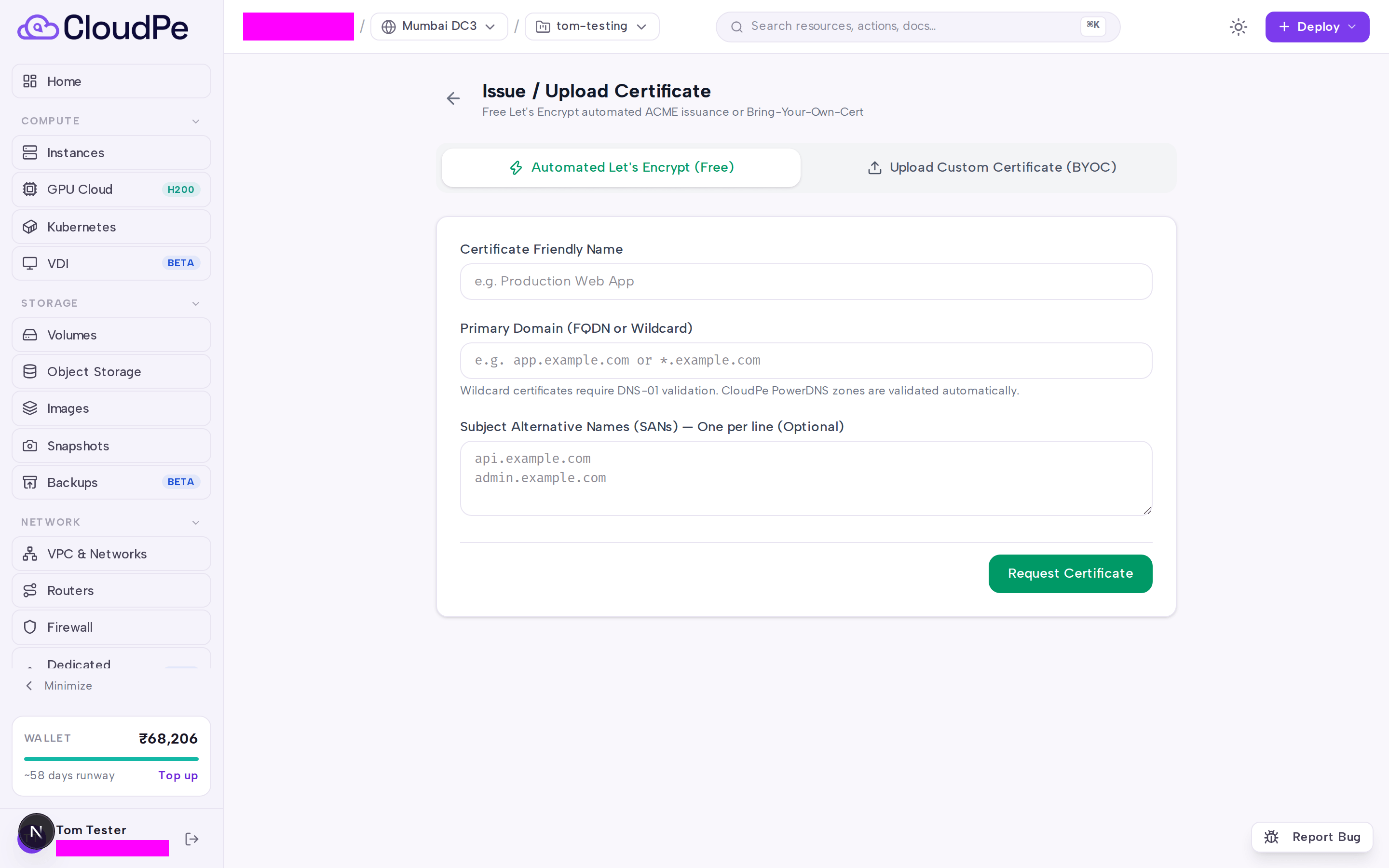
- On the Issue / Upload Certificate page, select the Automated Let's Encrypt (Free) tab.
- Enter a friendly name for identification.
- Provide the primary domain name (such as
app.example.comor a wildcard domain like*.example.com). - Optionally, add additional Subject Alternative Names (SANs) one per line.
- Select Request Certificate.
Complete Domain Control Validation (DCV)
- Navigate to the certificate detail page.
- In the Domain Control Validation (DCV) Required section, inspect the challenge domain, host record, and TXT value.
- If the domain is hosted in CloudPe DNS, the validation record is injected automatically into your zone.
- If the domain is hosted on an external DNS provider, create the specified DNS TXT record at your DNS provider.
- After DNS records propagate, select Verify DCV Now to validate domain ownership and issue the certificate.
Upload a custom certificate (BYOC)
- In the sidebar, open SSL Certificates under NETWORK.
- Select New Certificate.
- Select the Upload Custom Certificate (BYOC) tab.
- Enter a name for the certificate.
- Paste the certificate in PEM format into the certificate field.
- Paste the corresponding unencrypted private key into the private key field.
- Optionally, paste intermediate and root certificates into the CA chain field.
- Select Save & Validate Certificate.
Manage certificates and view infrastructure bindings
- On the TLS / SSL Certificates list, use the filter tabs (All Certificates, Free (Let's Encrypt), Paid, Uploaded) to filter by source.
- Select a certificate name or select Manage to open the certificate detail view.
- Review certificate parameters under Issuer & Type, Validity Period, Serial & Fingerprint, and Active Infrastructure Bindings.
- To remove a certificate, select Delete.
API
Manage certificates and bindings programmatically using the certificates endpoints.
| Method and path | Permission |
|---|---|
GET /api/v1/certificates |
certificates:read |
POST /api/v1/certificates/acme |
certificates:create |
POST /api/v1/certificates/upload |
certificates:create |
GET /api/v1/certificates/{certificate_id} |
certificates:read |
POST /api/v1/certificates/{certificate_id}/verify-dcv |
certificates:update |
POST /api/v1/certificates/{certificate_id}/bindings |
certificates:deploy |
DELETE /api/v1/certificates/{certificate_id}/bindings/{binding_id} |
certificates:deploy |
DELETE /api/v1/certificates/{certificate_id} |
certificates:delete |
List all certificates in your organization:
curl https://app.cloudpe.com/api/v1/certificates \
  -H "Authorization: Bearer <API_KEY>"
Request an automated Let's Encrypt certificate:
curl -X POST https://app.cloudpe.com/api/v1/certificates/acme \
  -H "Authorization: Bearer <API_KEY>" \
  -H "Content-Type: application/json" \
  -d '{
        "name": "Production Web App",
        "primary_domain": "app.example.com"
      }'
Upload a custom certificate bundle:
curl -X POST https://app.cloudpe.com/api/v1/certificates/upload \
  -H "Authorization: Bearer <API_KEY>" \
  -H "Content-Type: application/json" \
  -d '{
        "name": "Custom Wildcard",
        "certificate_pem": "-----BEGIN CERTIFICATE-----\n...\n-----END CERTIFICATE-----",
        "private_key_pem": "-----BEGIN RSA PRIVATE KEY-----\n...\n-----END RSA PRIVATE KEY-----"
      }'
Trigger immediate DCV validation for a pending certificate:
curl -X POST https://app.cloudpe.com/api/v1/certificates/<certificate_id>/verify-dcv \
  -H "Authorization: Bearer <API_KEY>"
Deploy a certificate to an active load balancer listener:
curl -X POST https://app.cloudpe.com/api/v1/certificates/<certificate_id>/bindings \
  -H "Authorization: Bearer <API_KEY>" \
  -H "Content-Type: application/json" \
  -d '{
        "target_type": "LOAD_BALANCER_LISTENER",
        "target_id": "<listener_id>"
      }'
Delete a certificate:
curl -X DELETE https://app.cloudpe.com/api/v1/certificates/<certificate_id> \
  -H "Authorization: Bearer <API_KEY>"
Limits & billing
- Automated Let's Encrypt certificates are issued at no additional cost.
- Automated certificates include automatic renewal and zero-touch validation for domains hosted on CloudPe DNS.
- Certificates are organization-scoped and can be bound across multiple projects within the same organization.
- Binding certificates to load balancer listeners requires the listener to be configured with the
TERMINATED_HTTPSprotocol.
Troubleshooting
| Message | What it means | What to do |
|---|---|---|
Load balancer listener not found |
The target load balancer listener ID does not exist or does not belong to your organization. | Verify the listener UUID in the Load Balancers dashboard or call GET /api/v1/load-balancers/{lb_id}/listeners. |
Private key not available for binding deployment |
The certificate's private key could not be retrieved from secure storage to configure TLS termination. | Ensure the certificate was created with a private key, or re-upload the certificate and private key bundle. |
Certificate not found |
The requested certificate UUID does not exist or has been deleted. | Check the certificate UUID in the certificates list or call GET /api/v1/certificates. |
Binding not found |
The specified infrastructure binding UUID does not exist or was already removed. | Verify active bindings on the certificate detail page or query GET /api/v1/certificates/{certificate_id}. |
PaaS app not found |
The target PaaS application ID does not exist or does not belong to your organization. | Verify the application UUID in your project before creating the certificate binding. |
FAQ
How does automatic certificate renewal work? Automated Let's Encrypt certificates have automatic renewal enabled by default. Prior to expiration, CloudPe initiates validation challenges and renews the certificate. Active infrastructure bindings on load balancers and PaaS applications are updated automatically.
Can I attach a certificate to multiple load balancers? Yes. Because certificates are scoped to your organization, you can create multiple bindings to deploy the same certificate across different load balancer listeners and PaaS apps.
What domain validation method is used for automated certificates? Automated certificates use DNS-01 validation. If your DNS zone is hosted on CloudPe DNS, challenge TXT records are created automatically. For external DNS providers, you can manually create the required TXT record.
Can I bind a certificate to an HTTP listener?
No. Load balancer listeners require the TERMINATED_HTTPS protocol for TLS termination. To use SSL on a load balancer, configure a TERMINATED_HTTPS listener.