

DNS zones and records
Overview
CloudPe DNS gives you authoritative DNS hosting for the domains you own. You create a zone for a domain, add records to it (A, AAAA, CNAME, MX, TXT, SRV, NS, CAA, PTR), and delegate the domain to the CloudPe nameservers at your registrar. Zones and records are written to the CloudPe DNS backend and to your account at the same time, so what you see in the console is what is served.
The console also supports DNSSEC (with the DS records you hand to your registrar) and a delegation check that queries public DNS to confirm your domain actually points at the CloudPe nameservers.
DNS lives under NETWORK → DNS in the dashboard.
Before you start
- Identity verification: your organization must have completed KYC before you can create cloud resources, including DNS zones.
- Permissions: you need
dns:readto view zones and records,dns:createto add them,dns:updateto change DNSSEC state, anddns:deleteto remove zones or records. - Domain control: you must be able to change the nameserver (NS) delegation for the domain at the registrar where it is registered. Until you do, CloudPe will hold the zone but the internet will not use it.
- Quota: each organization has a limit on the number of zones it can hold and on the number of records per zone. If you hit it, ask support to review your DNS quota.
- Project scope, if you use it: a zone can be scoped to a project, so pick the project you want the zone to belong to before you create it.
Steps
1. Open the DNS zone list
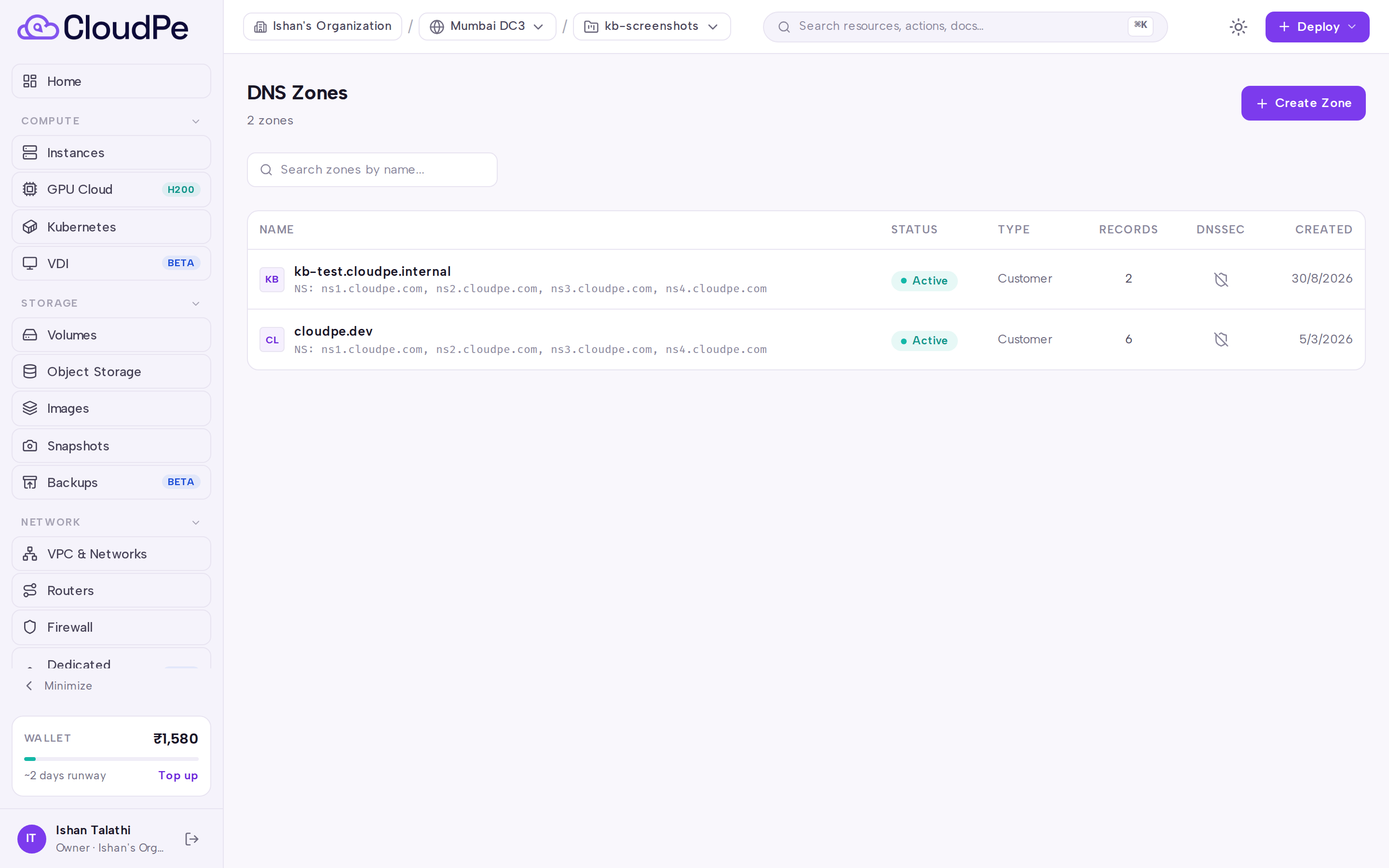
Go to DNS in the NETWORK group of the sidebar. The DNS Zones page lists every zone in your organization with its status, record count and DNSSEC state.
2. Create a zone
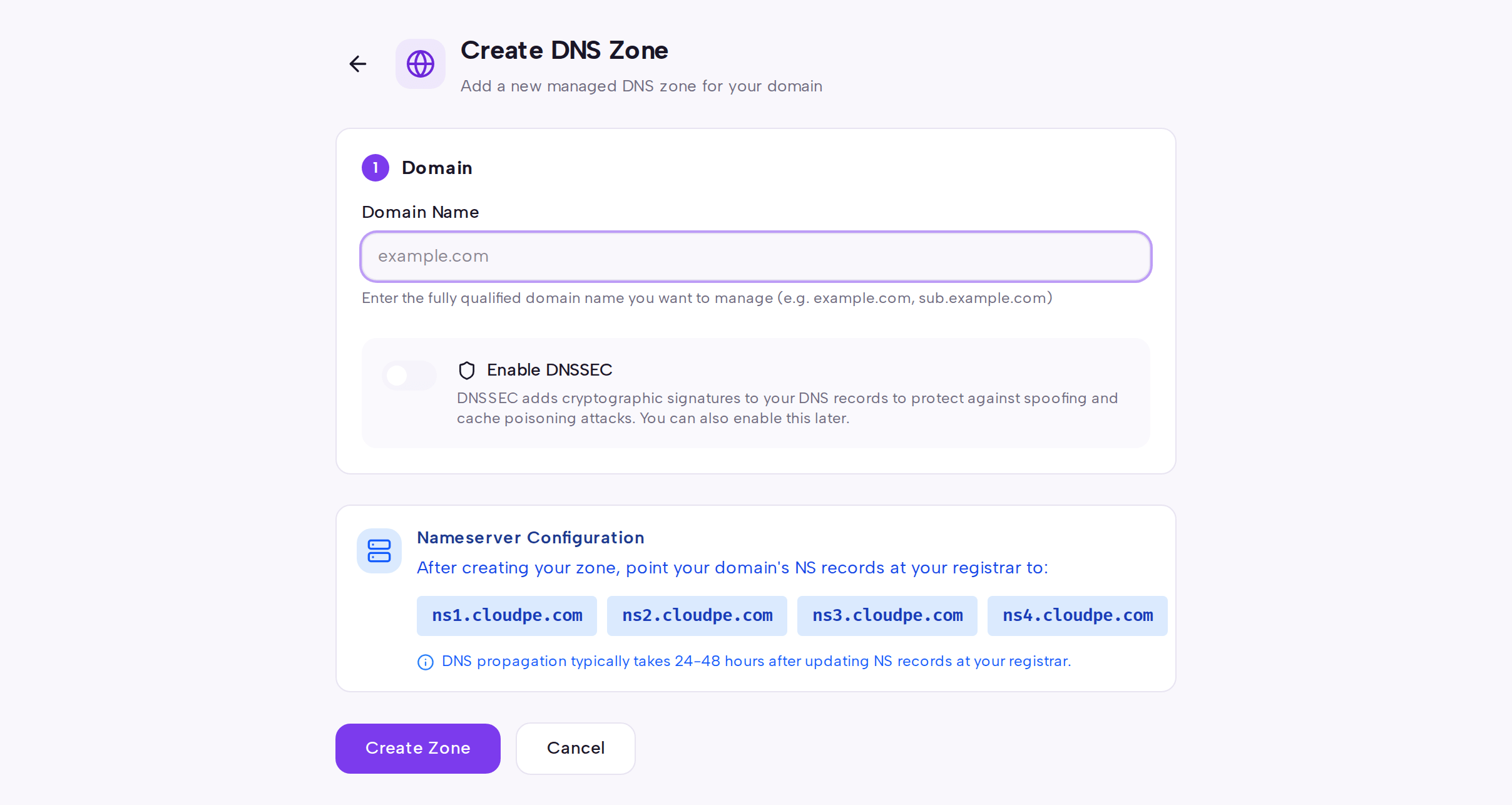
Click Create Zone. On the Create DNS Zone page, enter your domain under Domain — use the registrable domain name, for example the apex of the domain you own. The Nameserver Configuration section shows the CloudPe nameservers you will need to set at your registrar; note them down.
Click Create Zone to submit, or Cancel to go back. The zone is created with its SOA and apex NS records already in place.
3. Add records
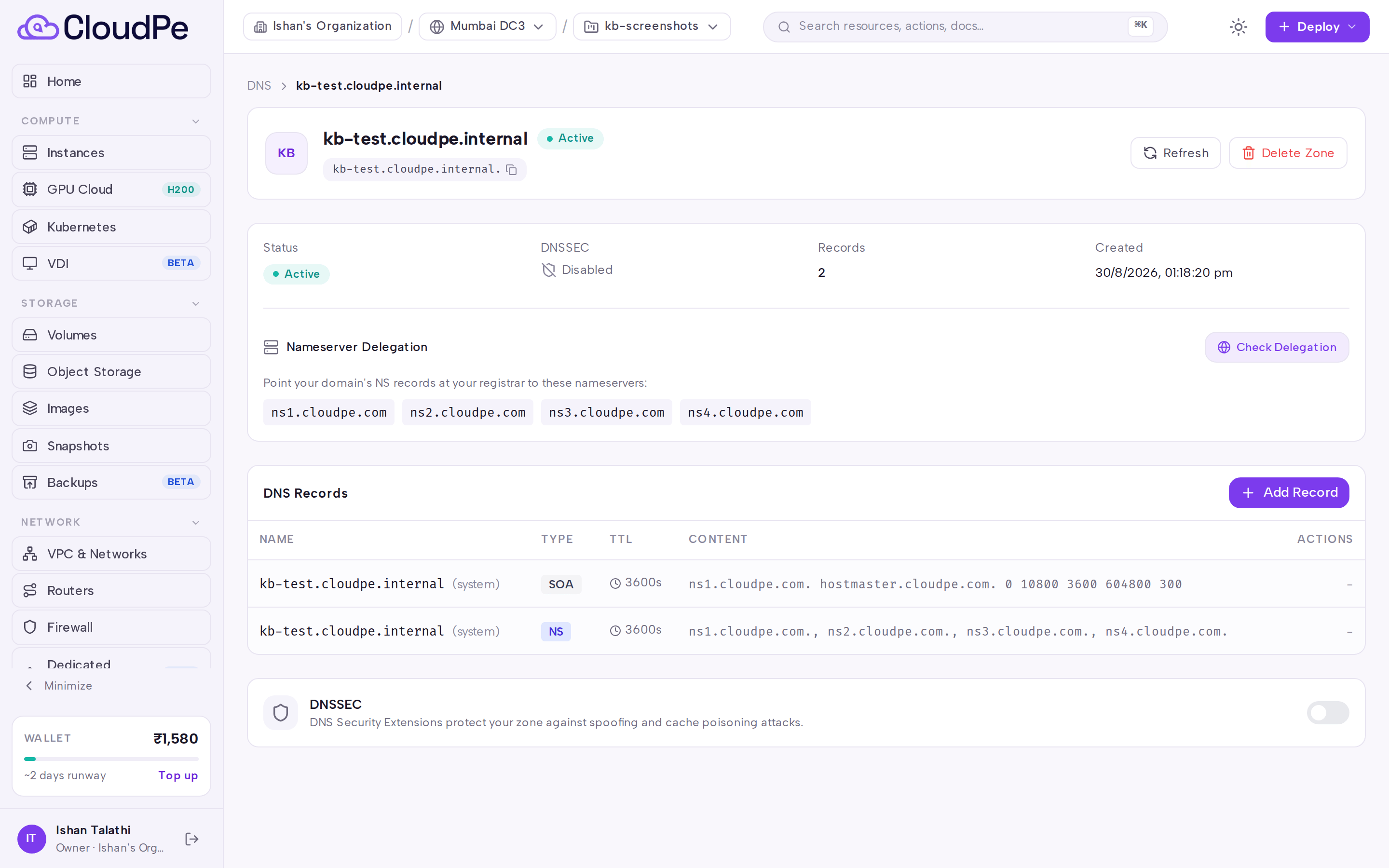
Open the zone from the list to reach the zone detail page, then click Add Record. Supply:
- the record name (a hostname relative to the zone, or the zone apex),
- the record type — A, AAAA, CNAME, MX, TXT, SRV, NS, CAA or PTR,
- a TTL,
- one or more values. A record set can hold several values, for example two A records for the same hostname.
Values are validated before they are accepted: A needs a valid IPv4 address, AAAA a valid IPv6 address, MX takes a priority followed by a hostname, SRV takes priority, weight, port and target, and CNAME, NS and PTR take a fully qualified name with a trailing dot. CNAME is not allowed at the zone apex.
Use Refresh to re-read the zone from the DNS backend, and Delete Zone to remove the zone and all of its records.
4. Delegate the domain at your registrar
At your domain registrar, replace the existing nameservers with the CloudPe nameservers shown under Nameserver Configuration. Delegation changes propagate on the registry's own schedule.
5. Verify delegation
Back on the zone detail page, click Check Delegation. CloudPe queries public DNS for the domain's NS records and compares them with the expected CloudPe nameservers, then reports whether the domain is fully delegated, partially delegated, or not delegated yet, along with which nameservers are missing or extra.
6. Optionally enable DNSSEC
Enable DNSSEC on the zone to have CloudPe sign it. The zone detail page then shows the DS records — both as the raw record string and broken out into Key Tag, Algorithm, Digest Type and Digest, with copy buttons — so you can paste them into your registrar's DNSSEC form. Delegation is only secure once the DS record is published by the registry.
API
Authenticate with an API key created from API Keys.
Discover what you can use:
curl https://app.cloudpe.com/api/v1/dns/nameservers \
  -H "Authorization: Bearer <API_KEY>"

curl https://app.cloudpe.com/api/v1/dns/record-types \
  -H "Authorization: Bearer <API_KEY>"
Zones:
# List zones
curl https://app.cloudpe.com/api/v1/dns/zones \
  -H "Authorization: Bearer <API_KEY>"

# Create a zone
curl -X POST https://app.cloudpe.com/api/v1/dns/zones \
  -H "Authorization: Bearer <API_KEY>" \
  -H "Content-Type: application/json" \
  -d '{
        "name": "example.com",
        "project_id": "<project-id>",
        "dnssec": false
      }'

# Get one zone
curl https://app.cloudpe.com/api/v1/dns/zones/<zone_id> \
  -H "Authorization: Bearer <API_KEY>"

# Delete a zone
curl -X DELETE https://app.cloudpe.com/api/v1/dns/zones/<zone_id> \
  -H "Authorization: Bearer <API_KEY>"
Records:
# List records in a zone
curl https://app.cloudpe.com/api/v1/dns/zones/<zone_id>/records \
  -H "Authorization: Bearer <API_KEY>"

# Create or replace a record set
curl -X POST https://app.cloudpe.com/api/v1/dns/zones/<zone_id>/records \
  -H "Authorization: Bearer <API_KEY>" \
  -H "Content-Type: application/json" \
  -d '{
        "name": "www",
        "type": "A",
        "records": [
          {"content": "<ipv4-address>", "disabled": false}
        ]
      }'

# Delete a record
curl -X DELETE https://app.cloudpe.com/api/v1/dns/zones/<zone_id>/records/<record_id> \
  -H "Authorization: Bearer <API_KEY>"
DNSSEC and delegation:
curl https://app.cloudpe.com/api/v1/dns/zones/<zone_id>/dnssec \
  -H "Authorization: Bearer <API_KEY>"

curl -X POST https://app.cloudpe.com/api/v1/dns/zones/<zone_id>/dnssec/enable \
  -H "Authorization: Bearer <API_KEY>"

curl -X POST https://app.cloudpe.com/api/v1/dns/zones/<zone_id>/dnssec/disable \
  -H "Authorization: Bearer <API_KEY>"

curl -X POST https://app.cloudpe.com/api/v1/dns/zones/<zone_id>/check-delegation \
  -H "Authorization: Bearer <API_KEY>"
Required permissions: dns:read for the GET endpoints and the delegation check, dns:create for zone and record creation, dns:update for the DNSSEC endpoints, and dns:delete for the DELETE endpoints.
Limits & billing
- Zone and record counts are capped per organization by a DNS quota: a maximum number of zones, and a maximum number of records per zone. Creation is refused once a cap is reached.
- The SOA record and the NS records at the zone apex are system records. They are created with the zone and cannot be edited or deleted.
- Records created automatically by other CloudPe services on your behalf are marked as managed and are likewise protected from manual edits and deletion — remove the owning resource instead.
- Deleting a zone removes all of its records. It does not change the delegation at your registrar, so point the domain elsewhere as well.
- DNS zones and records are not metered or charged at present; no DNS line items appear on your invoices.
Troubleshooting
| Message | What it means | What to do |
|---|---|---|
Zone '{…}' already exists |
The domain is already hosted as a zone on CloudPe. | Open the existing zone from DNS Zones instead of creating a new one. |
Cannot modify system records (SOA, NS at apex) |
You tried to edit the zone's SOA or apex NS records. | These are managed by CloudPe. Delegate at the registrar rather than editing the apex NS set. |
Cannot delete system records (SOA, NS at apex) |
Same protection, on delete. | Leave the system records in place; delete the whole zone if you no longer need it. |
Cannot delete managed record (managed by '{…}') |
The record was created by another CloudPe service. | Delete or reconfigure the resource that owns the record. |
Cannot modify records: zone status is '{…}' |
The zone is not in an active state, so record changes are blocked. | Wait for the zone to become active, use Refresh, and retry; if it stays blocked, raise a support ticket. |
Record quota exceeded: {…}/{…} |
The zone has reached its record limit. | Remove unused records or ask support to raise your DNS quota. |
DNS zone not found |
The zone id does not exist or is not visible to your organization. | Re-list zones and confirm the id and the project scope. |
DNS record not found |
The record id no longer exists in the zone. | Re-list the zone's records and retry with the current id. |
DNSSEC is already enabled |
DNSSEC was already turned on for this zone. | Read the current DS records from the zone detail page instead of enabling again. |
DNSSEC is already disabled |
DNSSEC was already off. | No action needed. |
DNS infrastructure not configured |
The DNS service is not available for your account yet. | Contact support. |
Failed to create record in DNS backend: {…} |
The DNS backend rejected or did not accept the change. | Check the record value against the format for its type and retry; if it persists, open a support ticket with the message. |
Failed to delete record from DNS backend: {…} |
The delete could not be applied at the DNS backend. | Use Refresh to re-read the zone and retry. |
Complete identity verification to create cloud resources. |
Your organization has not finished KYC. | Complete identity verification, then create the zone. |
FAQ
Do I have to move my domain registration to CloudPe? No. You keep the domain at your current registrar and only change its nameserver delegation to the CloudPe nameservers shown under Nameserver Configuration.
Why does my new record not resolve yet? Two reasons are common: the domain is not delegated to CloudPe yet — check with Check Delegation — or resolvers are still caching the old answer until the previous TTL expires.
Can one hostname have several values? Yes. A record set can carry multiple values, for example two A records for the same name, or several MX records with different priorities.
Why can't I create a CNAME at the top of my domain? A CNAME may not coexist with the SOA and NS records that exist at the zone apex, so it is rejected there. Use an A or AAAA record at the apex instead.
What does the delegation check actually test? It queries public DNS for your domain's NS records and compares them with the CloudPe nameservers, reporting any that are missing or unexpected. It does not test individual records inside the zone.
Is DNSSEC finished once I enable it in CloudPe? No. Enabling DNSSEC signs the zone and produces DS records; the chain of trust is only complete once you publish those DS records at your registrar.