

Opening a support ticket
Overview
CloudPe support tickets let you raise an issue with the support team from inside the console, attach evidence, and track the conversation until it is closed. Tickets live under Support Tickets in the Support section of the dashboard sidebar; the Knowledge Base in the same section is the self-service alternative for questions that are already documented.
This article covers finding an answer first, filing a well-routed ticket, following it up, and the response-time targets attached to each priority.
Before you start
- Sign in to the console. Ticket creation and listing are available to any signed-in user; downloading a ticket attachment additionally requires the
support:readpermission. - Your organization must be linked to the helpdesk backend. If linking has not completed, ticket creation fails with
No HostBill account linked to your organization. Please contact support. - Know which department your request belongs to. Departments are defined by CloudPe, and a request sent to an unknown or disabled department is rejected.
- Have your attachments ready and within the per-file size limit of 10 MB.
- Collect the identifiers involved (project, region, resource name or ID, and the exact error text you saw). They speed up routing and diagnosis significantly.
Steps
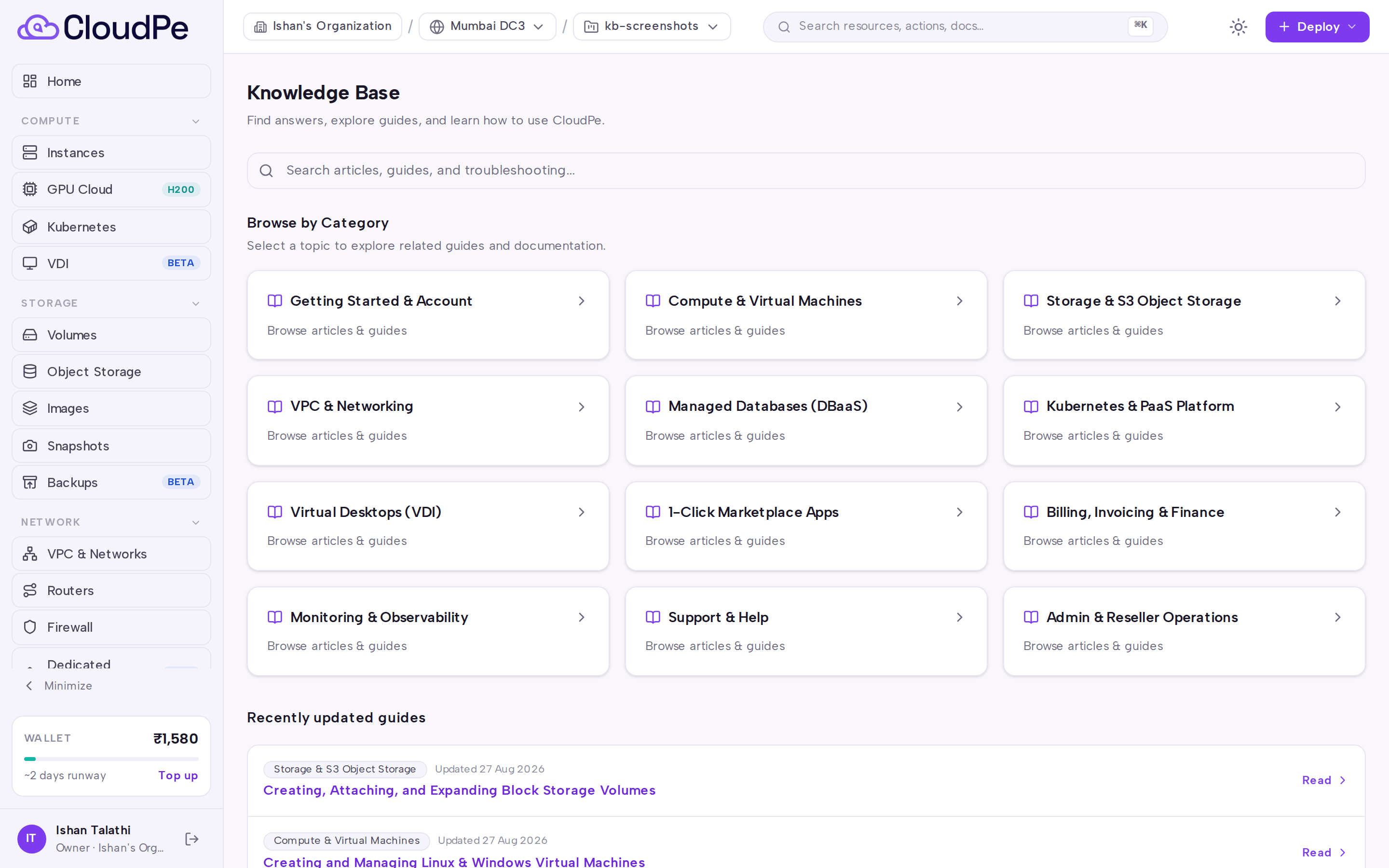
1. Check the Knowledge Base first
Open Knowledge Base from the Support section of the sidebar. Use Browse by Category or search to see whether the answer is already published — this is faster than waiting for a first response.
2. Open the ticket list
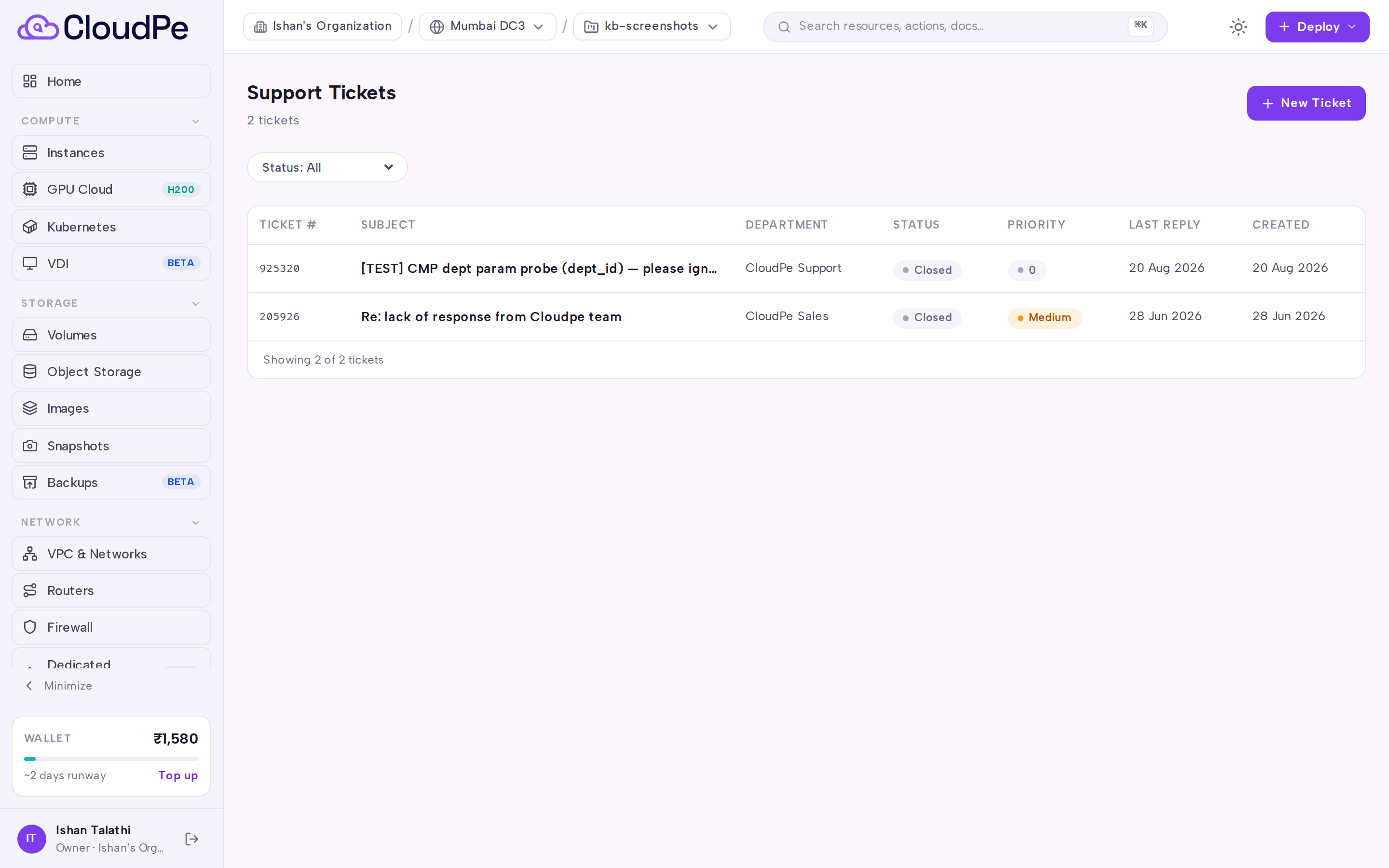
Go to Support Tickets. The page lists every ticket raised for your organization, with a Status control for filtering between open and closed conversations.
3. Start a new ticket
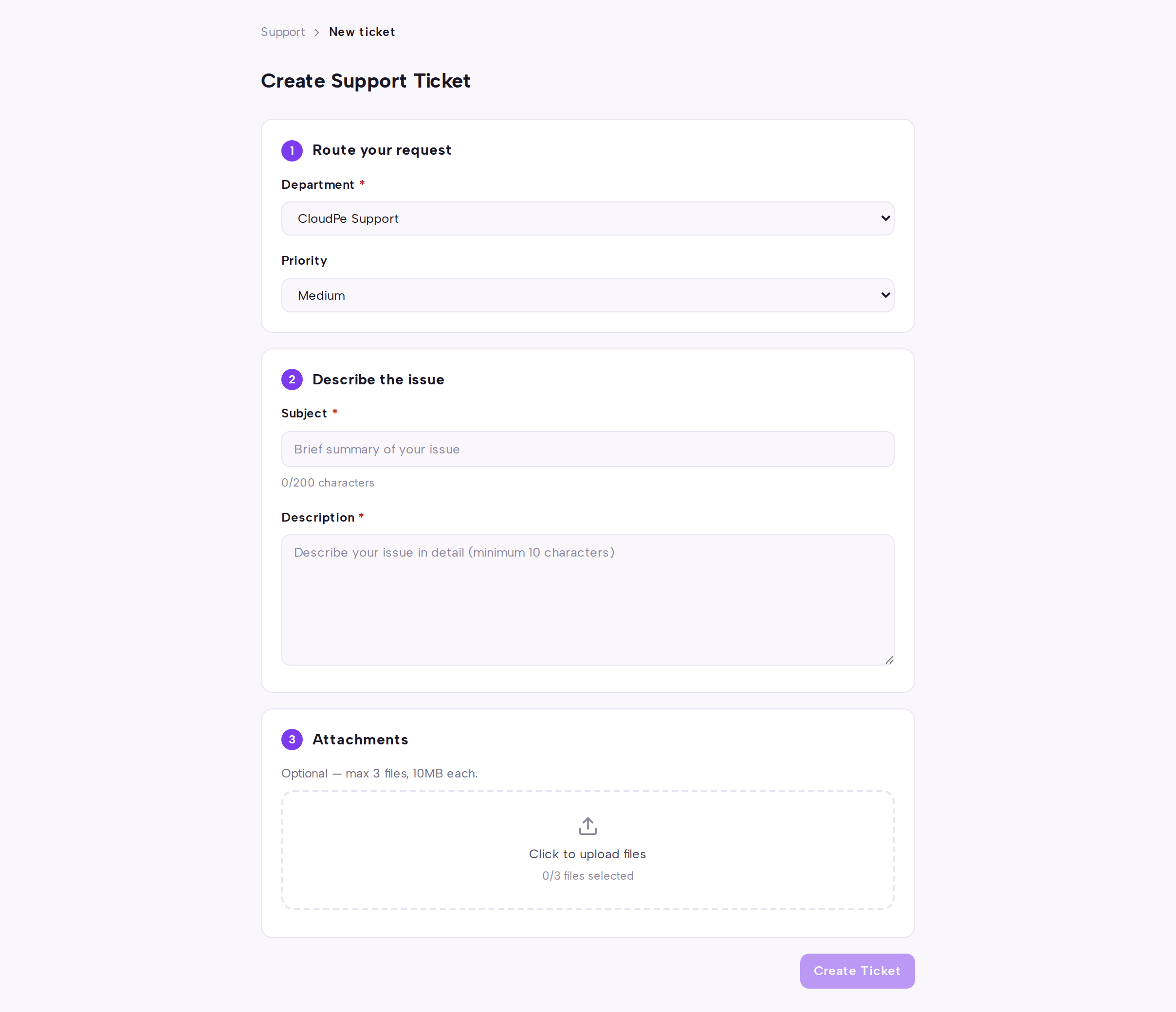
Click New Ticket. The Create Support Ticket page opens with three sections.
4. Route your request
Under Route your request, choose the department that owns the problem and set the priority. Priority determines the response and resolution targets listed under Limits & billing, so pick the tier that matches real business impact — over-escalating everything does not speed up your queue.
5. Describe the issue
Under Describe the issue, write a subject that names the affected resource, then give the details:
- What you expected to happen and what happened instead.
- The exact error message, copied verbatim.
- The region, project and resource ID involved.
- When the problem started and whether it is still reproducible.
6. Add attachments
Under Attachments, upload screenshots, logs or configuration files. Each file must stay within the per-file limit; the total upload size across the ticket is also capped, and the API returns an error if you exceed it. Uploaded files are scanned for malware before they can be downloaded again.
7. Submit and track
Click Create Ticket. The ticket appears in the Support Tickets list with its ticket number. Open it to read replies and post follow-ups; when the issue is resolved you can move the ticket to a closed status yourself.
API
The customer-facing ticket endpoints below are available on the CloudPe console host.
| Method + path | Purpose | Permission |
|---|---|---|
GET /api/v1/support/departments |
List the departments you can route to | none |
POST /api/v1/support/tickets |
Create a ticket | none |
GET /api/v1/support/tickets |
List your tickets | none |
GET /api/v1/support/tickets/{ticket_number} |
Fetch one ticket | none |
POST /api/v1/support/tickets/{ticket_number}/reply |
Post a reply | none |
PATCH /api/v1/support/tickets/{ticket_number}/status |
Change ticket status | none |
GET /api/v1/support/tickets/{ticket_key}/attachments/{attachment_id} |
Attachment metadata | support:read |
GET /api/v1/support/tickets/{ticket_key}/attachments/{attachment_id}/download |
Download an attachment | support:read |
List the departments available to your organization:
curl -X GET https://app.cloudpe.com/api/v1/support/departments \
  -H "Authorization: Bearer <API_KEY>"
List your tickets:
curl -X GET https://app.cloudpe.com/api/v1/support/tickets \
  -H "Authorization: Bearer <API_KEY>"
Fetch a single ticket by its number:
curl -X GET https://app.cloudpe.com/api/v1/support/tickets/<ticket_number> \
  -H "Authorization: Bearer <API_KEY>"
Limits & billing
Attachments: each attached file must be no larger than 10 MB. The number of files per submission and the combined size of all attachments are also capped; exceeding either returns a validation error at submit time. Very large attachments may be accepted by the helpdesk but refused for download through the console — in that case the support agent can supply them another way.
Response targets: priority sets the first-response and resolution targets for the ticket.
| Priority | First response target | Resolution target |
|---|---|---|
| Critical | 30 minutes | 240 minutes |
| High | 60 minutes | 480 minutes |
| Medium | 240 minutes | 1440 minutes |
| Low | 480 minutes | 2880 minutes |
Troubleshooting
| Error | Cause | Fix |
|---|---|---|
Support ticket system is not currently available |
The helpdesk backend is not reachable from the console. | Wait and retry. If the outage blocks an urgent issue, use the contact channel on your account documentation instead of the console. |
Unknown or disabled support department |
The selected department no longer exists or has been turned off. | Reload the Create Support Ticket page so the department list refreshes, then pick a currently available department. |
No HostBill account linked to your organization. Please contact support. |
Your organization has not been linked to the helpdesk. | Finish account onboarding; if the organization is already active, reach CloudPe through the contact address on your account. |
Your support account is being re-linked to your provider's helpdesk. Please try again shortly. |
A re-link of your support identity is in progress. | Wait a few moments and submit the ticket again. |
Total attachment size must not exceed 30 MiB |
The combined size of the attached files is over the cap. | Remove or compress files, or split the evidence across a follow-up reply. |
Support request was rejected because the input was invalid |
A required field is missing or malformed. | Recheck the department, priority, subject and body under Route your request and Describe the issue, then resubmit. |
Ticket not found |
The ticket number does not exist or does not belong to your organization. | Open the ticket from the Support Tickets list rather than typing the number. |
You can only set ticket status to 'Open' or 'Closed' |
An unsupported status value was sent. | Reopen or close the ticket only; other states are managed by the support team. |
Support system timed out |
The helpdesk did not respond in time. | Retry the request. Do not resubmit the create form repeatedly — check the list first to avoid duplicate tickets. |
Antivirus scan pending; attachment is not yet available for download |
The uploaded file is still being scanned. | Retry the download in a moment. |
Attachment is infected with malware and cannot be downloaded |
The scan flagged the file. | The file will not be released. Re-create the evidence on a clean machine and upload it again. |
FAQ
Do I need a special permission to open a ticket?
No. Any signed-in user in your organization can create, list and reply to tickets. Downloading an attachment requires support:read.
Where do I see replies? Open the ticket from the Support Tickets list. Use the Status control to switch between open and closed tickets if the one you want is not visible.
Can I close a ticket myself? Yes. You can move a ticket between open and closed; other lifecycle states are set by the support team.
Should I raise everything as Critical? No. Priority drives the response targets above, and mis-prioritised tickets crowd out genuine outages. Match the priority to the actual impact on your workload.
Can I attach logs instead of screenshots? Yes, as long as each file stays within the per-file size limit and the combined size stays under the total cap.