

Block storage volumes
Overview
Block storage volumes are persistent disks you can create independently of an instance, attach to a VM, and keep after the VM is gone. Each volume lives in a single region and belongs to a single project. Typical uses are data disks that must survive a rebuild, disks you want to move between instances, and disks you want to grow over time.
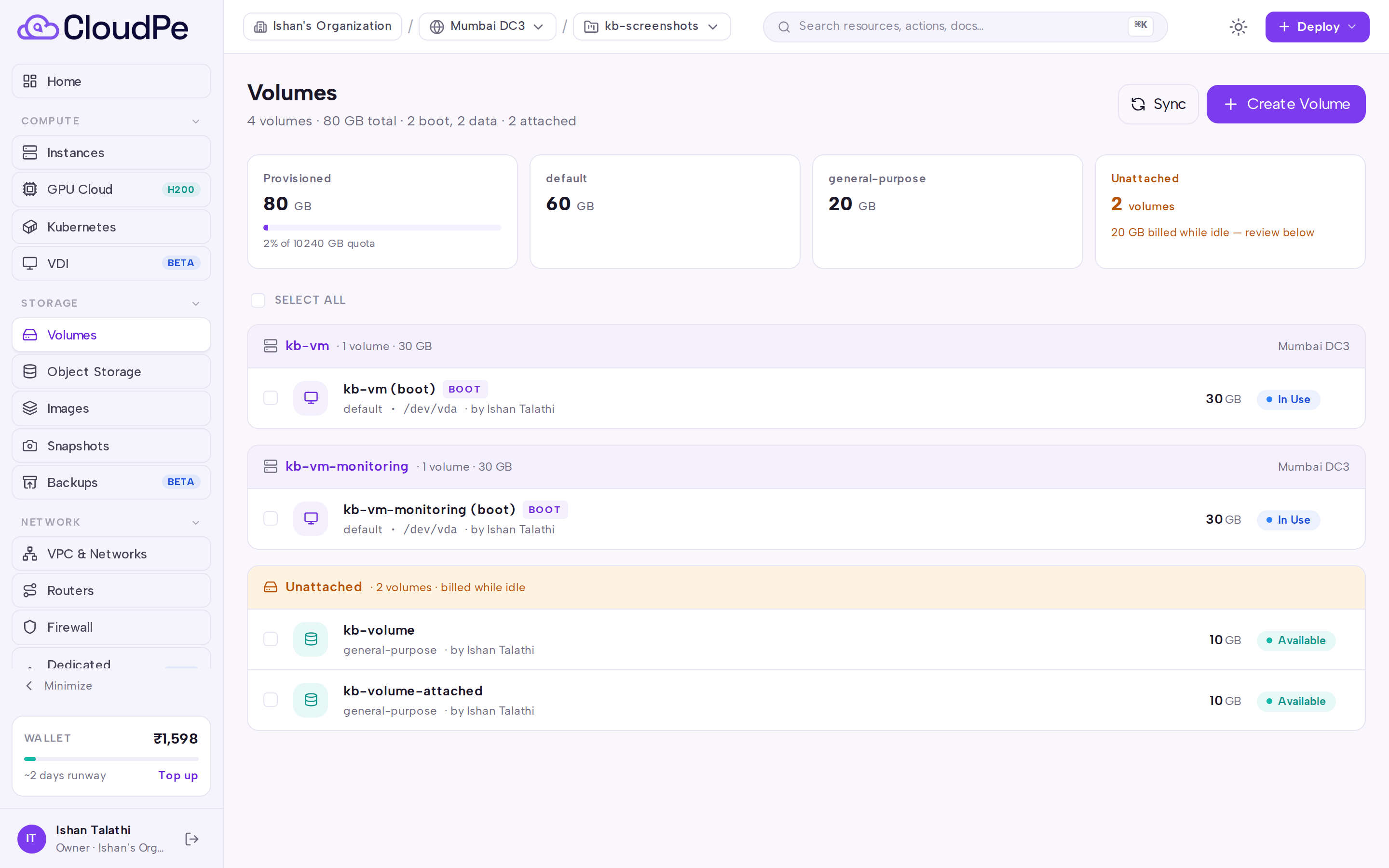
Volumes are managed under Volumes in the STORAGE section of the dashboard (/dashboard/volumes). From the list you can create and sync volumes; from a volume's detail page you can resize it, attach it to a VM, or convert it to an image.
Volume types available at creation are Eco-NVMe, Standard-NVMe and Pro-NVMe, which differ in IOPS, throughput and per-GB price. The available types are shown per region in the Create Volume dialog.
Before you start
- You need a project in the region where the volume will live. A volume and the instance it attaches to must be in the same project and the same region (Mumbai DC2 Zone A, Mumbai DC2 Zone B or Mumbai DC3).
- Permissions:
volumes:readto view,volumes:createto create,volumes:updateto attach, detach and extend, andvolumes:deleteto delete. - Volume storage counts against your project storage quota. Creation fails if the quota is exceeded.
- Storage is metered from the moment the volume exists, so make sure your wallet balance covers ongoing per-GB usage.
Steps
Create a volume
- Go to Volumes in the sidebar.
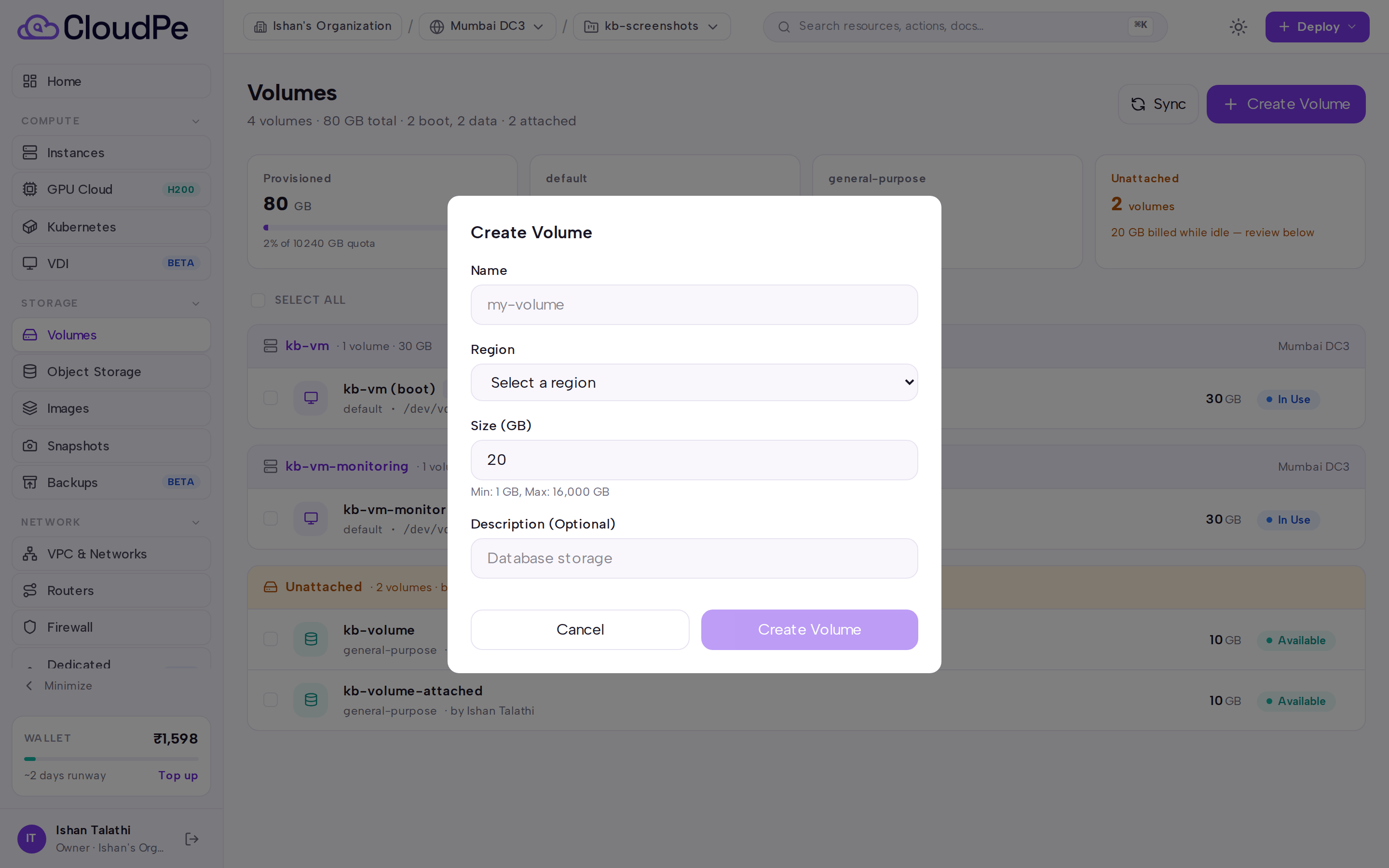
- Select Create Volume.
- Enter a name and an optional description, choose the region, volume type and size in GB. You can also create the volume from an existing snapshot.
- Confirm. The volume appears in the list and becomes available once it is provisioned in the region.
Attach a volume to an instance
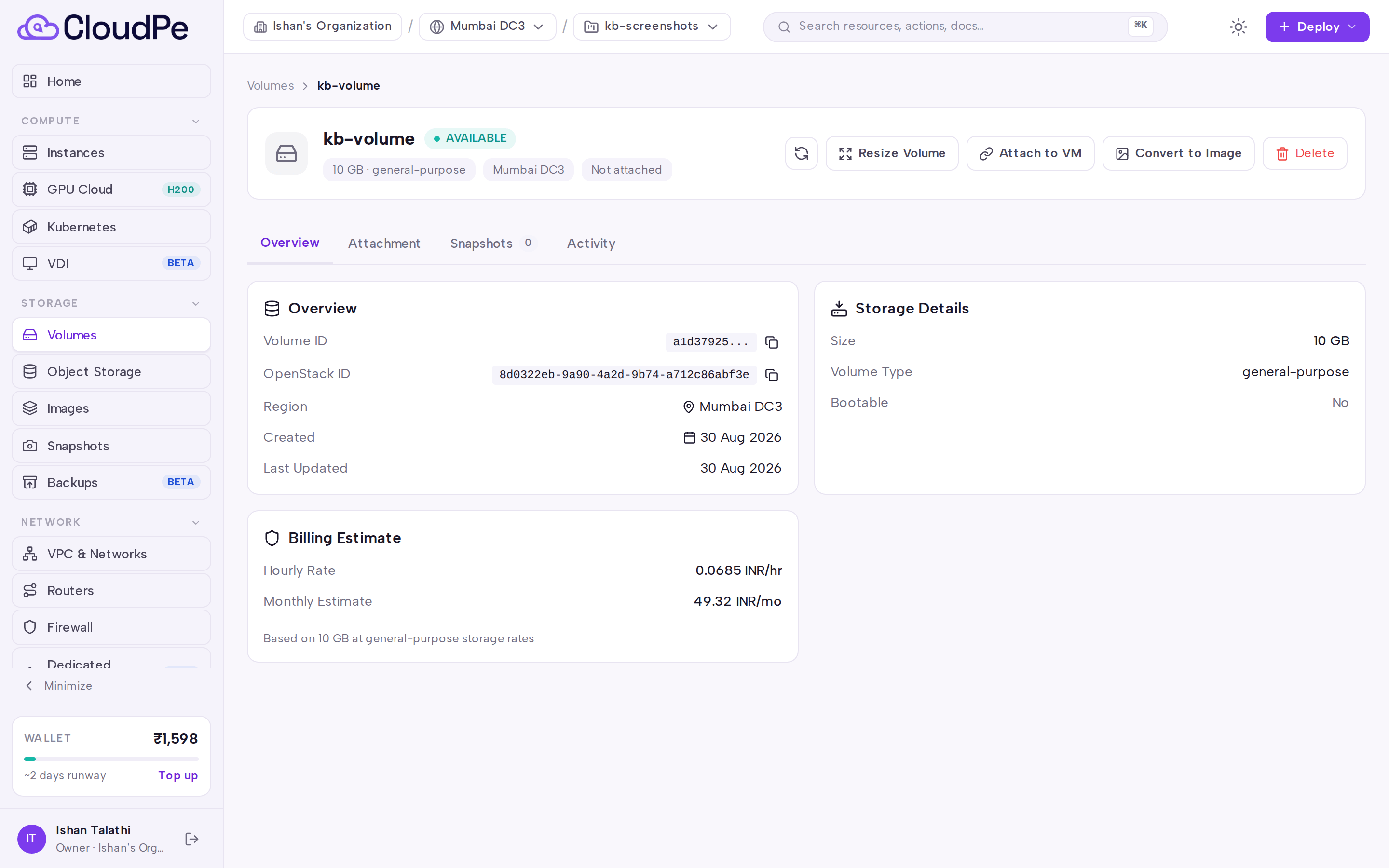
- Open the volume from the list to reach its detail page.
- Select Attach to VM and pick an instance in the same project and region.
- After the attachment completes, check the Attachment tab for the device path, then partition, format and mount the disk inside the guest OS.
Resize a volume
- Open the volume and select Resize Volume.
- Enter the new size. A volume can only grow — the new size must be larger than the current size.
- Wait for the extend to finish before requesting another one, then grow the partition and filesystem inside the guest OS.
Convert a volume to an image
- Detach the volume so that it is available.
- Open the volume and select Convert to Image.
- Give the image a name and choose the disk format. The new image appears under Images.
Detach and delete
- Open the volume, detach it from its instance, and wait until it reports as available. Stopping the instance first is the safest way to detach a data disk cleanly; a boot volume cannot be detached from a running VM.
- Delete the volume once it is detached. Deleting stops metering for that volume.
If the dashboard and the region appear out of step, use Sync on the Volumes list to refresh volume state from the cloud infrastructure.
API
All calls use the host https://app.cloudpe.com with a bearer API key.
| Method | Path |
|---|---|
| GET | /api/v1/volumes |
| POST | /api/v1/volumes |
| GET | /api/v1/volumes/types |
| GET | /api/v1/volumes/{volume_id} |
| PATCH | /api/v1/volumes/{volume_id} |
| DELETE | /api/v1/volumes/{volume_id} |
| POST | /api/v1/volumes/{volume_id}/attach |
| POST | /api/v1/volumes/{volume_id}/detach |
| POST | /api/v1/volumes/{volume_id}/extend |
| POST | /api/v1/volumes/{volume_id}/to-image |
| GET | /api/v1/volumes/{volume_id}/history |
| POST | /api/v1/volumes/sync |
| POST | /api/v1/volumes/{volume_id}/sync |
Create a volume:
curl -X POST https://app.cloudpe.com/api/v1/volumes \
  -H "Authorization: Bearer <API_KEY>" \
  -H "Content-Type: application/json" \
  -d '{
    "name": "data-disk",
    "description": "application data",
    "project_id": "<project_id>",
    "region": "<region_slug>",
    "size_gb": <size_gb>,
    "volume_type": "Standard-NVMe"
  }'
Attach it to an instance:
curl -X POST https://app.cloudpe.com/api/v1/volumes/<volume_id>/attach \
  -H "Authorization: Bearer <API_KEY>" \
  -H "Content-Type: application/json" \
  -d '{"instance_id": "<instance_id>"}'
Extend it:
curl -X POST https://app.cloudpe.com/api/v1/volumes/<volume_id>/extend \
  -H "Authorization: Bearer <API_KEY>" \
  -H "Content-Type: application/json" \
  -d '{"new_size_gb": <new_size_gb>}'
Convert a detached volume to an image:
curl -X POST https://app.cloudpe.com/api/v1/volumes/<volume_id>/to-image \
  -H "Authorization: Bearer <API_KEY>" \
  -H "Content-Type: application/json" \
  -d '{"image_name": "my-golden-image", "disk_format": "qcow2"}'
Rename or re-describe a volume with PATCH /api/v1/volumes/{volume_id}, sending name, description, or both.
Volumes can also be added to or removed from a backup plan:
curl -X POST https://app.cloudpe.com/api/v1/backups/plans/<plan_id>/volumes \
  -H "Authorization: Bearer <API_KEY>" \
  -H "Content-Type: application/json" \
  -d '{"volume_ids": ["<volume_id>"]}'
Limits & billing
- Volumes are billed per GB per hour for as long as the volume exists, whether or not it is attached to an instance. Metering starts when the volume is created and stops when it is deleted.
- The per-GB rate depends on the volume type (Eco-NVMe, Standard-NVMe, Pro-NVMe); the rate for each type and region is shown in the Create Volume dialog.
- Extending a volume changes the metered size going forward; there are no retroactive charges. Size can only be increased — volumes cannot be shrunk.
- Volume capacity counts toward the project storage quota.
- A volume must be detached before it can be deleted, and detached (available) before it can be converted to an image.
Troubleshooting
| Error | What it means | What to do |
|---|---|---|
Volume and instance must be in the same region |
The target instance lives in a different region from the volume. | Pick an instance in the volume's region, or create a new volume in the instance's region. |
Volume and instance must belong to the same project |
The volume and instance are in different projects. | Attach to an instance in the same project; volumes cannot cross projects. |
Volume already attached |
The volume is already in use by an instance. | Detach it first, then attach it elsewhere. |
Volume is not attached |
A detach was requested for a volume with no attachment. | Refresh the list with Sync and check the Attachment tab. |
Detach volume before deleting |
Delete was called on an attached volume. | Detach the volume, wait until it is available, then delete. |
New size must be larger than current size ({…} GB) |
The requested size is equal to or smaller than the current size. | Enter a larger size; volumes cannot be shrunk. |
An extend to {…} GB is already in progress for this volume. Wait for it to complete before requesting another. |
A resize is still running. | Wait for the current extend to finish, then request the next one. |
Volume must be detached (AVAILABLE) to convert to an image. Please detach the volume from its VM first. |
Convert to image was attempted on an attached volume. | Detach the volume, then use Convert to Image. |
Disk format must be 'qcow2' or 'raw' |
An unsupported disk format was sent to the to-image call. | Send qcow2 or raw. |
Snapshot is not available |
The source snapshot is not in a usable state yet. | Wait for the snapshot to finish, then retry the create. |
Quota exceeded: {…} |
The project storage quota does not cover the requested size. | Delete unused volumes or request a quota increase. |
Either 'region' or 'region_id' must be provided |
The create request had no region. | Send either the region slug in region or the region UUID in region_id. |
At least one of 'name' or 'description' must be provided |
An update call had an empty body. | Include name, description, or both. |
Project is not provisioned in this region yet; please retry shortly. |
The project is still being set up in that region. | Wait a moment and retry the create. |
Volume not yet provisioned in cloud infrastructure |
The volume record exists but the backing disk is not ready. | Wait for provisioning to complete, or press Sync to refresh state. |
Failed to sync volume with cloud infrastructure |
The sync call could not reach the region. | Retry the sync; if it keeps failing, raise a support ticket. |
FAQ
Can I move a volume to another region or project? No. A volume stays in the region and project where it was created. To move data, convert the volume to an image or use a snapshot, then create a new volume in the target location.
Does deleting an instance delete its attached volumes? Volumes you created and attached are separate resources with their own lifecycle. Delete them explicitly from Volumes when you no longer need them, since they keep accruing storage charges while they exist.
Why is my new capacity not visible inside the OS after a resize? The extend grows the block device only. You still need to grow the partition and filesystem in the guest.
Where can I see what happened to a volume?
The Activity tab on the volume detail page shows its action history; the same data is available from GET /api/v1/volumes/{volume_id}/history.
How do I protect volume data on a schedule? Add the volume to a backup plan, or take snapshots from the Snapshots tab on the volume.