

VPN access
Overview
The VPN page in the NETWORK group of the dashboard gives you two ways to reach your CloudPe private networks securely:
- Site-to-Site VPN — IPsec tunnels between a CloudPe router and an on-premises firewall, another cloud, or another CloudPe region. You build reusable IKE and IPSec policies, attach a VPN service to a router, and then create one connection per remote site.
- Remote Access VPN — a WireGuard gateway that CloudPe provisions as a VM inside your project. Individual users ("peers") get a downloadable client config so laptops and workstations can join the private network.
Both types are managed from /dashboard/vpn, with detail pages for a site-to-site connection and for a remote access gateway.
Before you start
- Permissions: you need
vpn:readto view VPN resources,vpn:createto create policies, services, connections, gateways and peers,vpn:updateto modify a peer, andvpn:deleteto remove any VPN resource. - A provisioned project in the target region: VPN policies and remote gateways are project-scoped; the project must already exist and be provisioned in the cloud provider in that region.
- A router with an attached subnet: site-to-site VPN services attach to a router, and the router must be fully provisioned and have at least one subnet attached before a connection can be created. See VPC networks and subnets.
- Non-overlapping address ranges: your local (CloudPe) CIDRs and the remote CIDRs must not overlap.
- Active organization: if your user belongs to more than one organization, select the active organization in the top bar (the API equivalent is the
X-Organization-Idheader) — VPN endpoints reject ambiguous requests. - Peer details for site-to-site: the remote gateway's public IP, the pre-shared key, and the remote subnets you want to reach.
Steps
Create a site-to-site VPN
Open VPN from the NETWORK group and stay on the Site-to-Site VPN tab.

Select IKE Policy and define the Phase 1 parameters. Create the policy in the same region and in the same project as the router you will use — Neutron policies are region-bound and tenant-scoped.
Select IPSec Policy and define the Phase 2 parameters, again in the router's region and project.
Select Create VPN Service, give it a name, and pick the region and the router. The service's region must match the router's region.
Select Add Connection, then choose the VPN service, the IKE policy, the IPSec policy, the peer address and the remote CIDRs. CloudPe builds the local and peer endpoint groups from the router's attached subnets and the remote CIDRs you enter, and removes them again when the connection is deleted.
Configure the far end with matching IKE/IPSec parameters and the same pre-shared key. The peer address each side dials is the other side's external IP, shown on the VPN card and as the router's public IP on the Routers page.
Open the connection to watch it come up. Use Sync status to refresh the state from the cloud provider, and Delete to tear the tunnel down.

Create a remote access (WireGuard) gateway
On the VPN page, switch to the Remote Access VPN tab.
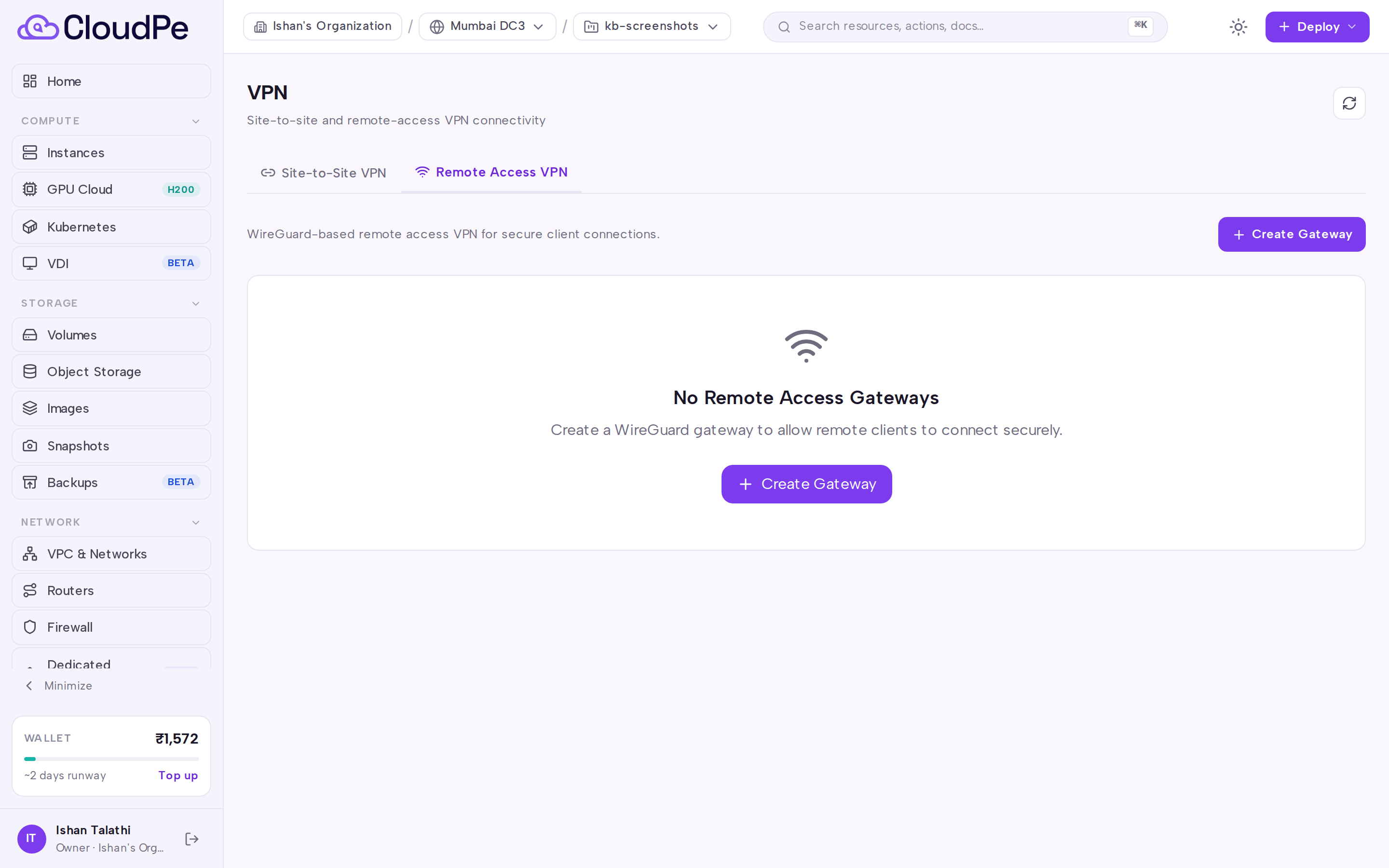
Select Create Gateway. The gateway is created in the project selected in the top bar, in the region you choose, and uses a VPN CIDR that you supply for the tunnel addresses. CloudPe provisions a gateway VM in your project and assigns it a public IP.
Wait for the gateway to become active, then open it. Use Sync status if the page still shows a provisioning state.

Select Add Peer for each user or device. CloudPe can generate the key pair for you, or you can supply the public half of an existing key pair. Each peer is allocated an address from the gateway's VPN CIDR.
Under WireGuard Client Downloads, download the peer configuration file or scan the QR code with the WireGuard mobile app, and import it on the client.
Follow Connect VMs to This VPN on the gateway page to route your instances' subnets through the gateway.
Peers added while the gateway was still provisioning are registered automatically once the gateway is reachable. Use Delete Gateway to remove the gateway and its peers.
API
Authenticate with an API key and, if you belong to multiple organizations, send the active organization header.
Available operations:
| Method + path | Permission |
|---|---|
GET /api/v1/vpn/ike-policies |
vpn:read |
POST /api/v1/vpn/ike-policies |
vpn:create |
DELETE /api/v1/vpn/ike-policies/{policy_id} |
vpn:delete |
GET /api/v1/vpn/ipsec-policies |
vpn:read |
POST /api/v1/vpn/ipsec-policies |
vpn:create |
DELETE /api/v1/vpn/ipsec-policies/{policy_id} |
vpn:delete |
GET /api/v1/vpn/services |
vpn:read |
POST /api/v1/vpn/services |
vpn:create |
GET /api/v1/vpn/services/{service_id} |
vpn:read |
DELETE /api/v1/vpn/services/{service_id} |
vpn:delete |
GET /api/v1/vpn/connections |
vpn:read |
POST /api/v1/vpn/connections |
vpn:create |
GET /api/v1/vpn/connections/{connection_id} |
vpn:read |
DELETE /api/v1/vpn/connections/{connection_id} |
vpn:delete |
GET /api/v1/vpn/remote-gateways |
vpn:read |
POST /api/v1/vpn/remote-gateways |
vpn:create |
GET /api/v1/vpn/remote-gateways/{gateway_id} |
vpn:read |
DELETE /api/v1/vpn/remote-gateways/{gateway_id} |
vpn:delete |
GET /api/v1/vpn/remote-gateways/{gateway_id}/peers |
vpn:read |
POST /api/v1/vpn/remote-gateways/{gateway_id}/peers |
vpn:create |
PUT /api/v1/vpn/remote-gateways/{gateway_id}/peers/{peer_id} |
vpn:update |
DELETE /api/v1/vpn/remote-gateways/{gateway_id}/peers/{peer_id} |
vpn:delete |
GET /api/v1/vpn/remote-gateways/{gateway_id}/peers/{peer_id}/config |
vpn:read |
POST /api/v1/vpn/pricing/gateway |
vpn:read |
GET /api/v1/vpn/pricing/connection |
vpn:read |
GET /api/v1/vpn/pricing/regions/{region_id}/flavors |
vpn:read |
Create a VPN service on a router:
curl -X POST https://app.cloudpe.com/api/v1/vpn/services \
  -H "Authorization: Bearer <API_KEY>" \
  -H "Content-Type: application/json" \
  -d '{
    "name": "corp-vpn",
    "region_id": "<region-id>",
    "router_id": "<router-id>"
  }'
Create a site connection:
curl -X POST https://app.cloudpe.com/api/v1/vpn/connections \
  -H "Authorization: Bearer <API_KEY>" \
  -H "Content-Type: application/json" \
  -d '{
    "name": "site-a",
    "vpnservice_id": "<service-id>",
    "ikepolicy_id": "<ike-id>",
    "ipsecpolicy_id": "<ipsec-id>"
  }'
Download a WireGuard peer configuration:
curl -H "Authorization: Bearer <API_KEY>" \
  https://app.cloudpe.com/api/v1/vpn/remote-gateways/<gateway-id>/peers/<peer-id>/config
Limits & billing
- A remote access gateway runs as a VM inside your project and is metered like any other instance: usage starts when the gateway VM becomes active and stops when it is deprovisioned or deleted. Delete gateways you no longer need.
- Before you create a gateway, CloudPe runs the standard billable-create check, so your wallet or plan must allow the new resource.
- Use
POST /api/v1/vpn/pricing/gateway,GET /api/v1/vpn/pricing/connectionandGET /api/v1/vpn/pricing/regions/{region_id}/flavorsto get estimates for a region before you provision. - IKE and IPSec policies are reusable across connections, but only within the region and project they were created in.
- A router that still has VPN services attached cannot be deleted, and a project that still contains VPN services cannot be deleted.
Troubleshooting
| Message | What it means / what to do |
|---|---|
The VPN service's router has no connected subnets. Attach a subnet to the router before creating a VPN connection. |
Connections are built from the router's attached subnets. Attach a subnet on the Routers page, then retry. |
Router not yet provisioned in cloud infrastructure |
The router still exists only in CloudPe. Wait for provisioning to finish, then create the VPN service. |
VPN service not yet provisioned in cloud infrastructure |
The service is still being created. Use Sync status and retry the connection afterwards. |
Gateway not fully provisioned |
The remote access gateway VM is still building. Wait for it to become active before adding or downloading peer configs. |
{…} policy '{…}' belongs to a different region than the VPN service — create the policy in the service's region |
Recreate the IKE or IPSec policy in the same region as the VPN service. |
{…} policy '{…}' was created in a different project than the VPN service's router. VPN policies are project-scoped — create the policy in the router's project and select that one |
Switch to the router's project in the top bar, create the policy there, then select it in the connection form. |
router.region_id does not match the requested region |
The router you picked lives in another region. Choose a router from the region selected for the VPN service. |
project.region_id does not match gateway region |
Select a project that exists in the same region as the gateway you are creating. |
No provisioned project in region {…} for your organisation — create or select a project there before creating VPN policies |
Create or provision a project in that region first. |
project_id is required for remote VPN gateways |
Select a project in the top bar (or send project_id) before creating the gateway. |
X-Organization-Id header is required for VPN resources when the user belongs to multiple organizations |
Select the active organization in the dashboard, or send the header on API calls. |
No suitable VPN gateway flavor exists in this region. Configure the region's VPN flavor. |
Choose a flavor explicitly in the create form, or ask support to configure the region's VPN defaults. |
Flavor '{…}' not found in region |
The flavor you selected is not available in that region — pick another one from the list. |
No available IPs in VPN CIDR |
The gateway's VPN CIDR is exhausted. Remove unused peers or create a gateway with a larger CIDR. |
Failed to allocate a VPN IP after multiple attempts |
Concurrent peer creation collided. Retry the peer creation. |
Missing permission: {…} |
Your role lacks the required vpn: permission. Ask an organization admin to grant it. |
Failed to create IPSec site connection in cloud infrastructure: {…} |
The provider rejected the tunnel. Verify the IKE/IPSec parameters, the peer address and the pre-shared key match on both ends. |
Router still has {…} VPN service(s) attached. Please delete all VPN services before deleting the router. |
Delete the VPN services on that router first. |
Cannot delete project: it contains {…} VPN services. Delete all VPN services first. |
Remove the project's VPN services before deleting the project. |
FAQ
My VPN service stays in a pending state and has no connections — is it stuck? No. The provider keeps a VPN service pending until the first IPsec site connection is created; the tunnel is only provisioned at that point. Create the connection on both sides.
Which address does each side dial? Each side uses the other side's external IP. It is shown on the VPN card and as the router's public IP on the Routers page.
Can I reuse one IKE or IPSec policy for several tunnels? Yes, as long as the connections use routers in the same region and project where the policy was created.
Where do I get the client configuration for remote access? Open the gateway, find the peer, and use WireGuard Client Downloads to download the file or scan the QR code. The same config is available from the peer config API endpoint.
How do my instances reach remote access clients? Follow the Connect VMs to This VPN instructions on the gateway page, and make sure your firewall rules allow traffic from the gateway's VPN CIDR.
Does the status on the page update by itself? Statuses are refreshed periodically in the background. Use Refresh on the list or Sync status on a detail page to pull the latest state immediately.