

Managing SSH keys
Overview
SSH keys let you sign in to your Linux instances without a password. CloudPE stores the public half of the key pair against your organization, so any member with the right permission can select it when creating a virtual machine. The private half stays on your own machine — CloudPE never sees it, except at the moment a generated key is downloaded.
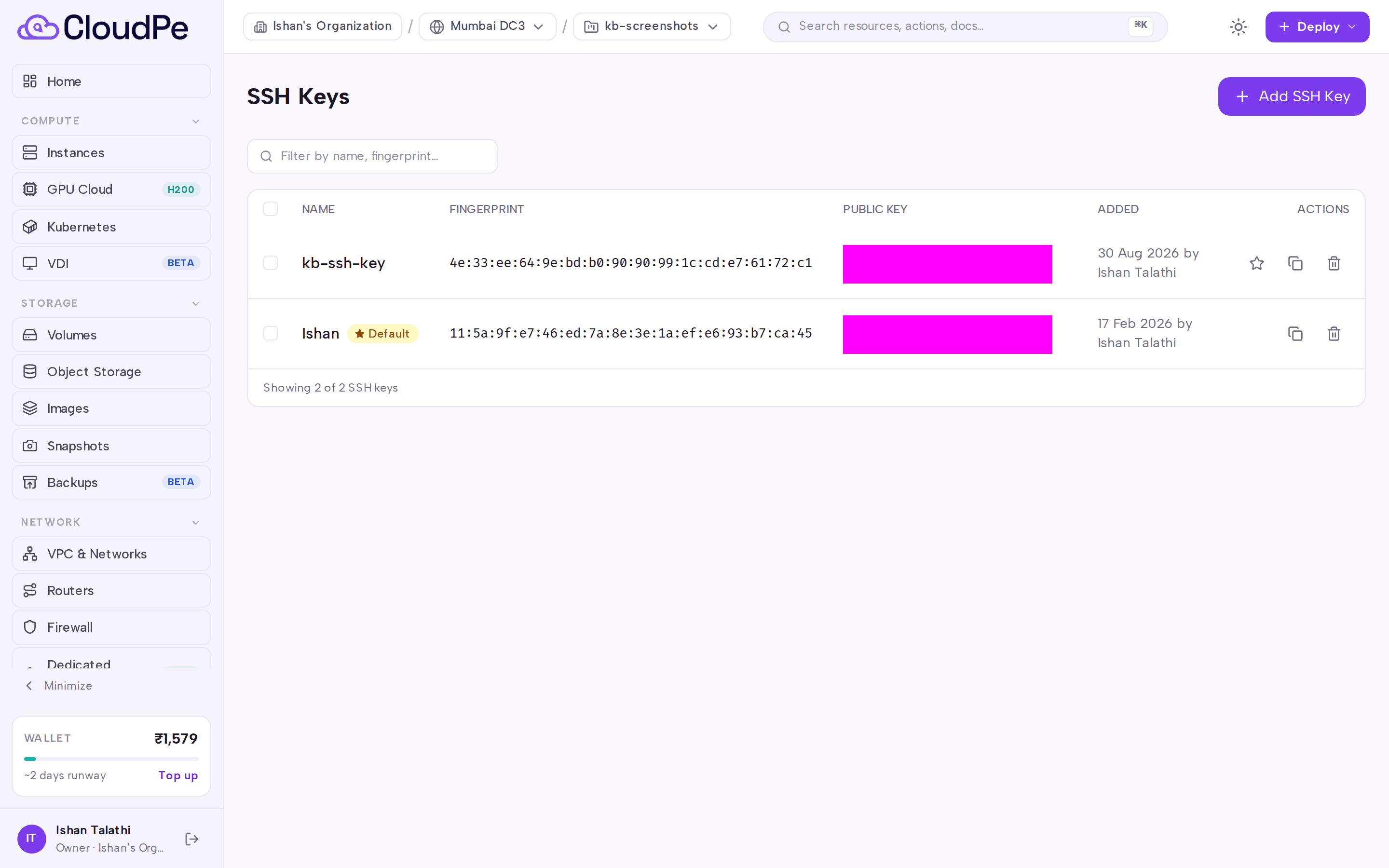
Manage your keys from SSH Keys in the dashboard. From there you can import a key you already have, have CloudPE generate a new pair for you, rename a key, mark one as the default, or delete keys you no longer use.
Before you start
- You must be signed in and be a member of an organization. SSH keys belong to an organization, not to an individual user, so keys added by one member are visible to the rest of the organization.
- You need the
ssh_keys:readpermission to view the list,ssh_keys:createto add or generate a key,ssh_keys:updateto rename a key or change the default, andssh_keys:deleteto remove one. - If you are importing a key, have the public key file ready (for example the contents of
id_ed25519.puborid_rsa.pub). Do not paste the private key. - If you plan to attach the key to a resource in a specific project, select that project first so the key is created in the organization that owns it.
Steps
View your keys
- Open SSH Keys from the dashboard navigation.
- The list shows every key registered to the current organization, including which one is marked as default.
Import an existing key
- On SSH Keys, select Add SSH Key.
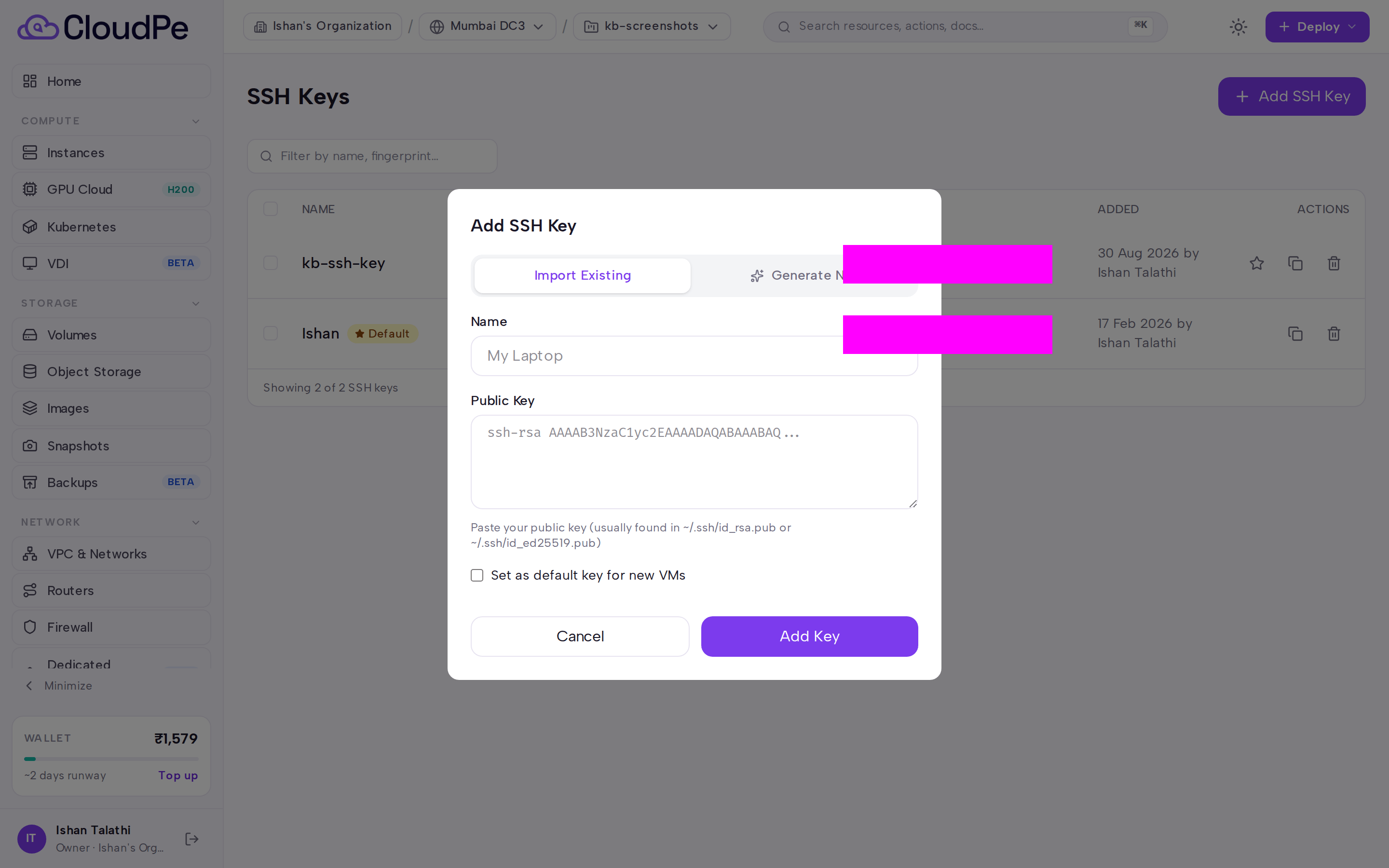
- In the Add SSH Key dialog, choose Import Existing.
- Enter a name for the key. Names must be unique within the organization.
- Paste the full contents of your public key file.
- Save. The key becomes available in the SSH key picker of the instance-create flow.
Generate a new key pair
- On SSH Keys, select Add SSH Key.
- Choose Generate New.
- Enter a name and pick a key type —
ed25519orrsa. - Save, then download the private key when it is offered. This is the only time the private key is available; if you lose it, delete the key and generate a new one.
- Protect the downloaded file so only your user account can read it, then use it with
ssh -i <path-to-private-key> <user>@<instance-ip>.
Rename a key or set the default
Open the key from the list and update its name, or mark it as the default so it is preselected in resource-create flows.
Delete a key
Deleting a key removes it from CloudPE only. Instances that were already provisioned with that key keep the public key in their authorized_keys file — remove it from the guest yourself if you need to revoke access.
API
All SSH key endpoints require a Bearer token and the matching permission.
| Method and path | Permission |
|---|---|
GET /api/v1/ssh-keys |
ssh_keys:read |
POST /api/v1/ssh-keys |
ssh_keys:create |
POST /api/v1/ssh-keys/generate |
ssh_keys:create |
GET /api/v1/ssh-keys/{key_id} |
ssh_keys:read |
PATCH /api/v1/ssh-keys/{key_id} |
ssh_keys:update |
DELETE /api/v1/ssh-keys/{key_id} |
ssh_keys:delete |
List keys:
curl https://app.cloudpe.com/api/v1/ssh-keys \
  -H "Authorization: Bearer <API_KEY>"
Import an existing public key:
curl -X POST https://app.cloudpe.com/api/v1/ssh-keys \
  -H "Authorization: Bearer <API_KEY>" \
  -H "Content-Type: application/json" \
  -d '{
        "name": "laptop-key",
        "public_key": "ssh-ed25519 AAAA... user@laptop",
        "project_id": "<project-id>"
      }'
Generate a key pair server-side:
curl -X POST https://app.cloudpe.com/api/v1/ssh-keys/generate \
  -H "Authorization: Bearer <API_KEY>" \
  -H "Content-Type: application/json" \
  -d '{
        "name": "build-runner",
        "key_type": "ed25519",
        "project_id": "<project-id>"
      }'
Rename a key or make it the default:
curl -X PATCH https://app.cloudpe.com/api/v1/ssh-keys/<key-id> \
  -H "Authorization: Bearer <API_KEY>" \
  -H "Content-Type: application/json" \
  -d '{"name": "build-runner-prod", "is_default": true}'
Delete a key:
curl -X DELETE https://app.cloudpe.com/api/v1/ssh-keys/<key-id> \
  -H "Authorization: Bearer <API_KEY>"
project_id is optional. Supply it when you want the key created in the organization that owns that project, so it appears in the picker for resources you create there.
Limits & billing
- Key names must be unique within an organization.
- The same public key cannot be added twice to the same organization.
- Supported generated key types are
ed25519andrsa. - SSH keys are metadata attached to your organization; the instances you launch with them are what carry compute, storage and network charges.
Troubleshooting
| Message | What it means | What to do |
|---|---|---|
SSH key with this name already exists in this organization |
Another key in the same organization already uses that name. | Choose a different name, or rename the existing key first. |
This public key was already added to this organization |
The same public key material is already registered. | Use the existing entry instead of adding a duplicate. |
User is not a member of any organization |
Your account has no organization context to store the key in. | Create or join an organization, then retry. |
X-Organization-Id must be a UUID |
The organization header sent with the API request is not a valid UUID. | Send the organization's UUID exactly as returned by the API, or omit the header. |
You are not a member of this organization |
The requested organization is not one you belong to. | Switch to an organization you are a member of, or ask an administrator for an invitation. |
Failed to save SSH key: {…} |
The key could not be persisted. | Retry the request; if it keeps failing, raise a support ticket with the full message. |
FAQ
Can CloudPE recover a private key I lost? No. Only the public half is stored. Delete the key and generate or import a new one, then attach it to new instances.
Does deleting a key lock people out of running instances?
No. The public key stays in the guest's authorized_keys until you remove it there. Deleting the key in CloudPE only stops it being offered for new resources.
Can I use one key across several projects? Yes. Keys are held at the organization level, so they can be selected for any project in that organization.
What does the default key do? The key marked as default is preselected in resource-create flows, so you do not have to pick it each time.
Which key types can CloudPE generate?
ed25519 and rsa. If you import a key, paste the public key exactly as it appears in your .pub file.