

Scheduling automatic VM shelve and unshelve
Overview
Scheduled VM Shelving lets you automate the shelving and unshelving of virtual machines and GPU instances on a recurring schedule. While a virtual machine is running or stopped, compute flavor charges continue to accrue. Shelving deallocates the underlying compute flavor and halts flavor billing while preserving attached storage, public IP assignments, and snapshots.
You configure shelve schedules directly from the VM detail page under Settings. You can select from built-in presets or define a custom five-field cron expression, set your local timezone, and receive email notifications on execution success or failure.
Before you start
- You need an active virtual machine or GPU VM. See Creating and managing virtual machines.
- Viewing schedules requires the
vms:readpermission. - Creating, modifying, pausing, resuming, or deleting a shelve schedule requires the
vms:updatepermission. - Only shelving stops compute billing. A stopped VM continues to incur compute flavor charges until it is shelved.
- Shelved instances continue to bill for persistent root volumes, additional data volumes, snapshots, and attached floating IP addresses.
- On GPU instances, shelving releases the assigned GPU card back to the regional pool, ensuring you do not pay for idle GPU compute.
Steps
Configure a shelve schedule
- In the sidebar, open Instances under COMPUTE.
- Select the virtual machine you want to automate to open its detail page.
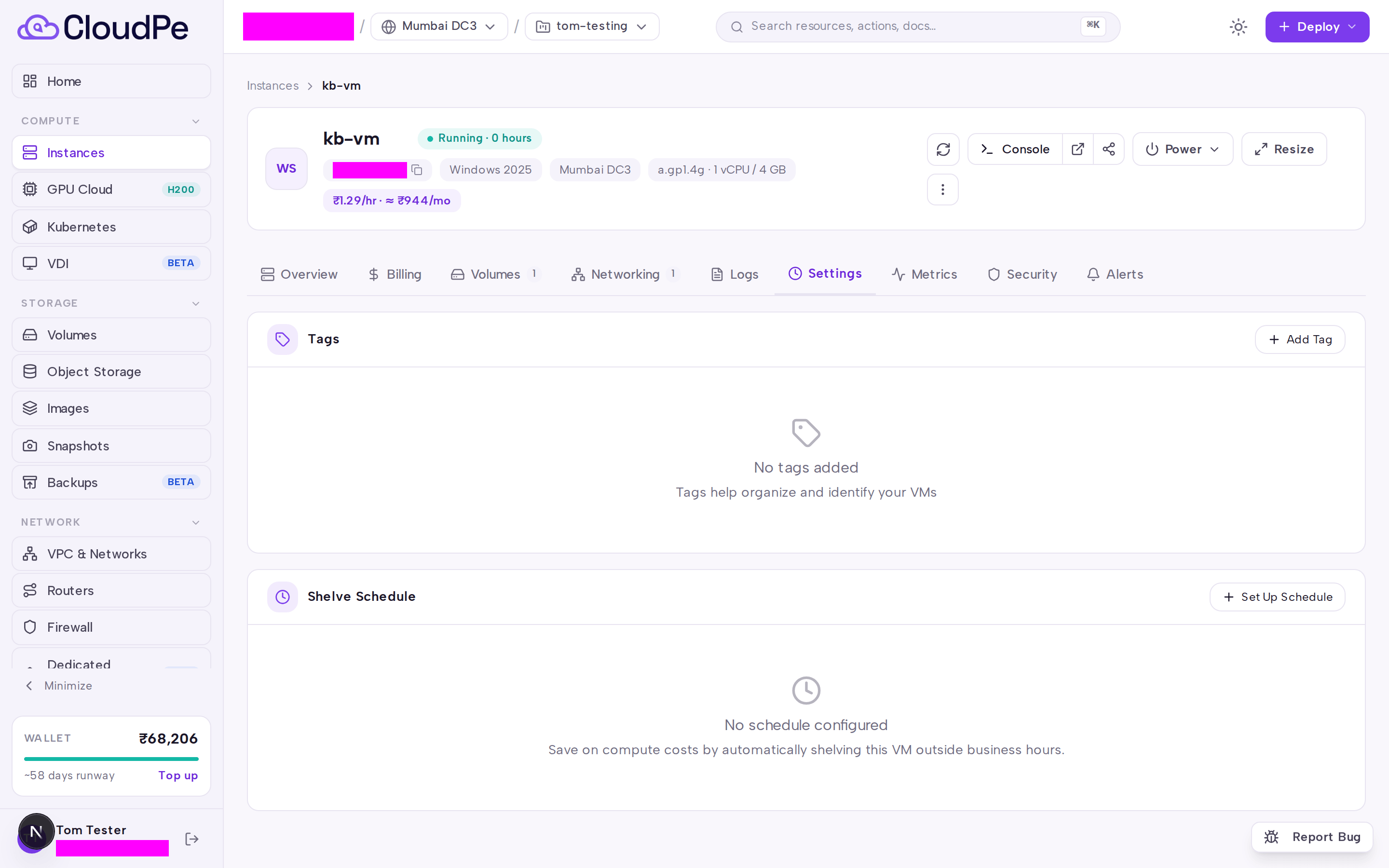
- Switch to the Settings tab.
- Locate the Shelve Schedule card and select Set Up Schedule.
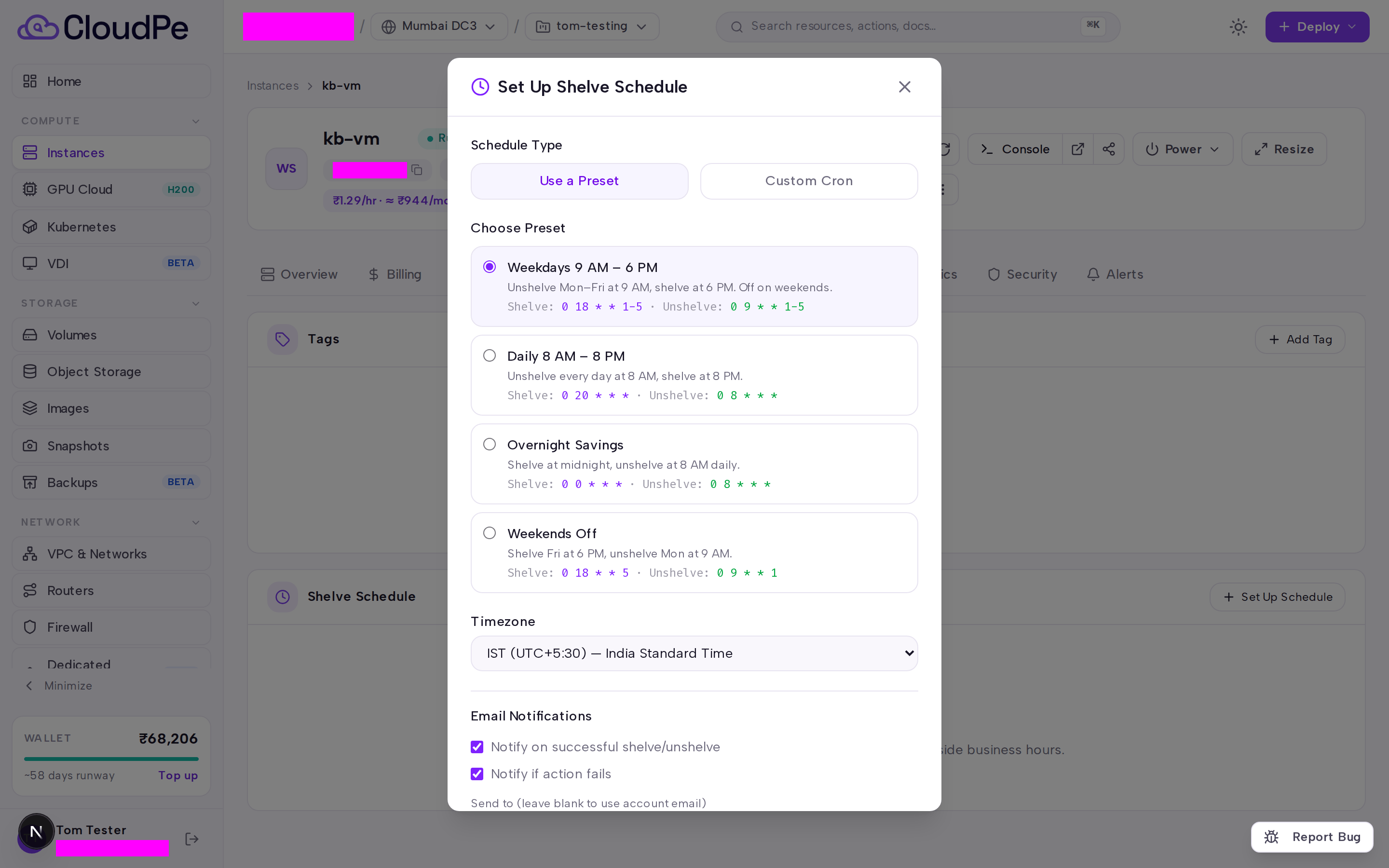
- In the Set Up Shelve Schedule dialog, choose between Use a Preset or Custom Cron.
- If using a preset, choose one of the predefined schedules:
- Weekdays 9 AM – 6 PM (unshelves Monday through Friday at 9 AM, shelves at 6 PM)
- Daily 8 AM – 8 PM (unshelves daily at 8 AM, shelves at 8 PM)
- Overnight Savings (shelves at midnight, unshelves at 8 AM daily)
- Weekends Off (shelves Friday at 6 PM, unshelves Monday at 9 AM)
- If using Custom Cron, provide valid five-field cron expressions for both the shelve action and unshelve action.
- Specify the timezone (such as
Asia/Kolkata) and optional recipient email address for execution notifications. - Select Save Schedule.
Pause, edit, or delete a schedule
- Open the virtual machine and select the Settings tab.
- On the Shelve Schedule card:
- Select Pause to temporarily disable automatic runs without losing configuration. Select Enable to reactivate it.
- Select Edit to modify preset options, cron expressions, or notification settings, then select Update Schedule.
- Select Delete to permanently remove the automated schedule.
API
Manage schedules programmatically using the instances endpoints.
| Method and path | Permission |
|---|---|
GET /api/v1/instances/{instance_id}/shelve-schedule |
vms:read |
POST /api/v1/instances/{instance_id}/shelve-schedule |
vms:update |
PUT /api/v1/instances/{instance_id}/shelve-schedule |
vms:update |
DELETE /api/v1/instances/{instance_id}/shelve-schedule |
vms:update |
PATCH /api/v1/instances/{instance_id}/shelve-schedule/toggle |
vms:update |
Fetch the active schedule for an instance:
curl https://app.cloudpe.com/api/v1/instances/<instance_id>/shelve-schedule \
  -H "Authorization: Bearer <API_KEY>"
Create a preset shelve schedule:
curl -X POST https://app.cloudpe.com/api/v1/instances/<instance_id>/shelve-schedule \
  -H "Authorization: Bearer <API_KEY>" \
  -H "Content-Type: application/json" \
  -d '{
        "schedule_type": "preset",
        "preset_name": "weekdays_9to6",
        "timezone": "Asia/Kolkata",
        "notify_on_success": true,
        "notify_on_failure": true
      }'
Create a custom cron schedule:
curl -X POST https://app.cloudpe.com/api/v1/instances/<instance_id>/shelve-schedule \
  -H "Authorization: Bearer <API_KEY>" \
  -H "Content-Type: application/json" \
  -d '{
        "schedule_type": "custom_cron",
        "shelve_cron": "0 20 * * *",
        "unshelve_cron": "0 8 * * *",
        "timezone": "Asia/Kolkata",
        "notify_on_success": true,
        "notify_on_failure": true
      }'
Toggle schedule active status:
curl -X PATCH https://app.cloudpe.com/api/v1/instances/<instance_id>/shelve-schedule/toggle \
  -H "Authorization: Bearer <API_KEY>"
Delete a schedule:
curl -X DELETE https://app.cloudpe.com/api/v1/instances/<instance_id>/shelve-schedule \
  -H "Authorization: Bearer <API_KEY>"
Limits & billing
- Each virtual machine supports at most one active shelve schedule.
- Shelving stops compute flavor metering immediately by closing the open usage record. Unshelving opens a new usage record when compute resources are allocated.
- Attached block storage volumes, automated volume snapshots, and reserved floating IP addresses remain allocated and continue regular billing while the VM is shelved.
- On GPU instances, shelving deallocates the dedicated GPU accelerator. When unshelving, compute capacity is reallocated subject to regional flavor and GPU stock availability.
- Schedule evaluation runs automatically across all active schedules.
Troubleshooting
| Message | What it means | What to do |
|---|---|---|
No shelve schedule found for this instance |
The requested virtual machine does not have a shelve schedule configured. | Use Set Up Schedule in the console or call POST /api/v1/instances/{instance_id}/shelve-schedule. |
A shelve schedule already exists for this instance. Use PUT to update it. |
A schedule is already configured for this instance. | Use Edit in the console or call PUT /api/v1/instances/{instance_id}/shelve-schedule to modify the existing schedule. |
Instance must be active to shelve |
The instance cannot be shelved because it is in an incompatible or transitional lifecycle state. | Ensure the instance is in active status before attempting to shelve. |
Instance must be shelved to unshelve |
An unshelve action was triggered on an instance that is not in shelved status. | Verify the current status of the instance before triggering an unshelve action. |
FAQ
Does stopping an instance stop compute billing? No. Stopping a VM powers off the operating system but preserves allocated host compute capacity. Only shelving deallocates host compute and halts compute flavor billing.
What happens to my data and IP address when an instance is shelved? Root disk contents, attached data volumes, and allocated floating IPs remain intact and continue normal storage and IP billing.
Can I manually shelve or unshelve an instance with an active schedule? Yes. Manual actions from the console or API are supported. The schedule continues to evaluate and execute at its next scheduled window.
What happens if unshelving fails due to capacity constraints? If regional compute capacity is temporarily constrained during unshelve, an error notification is dispatched to your configured email address.